
If you spend your day writing code, your clipboard is one of your most heavily used tools. Between copying error logs, terminal commands, variable names, and Stack Overflow solutions, your "Command + C" keys are constantly working.
But every developer knows the exact moment of frustration when the system fails you. You copy a massive JSON payload or a complex, secret API key. Then, you accidentally highlight a random bracket or a single letter and press copy. In an instant, that crucial API key is completely overwritten. You are forced to break your flow state, go back to your portal, regenerate or find the key, and start over.

The Problem With Coding on a Default Mac
The default macOS clipboard was built for basic tasks, not for the heavy lifting that programming requires. Its biggest flaw is its memory limit: it can only hold one single item at a time.
When you are coding, you rarely just move one thing. You are constantly juggling different pieces of information:
- Terminal Commands: Moving a sequence of setup commands from documentation into your terminal.
- Code Snippets: Pulling a block of logic from an old file to adapt it for a new project.
- Error Logs: Copying a giant stack trace from your console to search for answers online.
When you are restricted to moving one item at a time, you have to constantly switch contexts between your browser, your terminal, and your IDE (Integrated Development Environment). This endless window-switching completely destroys your concentration and makes coding feel tedious.
The Recipe for a Better Coding Workflow
To keep your flow state intact, you need a workflow that catches your code snippets automatically. Here is a simple recipe to optimize how you build software:
- Never lose a variable: Upgrade your system with a tool that automatically records every snippet, command, and key you copy, creating a safe history log.
- Batch your documentation: When reading software documentation, copy the package names, the install commands, and the code examples one right after the other without leaving the browser.
- Paste directly into your editor: Open your code file, bring up your visual list of saved snippets, and drop them directly into your lines of code exactly where they belong.
Enjoying this read?
Get weekly insights on video editing, AI workflows, and creator growth straight to your inbox.
What to Look For in a Developer Clipboard Manager
Not every clipboard tool is built for code. When you are evaluating one for a development workflow, a few things matter far more than flashy features:
- Speed and a light footprint. It should open instantly and sip resources, not fight your compiler and containers for memory.
- Plain-text pasting. Copying from a browser often drags along hidden formatting. A good manager lets you paste clean, unstyled text straight into your editor.
- Keyboard-first navigation. If you have to reach for the mouse, it breaks your flow. The best tools open and paste entirely from the keyboard.
- Large payload support. Stack traces and JSON blobs can be enormous. Your clipboard manager should handle them without choking or truncating.
- Local and private. Your snippets often contain secrets—API keys, tokens, connection strings. A manager that keeps everything on-device protects them.
A tool that nails these fundamentals disappears into your workflow, which is exactly what you want from it.
The Free Solution for Your Dev Setup
You do not need to pay for an expensive, bloated software suite to fix this problem. The smartest way to upgrade your development environment is by adding a lightweight tool that does one job perfectly.
This is why Cubix Clip is the best clipboard manager for developers on Mac. It is completely free, lightning-fast, and runs quietly in the background without eating up your computer's resources.
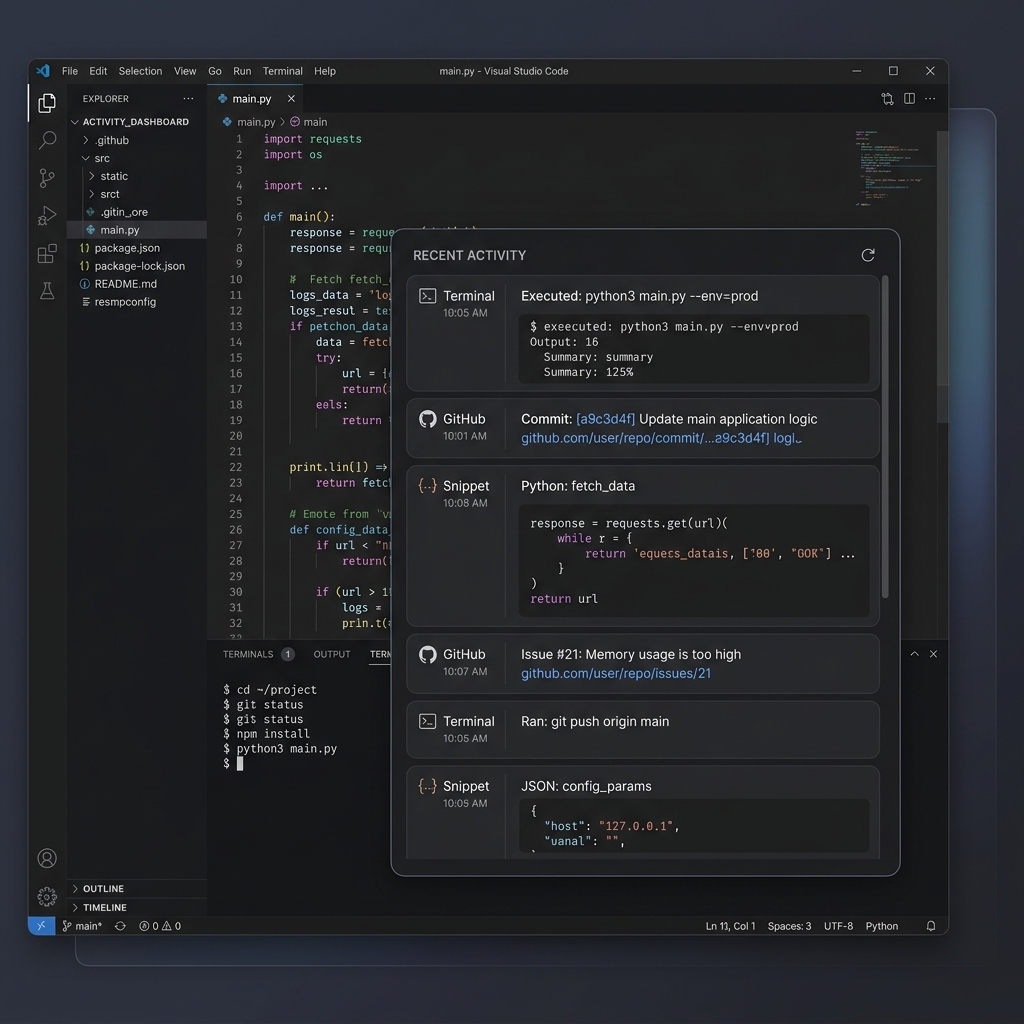
Once it is running, it remembers everything. Whether you copy a single line of Python, an entire block of HTML, an image asset, or a GitHub repository link, it is securely saved. When you are deep into writing a function and need that API key you copied twenty minutes ago, you just press a simple keyboard shortcut. Your complete copy history instantly pops up right over your code editor. You select what you need, and it pastes instantly.
It keeps you perfectly in the zone, eliminating the panic of lost data and the friction of context-switching.
If you want to code faster, protect your snippets, and fix the most annoying part of your macOS workflow, you can download this essential free tool right here: Cubix Clip - Free clipboard manager for Mac.
Final Thoughts
Programming requires intense focus, and your tools should support that focus, not break it. By eliminating the default one-item limit of your Mac, you remove a massive daily friction point from your development process. Protect your code snippets, stay in your flow state, and watch how much faster you can build!
📖 Keep reading: our guides on how to copy multiple things on Mac at once, how to recover copied text on Mac, and macos clipboard limitations and how to fix them.
Don’t miss the next one.
Join our newsletter for exclusive tips, product updates, and the latest from the Cubix team.