
We have all experienced this exact moment of panic. You are working on a project, and you finally find the perfect paragraph, a crucial email address, or a long password. You carefully press "Command + C" to copy it.
Then, a few seconds later, you get distracted and copy a completely useless link or a random word.
Suddenly, your stomach drops. You realize that your important text is gone. You desperately try to figure out how to recover copied text on Mac, hitting "Command + V" over and over again, hoping your old text will magically reappear.

Can You Actually Recover Overwritten Text?
When you lose copied content, your first instinct is to search for an undo button. Here is the honest truth about the default Mac system:
If you have not set up a backup system beforehand, your Mac instantly and permanently erases your old copied item the second you copy something new.
There is no hidden "history" folder in your regular system settings where old text goes to sit. The standard Mac clipboard is designed to hold only one item at a time. If you are typing in a document, you can sometimes press "Command + Z" to undo a recent typing action, but you cannot "undo" a clipboard overwrite. Once that new item takes over, the previous one vanishes.
This is a huge pain point for anyone who does research, writes emails, or manages data. But the good news is, you can permanently fix this so you never have to panic again.
The Real-Life Recipe to Stop Losing Text
The best way to "recover" lost text in the future is to change how your computer remembers things. You need a workflow that automatically catches everything you do.
Here is the simple recipe to protect your work:
- Get an automatic safety net: Equip your Mac with a tool that runs quietly in the background and logs every single thing you copy.
- Copy without fear: Stop worrying about order or overwriting. Copy text, links, and images freely as you browse.
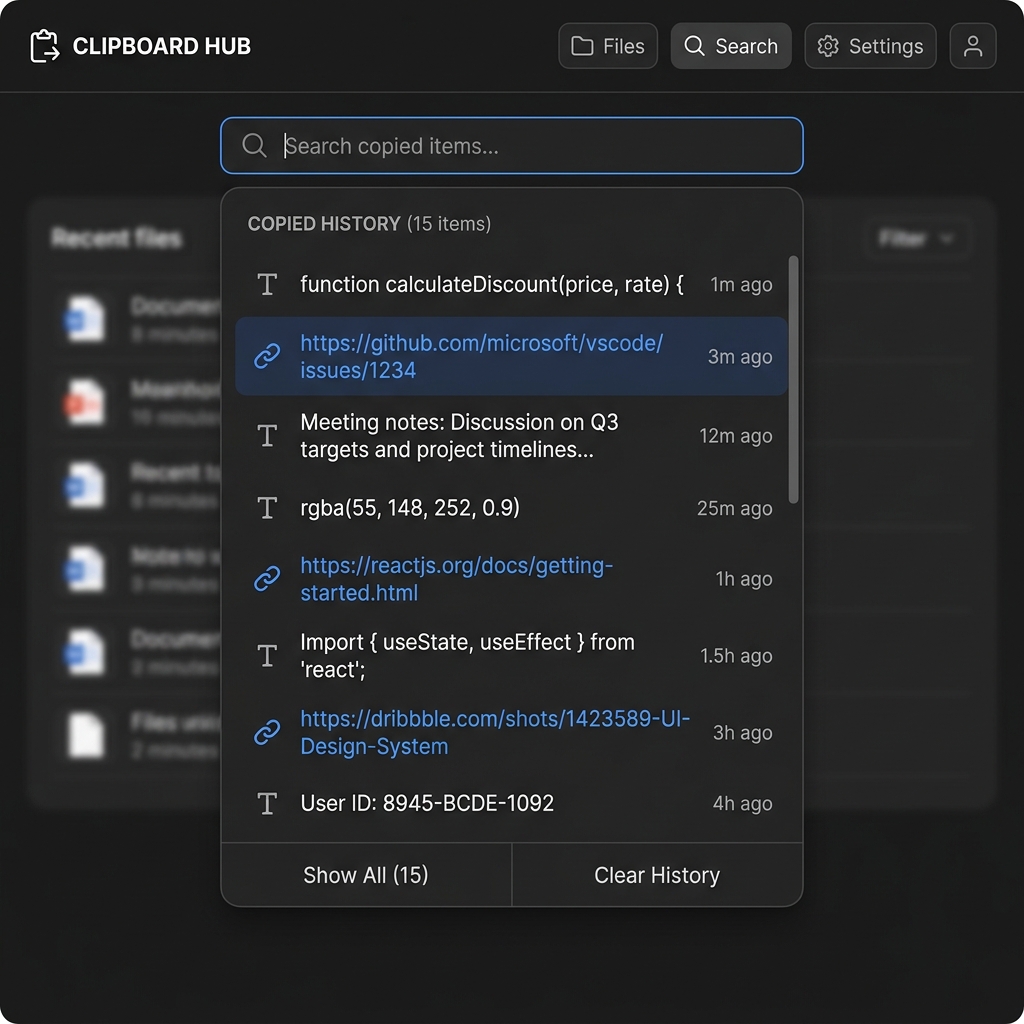
- Bring back anything instantly: When you realize you need a piece of text you copied an hour ago, use a quick shortcut to open your log and restore it with one click.
Enjoying this read?
Get weekly insights on video editing, AI workflows, and creator growth straight to your inbox.
The Free Solution: Your Perfect Memory Tool
Since the default Mac settings will not protect your clipboard, the absolute best solution is to add a small upgrade to your system. This is exactly why tools like Cubix Clip exist.
It is a completely free clipboard manager for Mac that acts as an unlimited memory bank for your computer. Once it is running, the panic of losing copied text completely disappears.
Here is why it completely changes the way you work:
- Automatic Recovery: It remembers everything. Text, images, files, and links are automatically saved in a visual list.
- Zero Stress: If you copy ten different things in a row, none of them are lost. You can access an item you copied a minute ago, or an hour ago, just as easily.
- Instant Access: Instead of frantically searching for lost text, you just press a simple shortcut. Your entire clipboard history pops up right on your screen, allowing you to click and paste exactly what you need.
You do not have to rely on a copy-paste system that forgets your hard work. You can get this free tool and protect your workflow here: Cubix Clip - Free clipboard manager for Mac.
📖 Keep reading: How to access clipboard history on Mac, how to copy multiple things on Mac at once, and the complete Mac clipboard guide.
Final Thoughts
Losing important copied content is incredibly frustrating and can derail your entire focus. While you cannot rewind time on a standard Mac to get back what was just erased, you can ensure it never happens again. By giving your computer the ability to remember its history, you eliminate the panic and make your daily tasks significantly faster and smoother.
Don’t miss the next one.
Join our newsletter for exclusive tips, product updates, and the latest from the Cubix team.