
If you work on an Apple computer, you likely use the copy and paste function dozens of times a day without a second thought. It is the backbone of researching, writing emails, coding, and basic data entry.
But despite how advanced these computers are, the basic copy-and-paste system has a massive flaw that slows you down and causes unnecessary frustration. If you have ever lost an important piece of text because you accidentally copied something else, you have experienced this exact problem.
Let us break down the biggest macOS clipboard limitations and look at the easiest, fastest way to fix them.

The One-Item Rule
The biggest limitation of the default macOS clipboard is what we call the "one-item rule."
Your system is designed to have an incredibly short memory. It only remembers the very last thing you pressed "Command + C" on. That means the exact second you copy a new link, a new image, or a new paragraph, your previous item is instantly erased and gone forever.
There is no built-in "history" folder or standard undo button for the clipboard. This creates a few major problems for your daily workflow:
- The Window Dance: If you need to pull three different quotes from a website, you cannot copy them all at once. You have to copy one quote, switch to your document, paste it, switch back to the website, find the next quote, and repeat. It is an exhausting way to work.
- Accidental Deletion: If you copy a highly important, complex password or a long email address, and then get distracted and copy a random word, your important data is wiped out instantly.
The Recipe for a Modern Workflow
You do not have to accept a system that constantly forgets what you are doing. To fix these limitations, you need to change your approach.
Here is a simple recipe to modernize your daily computer tasks:
- Remove the memory limit: Equip your computer with a tool that bypasses the default one-item rule and creates a continuous log of your actions.
- Batch your research: Stop bouncing between windows. Read an article and copy every single thing you find useful—text, links, images—one right after the other, knowing nothing will be overwritten.
- Paste on your own terms: When you open your blank document, bring up a visual list of your recent copies and drop them onto your page exactly where you want them.
Enjoying this read?
Get weekly insights on video editing, AI workflows, and creator growth straight to your inbox.
The Hidden Productivity Cost of Forgetting
The one-item rule sounds like a minor annoyance, but the cost adds up fast. Imagine pulling five quotes from an article into a document. With a single-item clipboard, that is five separate trips: copy, switch windows, paste, switch back, find the next line, repeat. Each round trip breaks your concentration and pulls your eyes away from what you were reading.
Researchers who study focus call this "context switching," and it is expensive. Every time you bounce between your browser and your document, your brain has to reload where it left off. Do that a few hundred times a day and you lose real, measurable time—not to mention the mental fatigue that builds up by the afternoon.
A clipboard that remembers everything collapses those five trips into one. You read the article once, copy everything you need in a single pass, then paste it all into your document in whatever order you want. The work gets done in a fraction of the time, with your focus left fully intact.
How to Fix It Completely for Free
The most effective way to fix these macOS clipboard limitations is not by digging into complex system settings. Instead, the smartest fix is adding a small, dedicated tool to your workflow that handles the memory for you.
This is exactly why Cubix Clip is such a game-changer. It is a completely free clipboard manager for Mac that runs silently in the background and permanently solves the one-item rule.
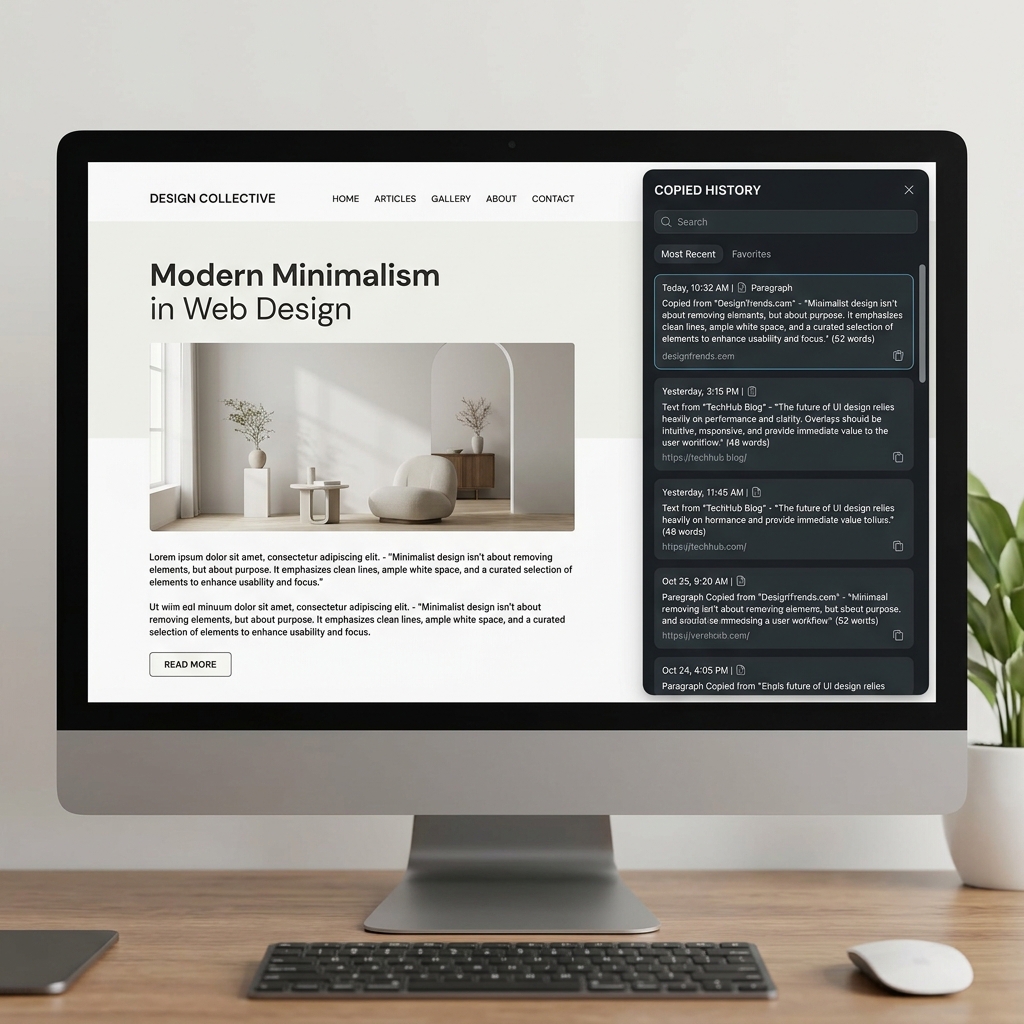
Once it is active, it remembers absolutely everything you copy. Whether it is plain text, complex images, files, or web links, it catches it all. When you are ready to paste something you copied minutes or even hours ago, you do not have to go searching for the original source. You just press a quick keyboard shortcut, and your entire clipboard history appears on your screen. You can clearly view your list, select the exact item you need, and paste it instantly.
It feels completely natural, turning a limited system into a perfect, unlimited memory bank.
If you want to stop losing your copied items and finally fix the biggest limitation on your computer, you can download the free tool here: Cubix Clip - Free clipboard manager for Mac.
Final Thoughts
The default macOS clipboard is functional, but its limitations actively hold back your productivity. By understanding these flaws and upgrading to a visual, historical clipboard manager, you remove a major daily stressor. Fix your workflow today, protect your copied information, and enjoy a much faster, smoother way to get things done!
📖 Keep reading: our guides on how to copy multiple things on Mac at once, how to clear clipboard on Mac, and how to see clipboard history on Mac.
Don’t miss the next one.
Join our newsletter for exclusive tips, product updates, and the latest from the Cubix team.