
If you are a software educator, course creator, or founder building product walkthroughs, you are likely already using Loom. It popularized asynchronous video messaging, and its instant cloud links and floating webcam bubble completely revolutionized workplace communication. If your goal is to send a quick fix to a developer or drop an update to a coworker, Loom is incredibly fast and efficient.
However, as the digital ecosystem has evolved, a distinct rift has formed between async messages and premium content.
Loom was fundamentally built for short internal messages, but tutorial creators require high audience retention, polished brand authority, and flawless mobile legibility. Trying to force Loom to produce high-end educational assets often leads to a massive post-production bottleneck.
If you are looking for an alternative that moves the design, cinematography, and formatting pipeline directly into the recording phase itself, here is the definitive guide to the best Loom alternatives for tutorial creators.
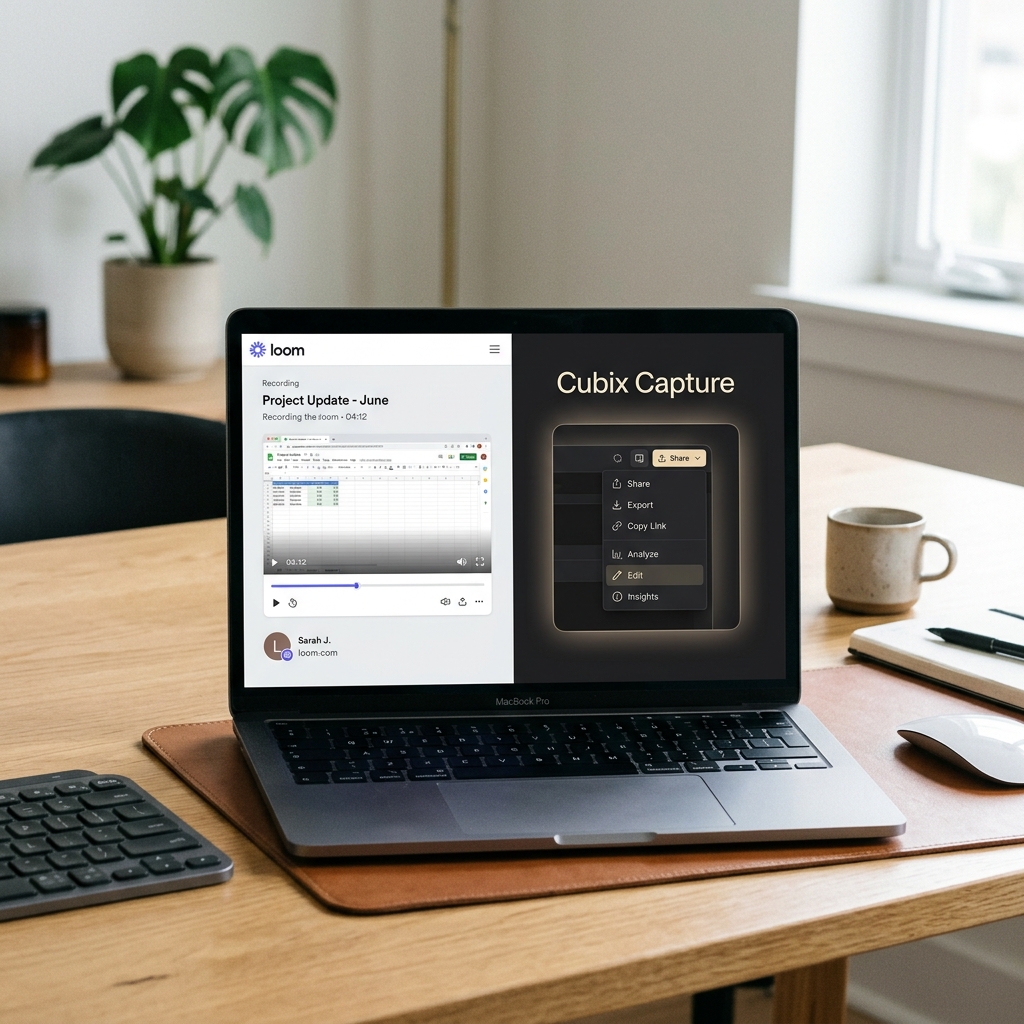
1. Cubix Capture – The Best Overall Alternative
If your primary goal is to build software tutorials, YouTube walkthroughs, onboarding series, or premium course lectures, Cubix Capture is the absolute premier alternative to Loom. While Loom records a rigid, unedited display of your desktop canvas, Cubix Capture serves as an automated digital director designed to edit your video while you speak.
- Algorithmic Focal Zooming: This completely resolves the mobile readability crisis. Since over 60% of modern video tutorials are watched on mobile devices, full-monitor recordings make user interface text look microscopic. Cubix Capture automatically tracks your cursor paths and clicks; the exact millisecond you select an application dropdown menu or open a dialog box, the camera smoothly pans and magnifies that visual region, ensuring perfect legibility on a smartphone screen without any manual timeline keyframing.
- AI Cursor Path Smoothing: Erratic trackpad and mouse movements look highly unprofessional. Cubix Capture intercepts your physical mouse inputs in real-time, translating them into a fluid, elegant visual sweep that guides the viewer's focus with complete confidence.
- Instant Studio Aesthetics: Loom places your raw application layout over your background icons. Cubix Capture instantly isolates your targeted app windows and frames them against gorgeous, dynamic canvas backdrops. It also seamlessly isolates your webcam into a clean floating geometric bubble with hardware-accelerated studio background blurring natively.
- The Verdict: Loom gives your viewer a raw peek at your monitor, but Cubix Capture delivers a fully finished, high-production tutorial the exact millisecond you click stop.
2. Tella – The Best for Structured Clip-Based Courses
If your tutorial creation process involves scripting highly structured, multi-part chapters or lesson slides, Tella is a fantastic web-based alternative to Loom.
- Clip-Based Layout Workflow: Unlike Loom, which forces you to record your presentation in one continuous, perfect take, Tella operates on a scene-by-scene structure. You can record a 1-minute introduction clip, pause, prep your next window, and record a 2-minute demonstration clip. Tella then lets you instantly stitch them together on a simple web interface.
- Dynamic Custom Templates: Tella features an excellent library of presentation templates, allowing you to fluidly shift your screen layout moving your webcam from a side-by-side display to a full-screen frame with a single click in post-production.
- The Drawback: Tella does not feature automated focus zooming or cursor path smoothing, meaning your application interface remains flat during recording.
3. Screen Studio - The Premium Mac-Native Heavyweight
If you operate strictly inside the Apple ecosystem and want a dedicated desktop tool that popularized the automated camera movement trend, Screen Studio is a highly popular alternative.
- Post-Recording Customization: Screen Studio captures your full desktop vector path data. Once your presentation is complete, it lets you dive into an integrated dashboard to manually adjust the camera tracking speeds, zoom factors, and cursor sizes afterward.
- Vertical Export Focus: It is heavily optimized for rendering beautiful, high-contrast vertical frame crops, making it a favorite for creators who repurpose software tutorials into clips for TikTok, YouTube Shorts, or X.
- The Drawback: It is completely unavailable for Windows users, requires a steep processing footprint, and demands local machine file rendering.
4. FocuSee – The Cross-Platform AI Runner-Up
If you manage a team that is split between Windows and macOS hardware and you want shared access to automated presentation templates, FocuSee is a great direct competitor to Screen Studio and Loom.
- AI Audio & Silence Snipping: Alongside click-triggered auto-zooming, FocuSee includes an integrated AI engine that can scan your presentation audio track post-capture to automatically snip out long trailing awkward silences and verbal stumbles.
- Interactive Call-to-Action Bars: It allows you to overlay clickable buttons and simple text forms directly onto the video playback timeline, which is excellent for collecting student feedback.
- The Drawback: The free plan adds a watermark to your exports, and its rendering pipelines are slower when handling high-bitrate 4K files.
Enjoying this read?
Get weekly insights on video editing, AI workflows, and creator growth straight to your inbox.
Head-to-Head Feature Comparison
| Core Creator Metric | Loom | Cubix Capture | Tella | Screen Studio | FocuSee |
|---|---|---|---|---|---|
| Primary Framework | Async Message Tool | Automated Director | Web Course Builder | Post-Capture Editor | Cross-Platform Tool |
| Supported Platforms | Cross-platform & Web | Windows & macOS | Browser & Mac | macOS only | Windows & macOS |
| Camera Zooms | None (Static Display) | Algorithmic Real-Time | Manual Side Layouts | Detailed Vector Keyframes | Automatic Clicks |
| Cursor Pathing | Raw Physical Path | AI Path Smoothing | Raw Physical Path | Post-Capture Editing | Basic Smoothing |
| Video Production | Link Share Only | Instant Cloud or Local | Inter-Clip Stitching | Heavy Local Rendering | Local Render Track |
The Content Production Checklist
When stepping up from an internal messaging utility to a professional tutorial recorder, your workflow needs to prioritize student absorption. Follow this procedural staging framework before hitting record:
-
Sanitize Your Canvas: Eradicate visual noise before filming. A cluttered desktop breaks immersion. Hide your physical desktop icons, clear out irrelevant tabs from your web browser, hide your browser bookmarks bar (
Ctrl + Shift + B), and toggle your operating system to Do Not Disturb mode to block personal notifications or Slack alerts from popping up mid-take. -
Slow Down Your Screen Choreography: Gives tracking software and viewers time to process. Move your mouse cursor across your desktop at half-speed. When you approach a software button or dropdown field, hover over it for one full second before clicking, and leave your pointer there for a moment afterward. This calm pacing keeps your audience comfortably locked into the lesson and gives real-time camera tracking algorithms clean triggers to execute.
-
Isolate Your Application Window: Locks the camera onto your targeted app layer. Launch your upgraded recording software and choose the specific application window you are teaching rather than your entire desktop display. The tool will automatically frame your workspace against a clean presentation canvas, hiding unrelated background software layers natively.
-
Distribute via Cloud Handoff: Skip the rendering timeline completely. Because smart alternatives handle your canvas backdrops, cursor smoothing, and focal zooming in real-time while you speak, there is no heavy rendering phase. The moment you hit stop, an elite cloud link is generated instantly, ready to be dropped straight into your learning management system (LMS), YouTube dashboard, or sent directly to your audience.
Summary: Which Tool Wins?
Choosing the right Loom alternative comes down to respecting your own time and understanding your audience's viewport.
If you are building long-form, multi-section courses where you want to edit video frames like presentation slides directly in a browser interface, Tella is an exceptional platform. If you are a Mac power user who wants deep, manual control over adjusting vector paths and camera curves after you are done filming, Screen Studio is highly robust.
But if your core objective is to produce high-retention software tutorials, YouTube walkthroughs, or client-facing demos that look stunning on any screen size without losing your afternoons to a tedious video editing timeline upgrading your workflow to a smart platform like Cubix Capture gives you an undeniable efficiency advantage.
Keep Reading
- Loom Alternatives: 7 Better Screen Recorders in 2026
- Why Tutorial Creators Are Switching From Loom to Cubix Capture
- Cubix Capture vs Loom: A 2026 Comparison
- Why Loom Recordings Look Cheap (and What to Use Instead)
- Best Screen Recorder for YouTube Tutorial Creators
- Best Screen Studio Alternative for Tutorial Makers on Windows
Don’t miss the next one.
Join our newsletter for exclusive tips, product updates, and the latest from the Cubix team.