
Working remotely is faster and more flexible than ever in 2026. However, explaining a complex project to a colleague who lives in a different time zone can still be incredibly frustrating.
When you try to explain a complicated workflow, a new software update, or a design change using just text messages, things get lost in translation. To avoid scheduling yet another 30-minute video meeting, remote teams are heavily relying on asynchronous video messages. You simply record your screen, explain your thoughts, and send the link.
But there is a major catch. If your screen recording is messy, hard to read, or chaotic, your team will just be more confused. Instead of saving time, you end up answering ten follow-up questions. Here is exactly what remote teams need in a screen recorder to communicate clearly, effectively, and professionally.
Stack context: Use Cubix Capture when the goal is a polished, readable screen story in one take; use the Cubix video editor when an update needs trimming, captions, or repackaging for leadership.
Stop the "Where Are You Clicking?" Messages
Most professionals today work on large, high-resolution monitors. When you hit record and capture that entire wide screen, you are capturing a massive amount of space.
When your colleague opens that video later on their smaller laptop or mobile phone, everything on your screen shrinks. The specific spreadsheet cell or software button you are talking about becomes a tiny, unreadable blur. If your team cannot see the details, the video is useless.
To fix this communication gap, your screen recorder needs to guide the viewer's eyes automatically. The most important feature for a remote team is auto-zoom. Instead of showing a static, wide view, the video should smoothly magnify the exact area of the screen you are working on. This removes background distractions and ensures your team can easily read every single detail.
Tame the Fast, Chaotic Workflow
Remote workers move fast. When you are recording a quick update for your team, you are probably using keyboard shortcuts, switching between tabs rapidly, and flicking your mouse across the screen to point things out.
While that speed feels completely natural to you, it is visually exhausting for the person watching. A fast, erratic mouse cursor jumping around the screen makes the video feel rushed and disorganized. It makes it incredibly difficult for a colleague to follow your train of thought.
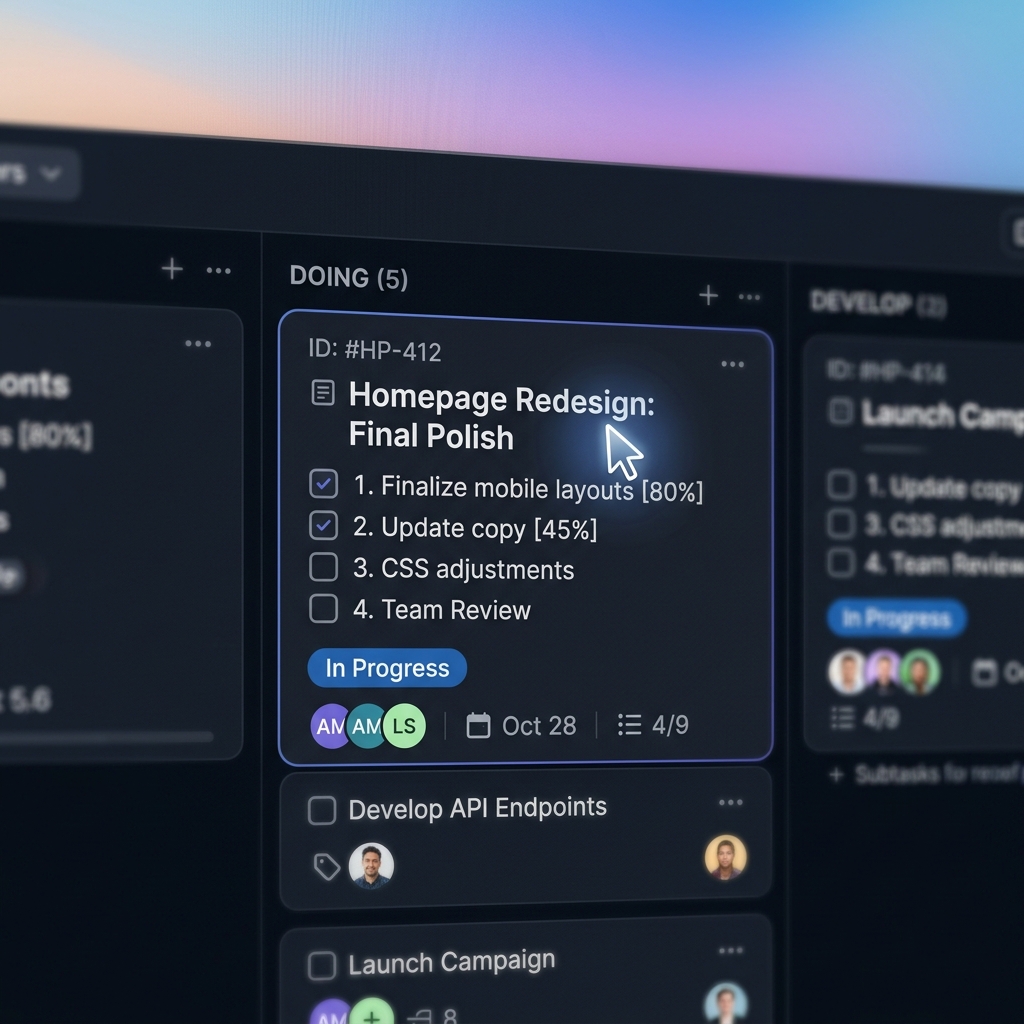
To create a crystal-clear team update, you need the cursor to read like the work itself: deliberate, calm, and easy to follow. A screen recorder that interprets your input rather than mirroring it solves this without any extra effort on your side—the rapid mouse motion you produce while flicking between Slack, Linear, and a browser tab is converted into a single weighted path your colleagues can actually track from step to step.
Keep the Workspace Professional
When you share your screen with your team, you want them focused entirely on the project at hand. You do not want them reading your incoming email notifications, looking at your messy desktop folders, or getting distracted by your browser bookmarks.
Even in a casual remote team, a clean presentation builds trust and keeps everyone focused.
You need a way to isolate the application you are discussing. By framing your screen recording over a professional live background or a clean color gradient, you hide your computer's background clutter. It turns a rushed, messy screen grab into a focused, highly polished internal presentation.
Enjoying this read?
Get weekly insights on video editing, AI workflows, and creator growth straight to your inbox.
The Best Tool for Asynchronous Communication
If you ask your team to manually edit their videos to add zoom effects and hide their messy desktops, they will simply stop sending videos. Remote teams need a tool that does all of this heavy lifting automatically, the exact second they hit record.
This is why Cubix Capture is the smartest choice for remote collaboration. It is designed to create perfect, cinematic screen recordings instantly, without any video editing required.
As you talk through the project, the recorder makes the decisions a teammate's eyes would otherwise have to chase down: the frame follows whichever pane of Linear, Notion, or your codebase you are referencing, the cursor inside that frame moves at the speed of explanation rather than the speed of your day-to-day click rate, and the surrounding mess of unrelated tabs and Slack pings is replaced with a calm visual stage. When you finish the update, the file is already a Loom-style clip ready to drop into the team chat.
By upgrading how your team records their screens, you can eliminate the confusion, skip the unnecessary live meetings, and get everyone perfectly on the same page.
Async Norms That Prevent Meeting Bloat
Small rules keep video from becoming noise:
- Title the update like a commit message: “Decision: migrate auth to provider X — 90s”
- State the ask in the first 10 seconds: approve, review, or FYI
- One topic per clip: if you need two decisions, send two videos
- Link the doc/issue in the message body, not only verbally
Teams that treat async video like structured documentation get fewer “sorry, which tab?” replies.
Security and Brand Consistency
Remote recordings often cross vendors, contractors, and leadership. Use clean staging so home-folder clutter never leaks, and prefer demo tenants when showing customer-like data.
Related reading:
- Best Screen Recorder for Customer Support Teams
- Best Screen Recorder for Developer Walkthroughs & Code Demos
- Best Screen Recorder for SaaS Founders in 2026
Don’t miss the next one.
Join our newsletter for exclusive tips, product updates, and the latest from the Cubix team.