
Have you ever tried to type out a ten-step process to help a frustrated customer fix a software issue? You write paragraphs of text, add little red arrows to screenshots, and hit send. Ten minutes later, the customer replies: "I still cannot find the settings button."
Text-based customer support is often slow and confusing. When a user is stuck, they do not want to read a manual; they want someone to show them exactly what to do. This is why top customer success teams use video to resolve support tickets. A quick, one-minute video can solve a problem that would take twenty emails back and forth.
But there is a catch. If your support videos are messy, cluttered, or hard to follow, you will just confuse the customer even more. Here is what you need in a screen recorder to create crystal-clear support videos that actually close tickets fast.
Stack context: Cubix Capture handles presentation-ready screen capture; when macros need captions or tighter pacing for help centers, teams often finish in the Cubix video editor.

1. The End of "Where Did You Click?"
Support agents are usually working on large, high-resolution monitors. When an agent records their entire screen to show a customer how to navigate a dashboard, the video captures a massive, wide view.
When the customer opens that video on a small laptop or their mobile phone, your software shrinks. The specific drop-down menu you clicked on becomes a tiny, unreadable blur. Instead of solving the ticket, the customer has to reply and ask, "Where exactly did you click in that video?"
To fix this, your screen recorder needs to guide the customer's eyes. The most critical feature for a support team is auto-zoom. Instead of showing the whole screen, the video should automatically magnify the exact area where the agent is clicking. It removes all the extra noise and clearly says, "Look right here."
2. Slow Down for the Customer
Customer support agents are fast. You know your software inside and out, so you use keyboard shortcuts and flick your mouse across the screen at lightning speed.
While this speed helps you clear your ticket queue, it makes for a terrible video. A fast, erratic mouse cursor jumping around the screen is visually overwhelming for a customer who is already confused.
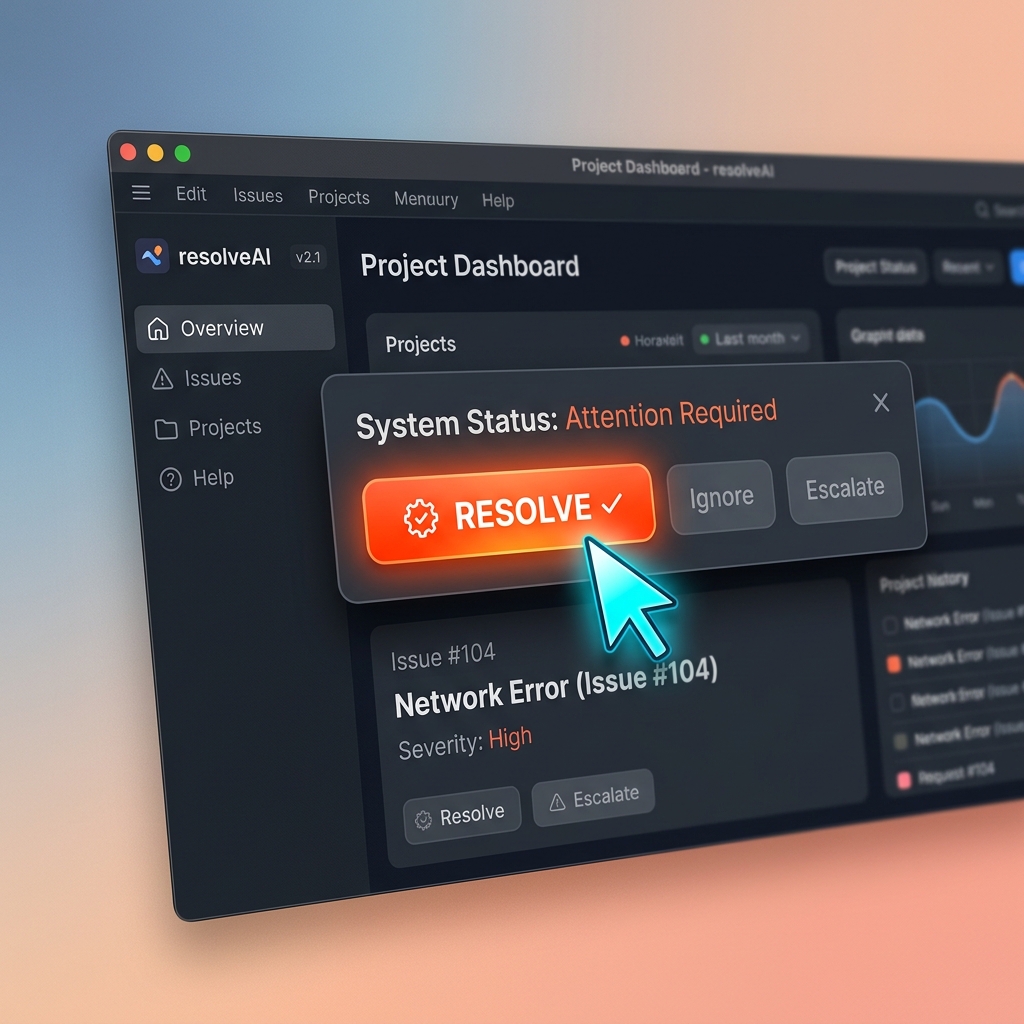
A great support video requires a calm, deliberate visual guide. You do not need to train your agents to move perfectly; you just need a tool with smooth cursor technology. This automatically takes those fast, jagged mouse movements and turns them into elegant, slow sweeps. It makes the cursor act like a gentle pointer, keeping the customer relaxed and completely focused on the solution.
3. Hide the Internal Clutter
When an agent records their raw desktop, they run the risk of capturing things the customer should never see. A sudden internal Slack notification, a messy desktop full of unorganized files, or distracting browser tabs can instantly make your company look unprofessional.
When a customer is paying for a premium service, the support they receive should look premium, too.
You need to isolate the software you are troubleshooting and place it on a clean stage. By framing your screen recording over a professional live background or a clean color gradient, you hide the agent's operating system entirely. It turns a rushed screen grab into a high-quality, branded support experience.
Enjoying this read?
Get weekly insights on video editing, AI workflows, and creator growth straight to your inbox.
The Tool to Reduce Resolution Time
If you ask your support agents to record a video, open an editing software, add zoom effects, and hide their background, they will never do it. Support teams need to move fast. They need a tool that does the editing for them the moment they hit record.
This is exactly why Cubix Capture is the smartest choice for customer support teams. It is built to create perfect tutorial videos instantly, with zero editing required.
An agent simply hits record and walks through the solution. The recorder reads the click stream in real time: the camera tightens on whichever button or settings field actually resolves the issue, the cursor is calmed so the customer can follow the path on the first watch instead of replaying the clip three times, and the internal admin panels, Slack notifications, and other tabs surrounding the work are hidden behind a clean stage. When the agent hits stop, the file is already a ticket-ready response—no editing pass, no review queue, no QA back-and-forth.
By upgrading your screen recorder, your team can explain solutions faster, stop the endless back-and-forth emails, and keep your customers happy.
Support Video Types Worth Standardizing
Not every ticket should become a feature film. The highest-ROI clips usually fall into four buckets:
- Bug reproduction: shortest path from login to error, with timestamps in the ticket
- How-to navigation: one menu path, one success state, no detours
- Account-specific coaching: record in a sandbox or scrub PII before sharing
- Knowledge base snippets: 45–90 seconds, evergreen, linked from macros
When these clips are readable on a phone, customers stop asking “where did you click?”
Privacy and Trust Basics
Support video fails hardest when it accidentally exposes names, order IDs, internal admin URLs, or live customer data. Build a habit: dedicated demo accounts, blurred fields, and a second watch-before-send pass for Tier 2 escalations.
Related reading:
- Best Screen Recorder for Remote Teams
- How to Record Onboarding Videos for Your SaaS in 30 Minutes
- Best Screen Recorder for SaaS Founders in 2026
Don’t miss the next one.
Join our newsletter for exclusive tips, product updates, and the latest from the Cubix team.