
You finally nailed the shade. After ten minutes of nudging a color picker, you have the exact blue the primary button needs, and you copy the hex. A second later your client drops a Slack link to a new logo, and on reflex you copy that too so it doesn't get lost. Back on the canvas, you paste — and out comes the URL, not the blue. The hex is gone, and so is the muscle memory of how you got there.
Design is a discipline of tiny, precise pieces moving constantly between apps: a color from the browser to Figma, an SVG from Illustrator to code, a screenshot from a reference site to a moodboard. On a default Mac, every one of those pieces has to pass through a clipboard that can only hold one thing — which means every new copy quietly destroys the last.

Designers Move More Asset Types Than Anyone
The single-item clipboard hurts designers more than almost any other profession, simply because of the sheer variety of things you copy in a single hour:
- Color — hex codes, RGBA values, HSL, gradient stops, shadow specs.
- Vector and raster — SVG markup, transparent PNGs, icon snippets, cropped reference photos.
- Spec and copy — type scales, spacing tokens, lorem ipsum, real client copy, font names.
Each of these lives in a different app, and macOS makes you ferry them one at a time: copy, switch, paste, switch back, copy again. The switching is the tax. It isn't the seconds it costs — it's that every context switch knocks you out of the state where good design actually happens.
There's also a quieter problem unique to visual work: a default Mac clipboard can't show you what's on it. You copy an image and it becomes invisible until you paste somewhere. Stack a few copies and you're guessing.
Treat Your Clipboard Like a Scratch Moodboard
The fix isn't discipline — it's giving your copied assets a place to live so you stop ferrying them in real time:
- Gather in a burst. When you open your references, brand guidelines, and client email, copy everything relevant in one sweep — every hex, every image, every spec — without pasting anything yet.
- Then stay on the artboard. Close the source tabs and work. The assets are already captured, so there's no reason to leave Figma.
- Drop from a visual history. When you need the third hex or that transparent logo, open your clipboard history, recognize it by its thumbnail, and place it.
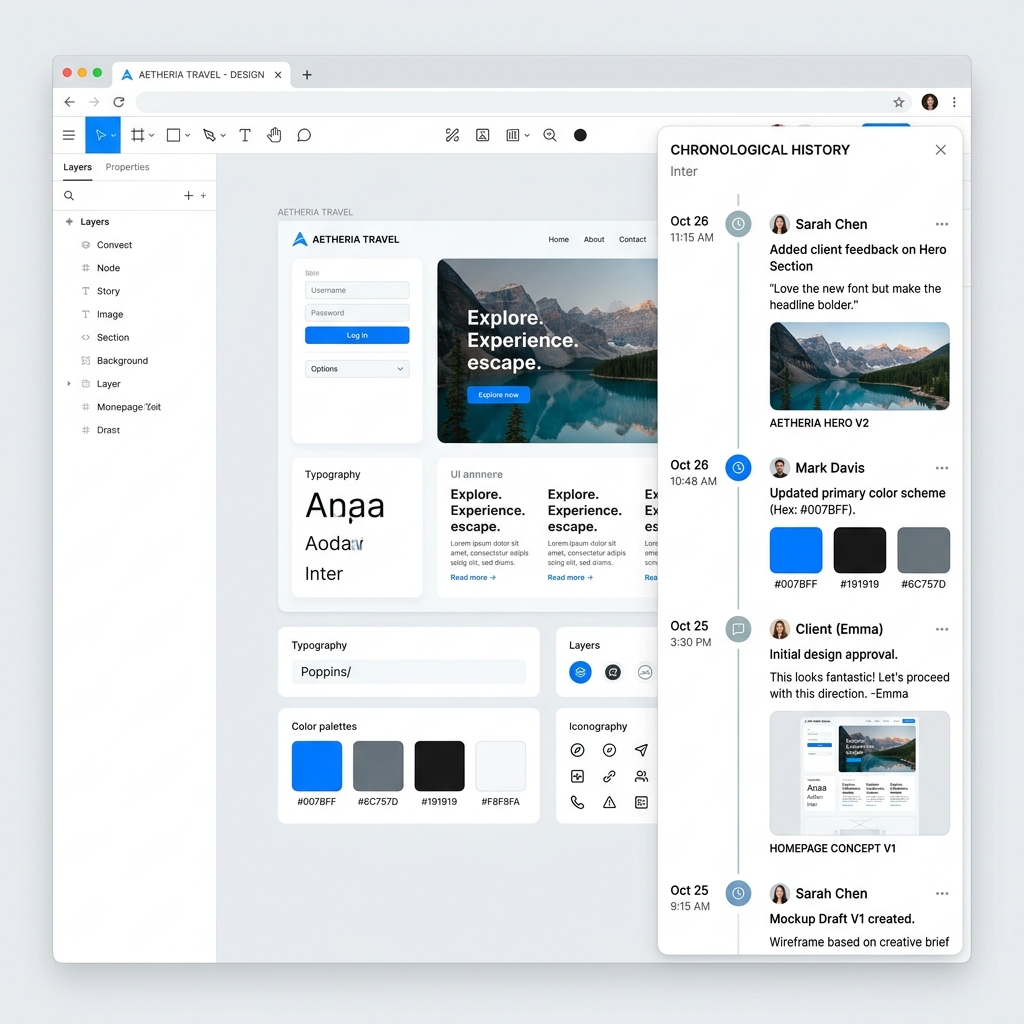
This is also the cleanest way to keep a brand's core tokens — primary/secondary hex, the logo, the standard CTA copy — permanently within one keystroke instead of re-copying them every session.
Enjoying this read?
Get weekly insights on video editing, AI workflows, and creator growth straight to your inbox.
The Free Tool Built for Visual Assets
What's missing on macOS is a layer that remembers each copy and can preview it. That's exactly what Cubix Clip adds — a free Mac clipboard manager that keeps an ordered history of everything you copy, including high-resolution images and SVGs, with real thumbnail previews so you select by sight, not by guesswork.
Copy five hex codes and three reference shots back-to-back and all eight are waiting in a visual list. A shortcut brings them up; you click the one you want and it pastes into your design. Because it handles images and files natively — not just plain text — it fits the way designers actually work.
If you're comparing options for a design-heavy workflow, the best clipboard manager for designers on Mac goes deeper, and developers on your team will want how developers use clipboard managers to code faster.
The Takeaway
Great design comes from staying in the zone long enough to make a hundred small decisions well. Losing a hex code — or breaking flow to re-grab an asset — costs far more than the few seconds it looks like. Hand the ferrying job to Cubix Clip, keep your colors and assets one keystroke away, and spend your attention on the work instead of the clipboard.
Don’t miss the next one.
Join our newsletter for exclusive tips, product updates, and the latest from the Cubix team.