
Writing software requires deep, unbroken focus. When you are in the zone, building out a feature or tracking down a difficult bug, your brain is holding a dozen different variables, logic paths, and file locations all at once.
Then, a tiny mistake happens. You copy a massive, perfect block of code from a previous file. Before you can paste it into your new file, you open your terminal and copy an error log to search the internet.
Instantly, your perfect block of code is gone. Your Mac erased it to make room for the error log. You have to break your concentration, navigate back to the original file, and find that code block all over again. For developers, this constant loss of copied information is a major speed bump that ruins productivity.

The Problem With the Default Mac Clipboard
If you are coding on a standard Mac, you are working with a system that has a strict one-item memory limit. It is designed to only remember the very last thing you pressed "Command + C" on.
As a developer, your workflow is rarely that simple. You are constantly moving between your IDE, your terminal, your web browser, and documentation. You copy API keys, server addresses, terminal commands, and Stack Overflow solutions constantly throughout the day.
When your computer can only hold one piece of information at a time, you are forced into a tedious cycle of window-switching. You copy one line, switch apps, paste it, switch back, copy the next line, and so on. This back-and-forth movement drains your mental energy and pulls you completely out of your flow state.
The Real-Life Recipe to Keep Your Flow State
To code faster and stay focused, you need a workflow that handles multiple pieces of information at once. Top developers change how their computers manage memory.
Here is a simple recipe to build a much faster, uninterrupted coding workflow:
- Batch your documentation: When you are reading API documentation or a setup guide, do not bounce back and forth. Copy the install command, the configuration snippet, and the necessary keys one right after the other.
- Stay inside your IDE: Move to your code editor or terminal and stay there. Stop switching back to your browser to grab the next piece of the puzzle.
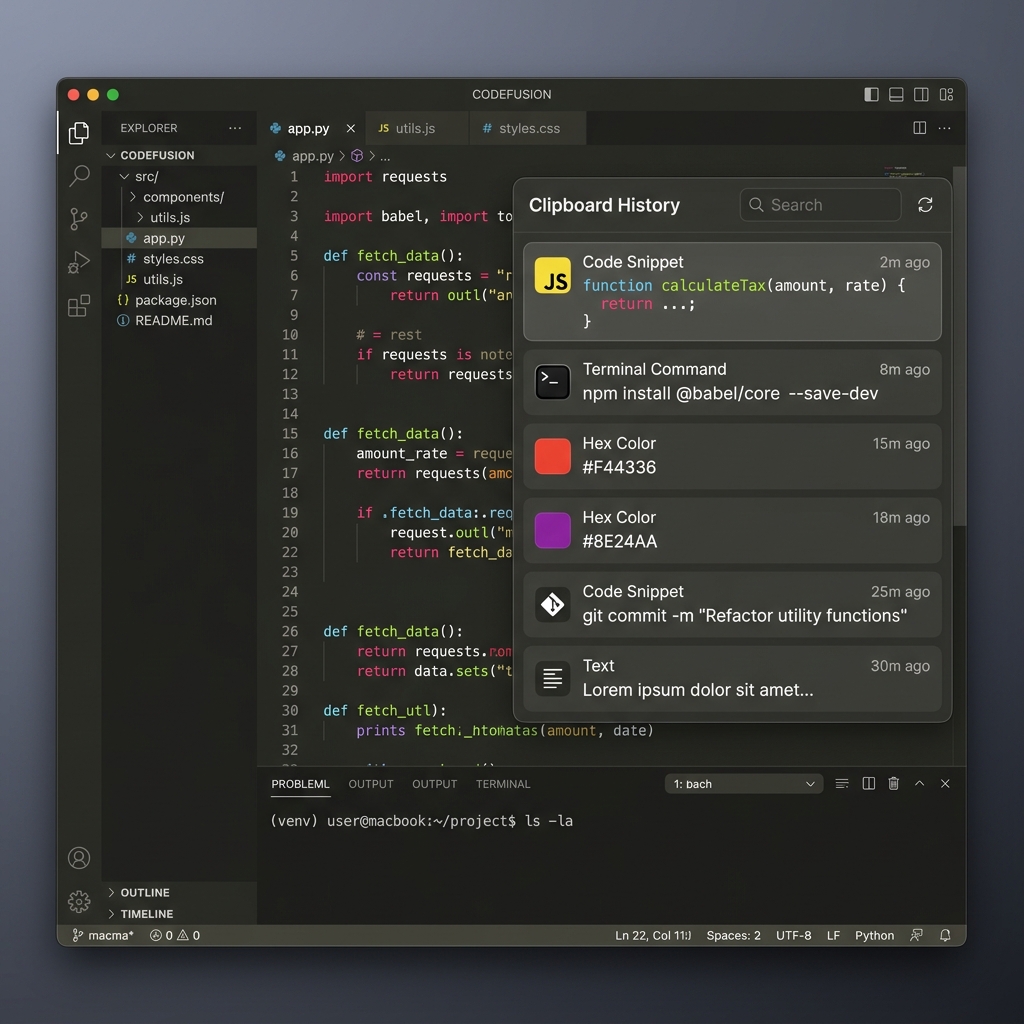
- Unload from a visual timeline: Bring up a visual list of your recent copies directly over your code. Click the exact commands and snippets you need, and drop them perfectly into your file in the right order.
Enjoying this read?
Get weekly insights on video editing, AI workflows, and creator growth straight to your inbox.
The Free Tool to Upgrade Your Setup
For a developer's workflow, the bar for a clipboard tool is specific: it has to be fast, lightweight, and never get in the way of a keystroke. A utility that lags your machine or pops modals defeats the entire purpose of staying in flow.
Cubix Clip is a free clipboard manager for Mac that fits that brief. It runs quietly in the background, captures everything you copy, and brings the full history up under a single shortcut you can fire without leaving the home row.
In practice it shines on the copies developers actually make: a database password, a block of JSON, a multi-line shell command, a GitHub URL, a hex color, a UUID. Copy them in a burst while you read the docs, then paste each one into the right place in your editor or terminal without ever tabbing back to the browser. The context switch, the real flow-killer, just disappears. For a fuller breakdown of developer-focused options, see the best clipboard manager for developers on Mac.
Download it free here: Cubix Clip - Free clipboard manager for Mac.
Final Thoughts
Flow state is fragile and expensive to rebuild, every forced trip back to a previous file or tab costs you the mental stack you were holding. A clipboard history protects that stack. It is a small change that compounds across every PR, every debugging session, every setup script you copy through. If you want the non-developer case for the same tool, here is why everyone needs a copy-paste manager. Install it once and let your clipboard keep up with how fast you actually think.
Don’t miss the next one.
Join our newsletter for exclusive tips, product updates, and the latest from the Cubix team.