
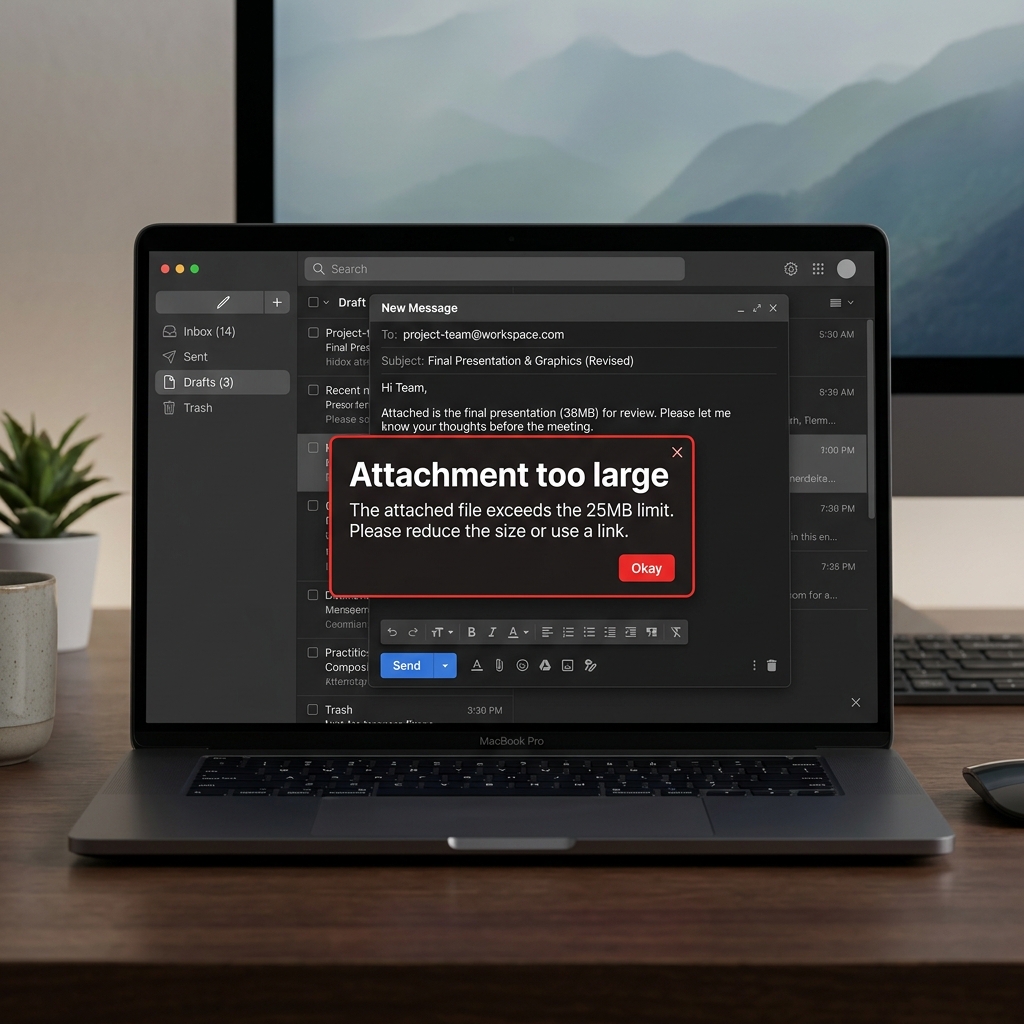
You have just finished a great video. Maybe it is a project update for your team, a quick visual bug report for a client, or a clip from a family event you want a relative to see right away. You open your inbox, drag the file onto a new message, hit send — and immediately get punched in the face by a popup: "File size exceeds the attachment limit."
It is one of the most frustrating roadblocks in modern communication. Gmail caps attachments at 25MB, Outlook is even stricter at 20MB on the web, and iCloud Mail allows just 20MB before it asks for a workaround. A single 60-second clip from a modern iPhone or Android camera can already weigh in at 60–150MB, which means almost no smartphone video clears the bar without help.
This guide walks through two things. First, the actual export settings that take a 100MB clip down to under 25MB without making it look like it was filmed through a window screen. Second, the real workflow most teams use when the file is just too big to compress — share links that don't bounce, expire on a timer, or require recipients to install anything.
The Real Reason Email Rejects Big Videos
Email was never built for media. The protocol behind every Gmail and Outlook message — SMTP — was finalized in 1982 and designed to move text between mainframes. Attachments are a layer bolted on top, encoded as Base64, which actually inflates the file by about 33% during transit. So a 20MB video on disk effectively becomes ~27MB inside the email payload, which is why "20MB" limits often feel tighter than they sound on paper.
Modern providers also reject large files because spam filters are tuned to assume anything heavy is either a malware payload or a media file better shared via a cloud link. Sending a 50MB raw .mov to a recipient on a corporate Exchange server will, in many cases, silently fail before it ever reaches their inbox.
Email Attachment Limits, Side by Side
| Provider | Send limit | Receive limit | Built-in workaround |
|---|---|---|---|
| Gmail | 25MB | 50MB | Auto-converts to Google Drive link |
| Outlook (web) | 20MB | 20MB | OneDrive sharing |
| Outlook 365 (desktop) | 33MB | 33MB | OneDrive sharing |
| iCloud Mail | 20MB | 20MB | Mail Drop (up to 5GB) |
| Yahoo Mail | 25MB | 25MB | Manual cloud link |
| Proton Mail | 25MB | 25MB | Manual link |
Notice the gap between send and receive limits. Gmail will accept a 50MB incoming attachment but won't let you send one. This catches a lot of people off guard when an email "looked fine on the recipient's end" but bounced from yours.
Export Settings That Almost Always Land Under 25MB
If you want the file to actually travel as an attachment, you have to bring three numbers into line: resolution, bitrate, and length. Treat them as a single budget — if you raise one, you have to lower another.
Format: MP4 with H.264
Every modern email client previews MP4 with H.264 inline. Other formats like .mov, .mkv, or .webm may force the recipient to download the file just to see what is inside, which kills any chance of a quick preview from a phone.
Resolution: 720p Is Almost Always Enough
A 30-second clip exported at 720p (1280×720) is around 4–6MB at a reasonable bitrate. The same clip at 1080p is 9–12MB, and at 4K it can easily exceed 50MB. Unless the recipient is going to project the video on a wall, 720p is the right answer for email. For tiny screen recordings under 60 seconds, dropping to 540p often halves the file with no readability cost.
Enjoying this read?
Get weekly insights on video editing, AI workflows, and creator growth straight to your inbox.
Bitrate: 1.5 to 3 Mbps for Talking Heads or Screen Recordings
Bitrate is the dial that controls how much detail your video keeps per second. For static content — a face talking, a screen recording, a slide deck — 1.5–3 Mbps is invisible to the human eye at 720p. For high-motion content like sports clips, push to 4–5 Mbps and trim length to compensate.
Frame Rate: 30 fps Unless You Need Otherwise
A 60 fps clip is roughly double the file size of the same content at 30 fps. Unless your video has fast motion that genuinely benefits, drop to 30 fps before export.
Length: Cut Before You Compress
Trimming 15 seconds of dead air at the start of a clip can save 3–5MB. Do this first. There is no point in tuning bitrate if half the video is the recipient's name being read into the mic.
The "Send Anyway" Workflow When Compression Isn't Enough
If you have already squeezed everything and the file is still over 25MB — for example, a 5-minute training video — stop fighting the attachment limit and switch tactics.
Gmail does this automatically. Drag any file over 25MB into a Gmail compose window and Gmail will quietly upload it to your Google Drive, attach it as a link, and adjust permissions for the recipient. This is the cleanest workflow for personal accounts.
Outlook 365 does the same with OneDrive. Both desktop Outlook and Outlook.com offer a "Share link" option when the file is too large. The recipient sees a thumbnail in the email body and clicks through to OneDrive to watch the video without downloading.
Apple Mail Drop is the underrated option. On macOS Mail and the iCloud web client, Mail Drop accepts attachments up to 5GB, stores them on Apple's servers for 30 days, and delivers them as expiring links. It is the fastest "just send it" path for Apple-to-anyone communication.
For private or sensitive videos, use a service that supports password-protected and expiring links — Dropbox Transfer, WeTransfer Pro, or a paid sharing tier that lets you revoke access. Don't paste raw cloud links into an email and assume nobody else will see them; bare links can be forwarded and re-shared without you ever knowing.
Mistakes That Will Get Your Email Bounced
A few patterns that come up repeatedly:
- Exporting as ProRes or DNxHD. Beautiful codecs, but they produce massive files no email server will accept. Always re-encode to H.264 before attaching.
- Sending
.zipfiles containing videos. Compressing an MP4 inside a ZIP saves almost nothing because MP4 is already a compressed container, and many corporate filters quarantine ZIPs by default. - Forgetting that recipients on different providers see different limits. If you are on Gmail (25MB) sending to a corporate Exchange address (often 10MB), you have to compress for the recipient's limit, not yours.
- Skipping the recipient test. Before sending a video to 50 people, send it to yourself first. If your own client rejects it, every recipient's will too.
The Quicker Workflow: Record Lightly From the Start
Most "how do I compress this for email?" headaches happen because the source video was recorded with a tool that exports oversize files by default. A 90-second iPhone clip at 4K 60 fps will always be a fight to compress. A 90-second screen recording captured with the right tool from the start is usually under 10MB on disk before you touch a single setting.
If your visual updates are mostly screen-based — bug reports, walkthrough videos, design feedback, demo loops — recording with Cubix Capture at 1080p 30 fps produces files that almost always travel as raw email attachments without compression. The capture pipeline encodes to a tightly tuned H.264 profile by default, so you don't have to think about bitrate budgets after the fact.
For anything you have already recorded, the standalone video compressor and the email-specific compressor are built for exactly this case — drop the file in, pick an email target, and they return a file sized for whichever provider the recipient is on.
Related reading:
- How to Compress a Video for WhatsApp (Under 16MB and Under 64MB) — the messaging-app equivalent of email limits.
- How to Reduce Video File Size on Mac (No Software Needed) — for Apple users who want the QuickTime path.
- How to Reduce Video File Size on Windows 11 (Free Methods) — for the Clipchamp and VLC routes.
Stop hitting send and praying. Compress with intent, fall back to a share link when the file is genuinely too big, and the "attachment too large" popup becomes one less thing you have to fight today.
Don’t miss the next one.
Join our newsletter for exclusive tips, product updates, and the latest from the Cubix team.