
There's an old habit from the early Chromebook days that refuses to die: needing to record your screen, opening the Chrome Web Store, and installing some third-party extension that watermarks your clip or cuts you off at three minutes. Plenty of people still do this without realizing they don't have to — and that the extension is usually the worse option.
Since 2021, ChromeOS has had a full screen recorder baked into the system. No download, no browser permissions, no account. This guide is for doing it the native way on purpose — and for understanding why skipping the extension is often the smarter call, not just the convenient one.

Why Skip the Extension at All?
It's worth being deliberate here, because the native tool isn't just easier — on several fronts it's genuinely better than a typical recording extension:
- No watermark, no time cap. The system recorder never brands your video or stops you at five minutes the way most free extensions do.
- It stays on your device. Your .webm saves straight to Downloads instead of uploading to a company's cloud — which also means it works when you're offline.
- Nothing can read your browser. An extension asks for access to your tabs; the built-in tool needs no such permission, so there's nothing extra watching your browsing.
- Lighter on the machine. Heavy extensions can bog down older Chromebooks; the native recorder is part of the OS and barely registers.
For a fuller head-to-head, Chromebook screen recording: built-in tool vs extensions lays out where each one wins.
Recording the Native Way
Enjoying this read?
Get weekly insights on video editing, AI workflows, and creator growth straight to your inbox.
- Open it. Press Ctrl + Shift + Show Windows, or click the clock and choose Screen Capture.
- Switch to video. On the toolbar that appears, click the video camera icon (it may default to still photos).
- Pick your area. Full screen, a dragged-out box, or a single window — the box option is handy for keeping a cluttered desktop out of frame.
- Add your voice. Open the gear and toggle on Microphone (and System audio if you need the computer's sounds).
- Record and find it. Click to start the countdown, stop with the red square by the clock, and grab the watermark-free .webm from Downloads.
That's the entire process — no install, ever.
When "Native and Raw" Isn't Quite Enough
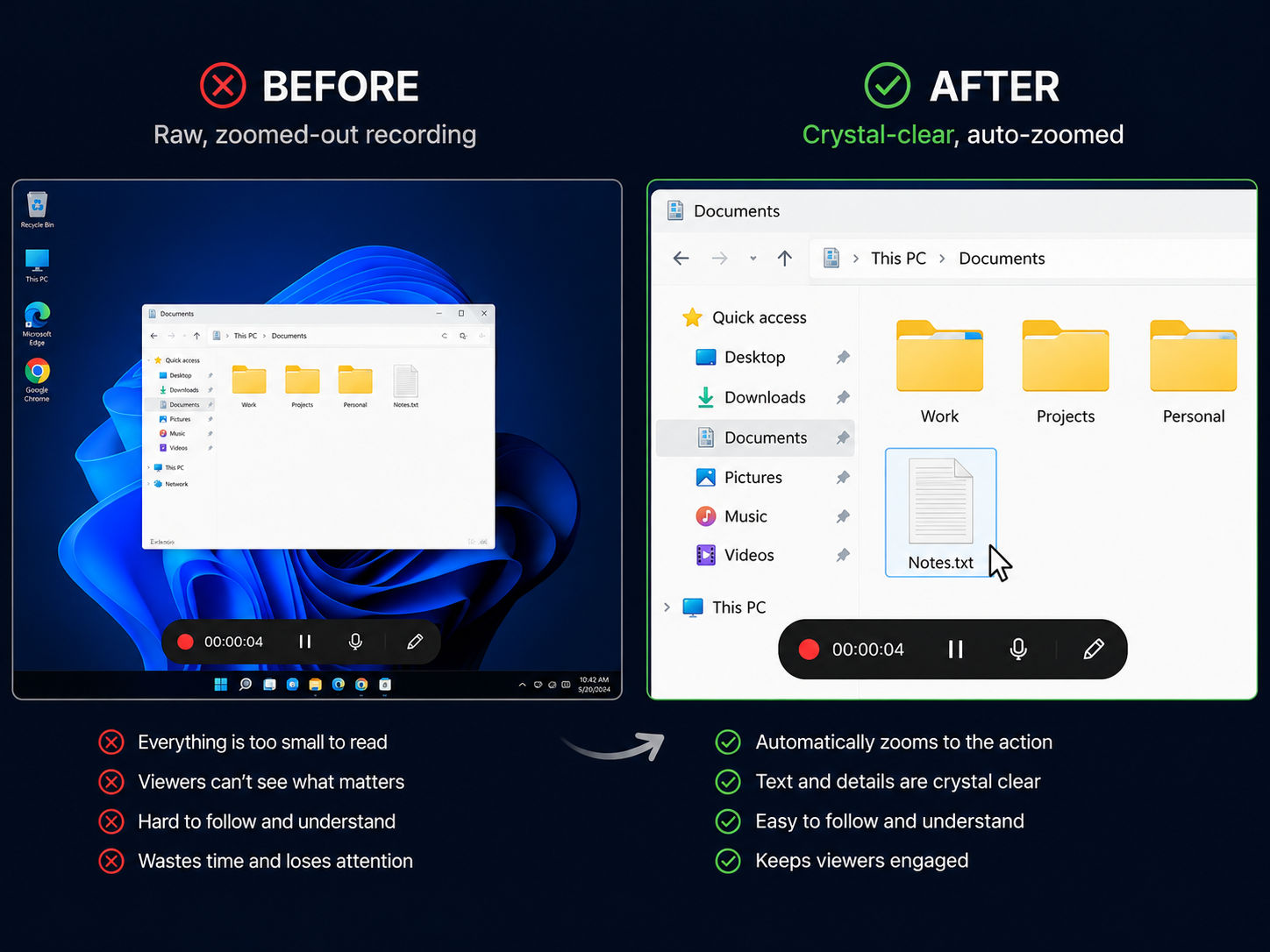
Skipping the extension is the right move, but it leaves you with raw footage — the screen captured at full size exactly as it looked. On a big display that's fine; replayed on a phone, the interface shrinks until text is unreadable and the trackpad cursor looks frantic. A quick clip survives that; a real tutorial doesn't.
If you want native simplicity and a result that's actually clear to watch, Cubix Capture records without browser extensions while polishing the footage live — zooming automatically to whatever you're doing so it stays legible on any screen, steadying the cursor, and keeping the frame free of clutter. You keep the install-free, watermark-free spirit of the native tool, and gain the clarity raw capture can't provide.
Recording without an extension is the right default for everyday Chromebook tasks. When the video has to teach or impress, layering on automatic clarity is what makes people actually follow it.
Don’t miss the next one.
Join our newsletter for exclusive tips, product updates, and the latest from the Cubix team.