
On a Chromebook there are two obvious ways to record your screen — the recorder built into ChromeOS, and a screen-recording extension from the Chrome Web Store. People tend to argue about which is "better" as if there's a universal winner. There isn't. The honest answer comes down to one question: what happens to the video after you hit stop? Sort that out and the choice makes itself.

The Core Trade-Off in One Line
The built-in tool optimizes for privacy and simplicity; extensions optimize for sharing and extras. Almost every pro and con below flows from that single difference.
| Built-in ChromeOS | Chrome extension | |
|---|---|---|
| Cost | Free, no limits | Free tier capped (~5 min) |
| Sharing | Manual (file in Downloads) | Instant cloud link |
| Webcam bubble | No | Usually yes |
| Privacy | Stays on device | Uploads to a server |
| Works offline | Yes | Often no |
| Performance hit | Minimal | Can slow old models |
When the Built-In Tool Wins
Reach for ChromeOS Screen Capture when you value control. It's free with no watermark or time cap, the .webm stays in your Downloads folder rather than someone's cloud, it works with no internet, and it barely touches performance. The exact steps are in the complete Chromebook guide, and if your school blocks the Web Store, this is your only route anyway — see recording on a school Chromebook when extensions are blocked. Its limits are real, though: no webcam bubble, and you share files by hand.
Enjoying this read?
Get weekly insights on video editing, AI workflows, and creator growth straight to your inbox.
When an Extension Wins
Pick an extension — Loom, Screencastify, Awesome Screenshot — when the link is the point. Stop recording and a shareable URL is instantly on your clipboard for Slack or email; most also add a webcam bubble and on-screen drawing for a more personal, annotated feel. The costs: free tiers usually cap length and quantity, your video lives on their servers (which some networks block), and heavier extensions can drag on older Chromebooks. If those trade-offs bother you, recording without an extension makes the native case.
The Thing Both Options Share
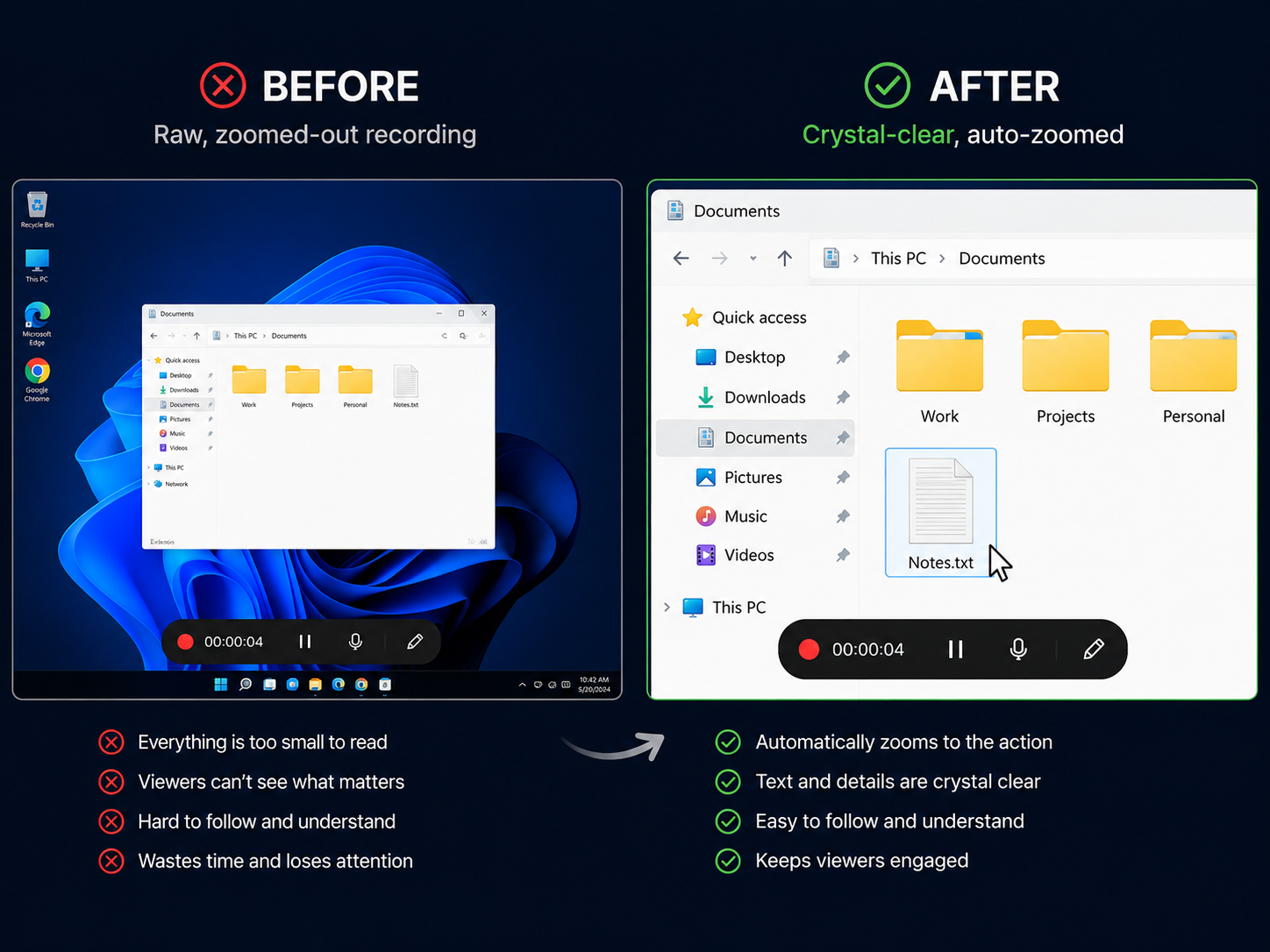
Here's the part the built-in-vs-extension debate usually misses: neither fixes how the video actually looks. Both capture your screen at full size, exactly as it appears to you. Send that to someone watching on a phone and the interface shrinks until text is unreadable, while trackpad scrolling turns the cursor jittery. The format of the debate hides a flaw common to both answers.
The Option Outside the Debate
If clarity matters more than which capture method you used, Cubix Capture sidesteps the question entirely. It records and polishes in one pass — auto-zooming to your active area so it reads on any device, smoothing the cursor out of its trackpad jitter, and keeping the frame clean — so you're not choosing between "private but raw" and "shareable but raw." You get footage that's actually watchable without a separate editing step.
Knowing built-in versus extension lets you handle everyday clips well. When the recording has to teach or sell, the better question isn't which capture tool — it's whether the result is clear enough to follow.
Don’t miss the next one.
Join our newsletter for exclusive tips, product updates, and the latest from the Cubix team.