
Have you ever been deep into a project, copying an important paragraph, only to accidentally hit "copy" on a useless link right after? Just like that, your important paragraph is completely gone.
If this has happened to you, your next step is usually trying to figure out how to see your clipboard history on Mac. You want to know if there is a magic undo button or a hidden folder that saved your previous text.

Does macOS Have a Clipboard History?
The short answer is: historically, no, but it is slowly changing.
For years, the default Mac clipboard has worked with a strict "one item only" rule. If you go to your top menu bar right now, click Edit, and select Show Clipboard, a small window will pop up. However, this window will only show you the very last thing you copied. The exact second you copy something new, the old item is permanently erased.
If you are running the very newest Mac software updates, Apple is finally starting to introduce a basic clipboard history feature hidden inside the Spotlight search bar. But for many users, this built-in feature can still feel a bit clunky, it sometimes struggles with images, and it is not always the fastest way to work when you are busy.
The Real-Life Recipe for a Perfect Memory
If you want a truly smooth and stress-free way to work, you need a workflow that guarantees you will never lose a copied item again. Here is a simple "recipe" to improve your daily computer tasks:
- Stop worrying about overwriting: You should be able to copy five different things in a row from a webpage without pasting them one by one.
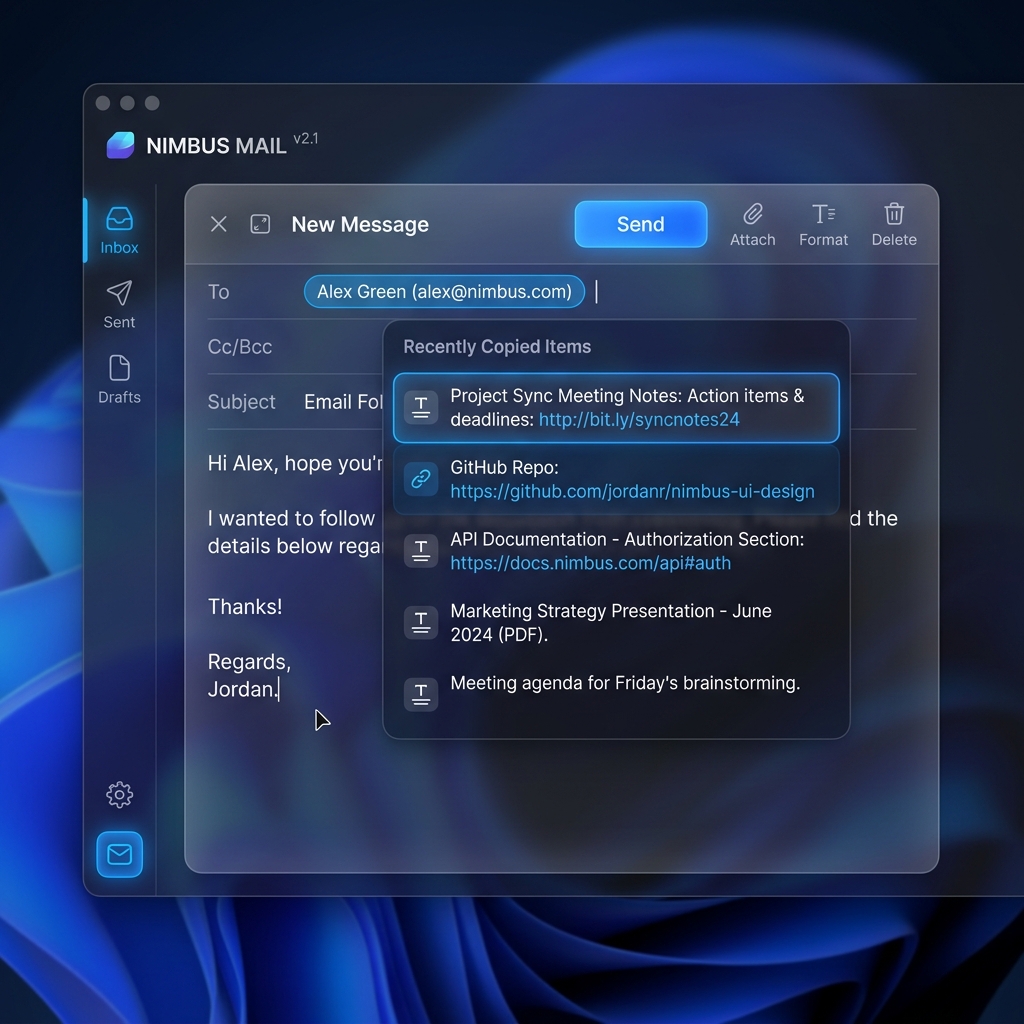
- Keep it visual: You need a clear, easy-to-read list where you can see your copied text, images, and links all in one place.
- Use a quick shortcut: Instead of clicking through menus or searching your computer, use one simple keyboard shortcut to instantly bring up your list of copied items right where you are typing.
Enjoying this read?
Get weekly insights on video editing, AI workflows, and creator growth straight to your inbox.
The Better, Free Way to Do It
Instead of relying on basic system settings that are limited or hidden, the absolute easiest way to solve this problem is by using a dedicated tool designed to do one thing perfectly: remember your copies.
This is where Cubix Clip becomes incredibly useful. It is a completely free clipboard manager for Mac that runs quietly in the background. Once you have it, you instantly get a true clipboard history.
Every piece of text, every image, every file, and every link you copy is safely stored. When you are ready to paste, you just press a simple shortcut, and your entire history appears on your screen. You can quickly view your list, select the exact item you need, and paste it instantly. It turns a frustrating process into a smooth, fast, and completely natural workflow.
If you want to stop losing your copied items and finally get a reliable, visual clipboard history on your Mac, you can download the free tool here: Cubix Clip - Free clipboard manager for Mac.
📖 Keep reading: How to access clipboard history on Mac, how to copy multiple things at once, and everything you need to know about the Mac clipboard.
Final Thoughts
You do not need to be a computer expert to make your Mac work better for you. While macOS is slowly adding basic clipboard features, upgrading to a simple, dedicated manager gives you complete peace of mind. Start saving your copy history today, and you will quickly realize how much time, energy, and frustration you save.
Don’t miss the next one.
Join our newsletter for exclusive tips, product updates, and the latest from the Cubix team.