
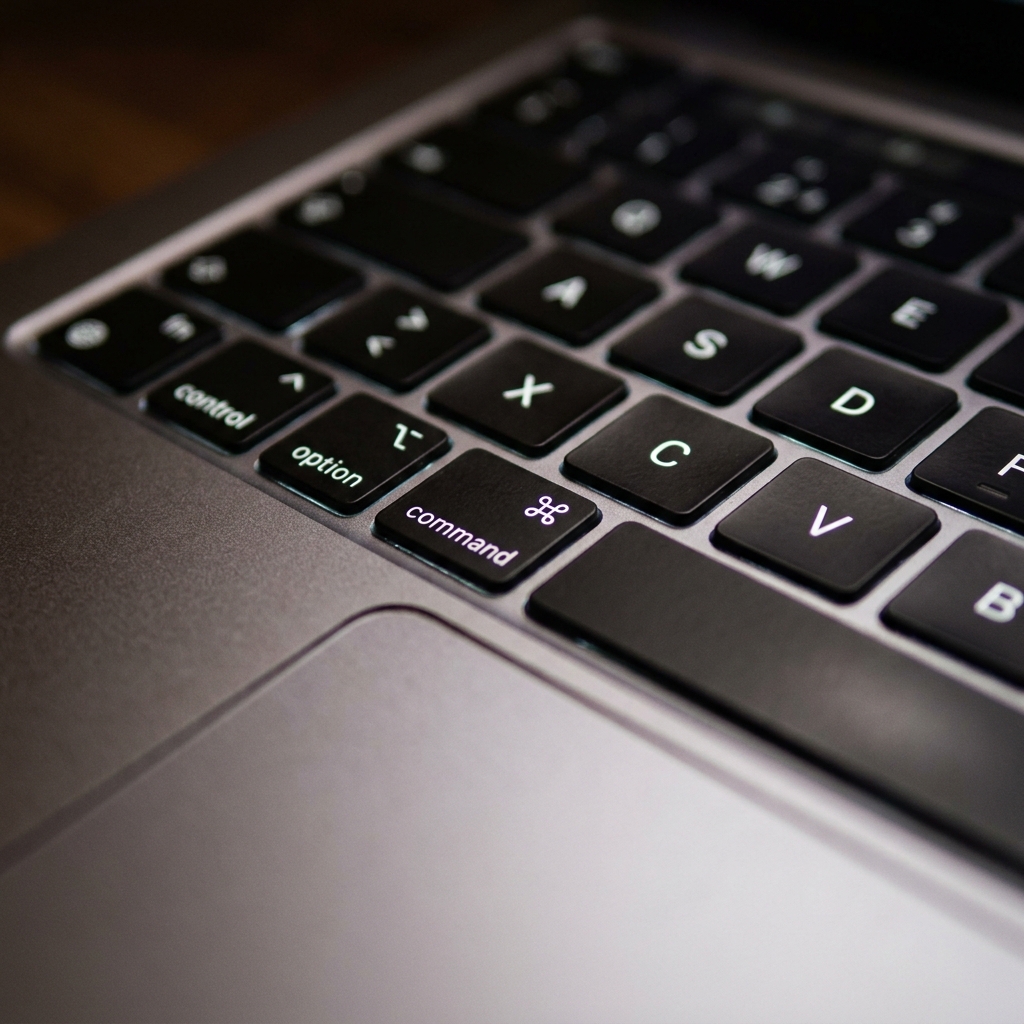
If you use a Mac every day, you probably use the clipboard constantly without even thinking about it. Every time you press "Command + C" to copy a piece of text, an email address, or an image, you are sending that information to your Mac's clipboard.
But despite how often we rely on it, most people do not actually know how their clipboard works, where to find it, or most importantly how incredibly limited it is out of the box.
If you have ever lost a copied item or wondered where your copied text goes, this guide covers everything you need to know about the Mac clipboard.
Where is the Clipboard on a Mac?
Many users assume that because they can copy things, there must be a secret folder or app on their computer called "Clipboard."
In reality, the default Mac clipboard runs invisibly in the background. It does not have its own app icon on your desktop. However, you can actually look at what is currently sitting on it right now:
- Click on the Finder icon (the smiling face in your bottom dock).
- Look at the very top menu bar of your screen and click Edit.
- Scroll down and select Show Clipboard.
A small, simple window will pop up showing you the exact text or image you currently have copied.
The Biggest Limitation You Face Every Day
When you open that small clipboard window, you will notice a huge problem: it only shows one thing.
The standard macOS system has a strict one-item memory. It does not keep a history or a log of what you copied earlier in the day. The exact second you copy a new piece of text, whatever you copied previously is instantly and permanently deleted.
This means if you are researching a topic, doing data entry, or trying to write an article, you cannot gather multiple pieces of information at once. You are forced into an exhausting routine of switching back and forth between windows, copying and pasting one single item at a time.
Enjoying this read?
Get weekly insights on video editing, AI workflows, and creator growth straight to your inbox.
The Recipe to Fix Your Mac Clipboard
You do not have to accept this limitation. The most productive Mac users do not rely on the default clipboard; they upgrade it.
Here is the simple "recipe" to make your computer work the way it should:
- Remove the memory limit: Add a lightweight tool to your Mac that acts as an unlimited memory bank, completely bypassing the one-item rule.
- Collect without limits: Read your articles or emails and simply copy everything you find important as you go text, links, and images without worrying about overwriting.
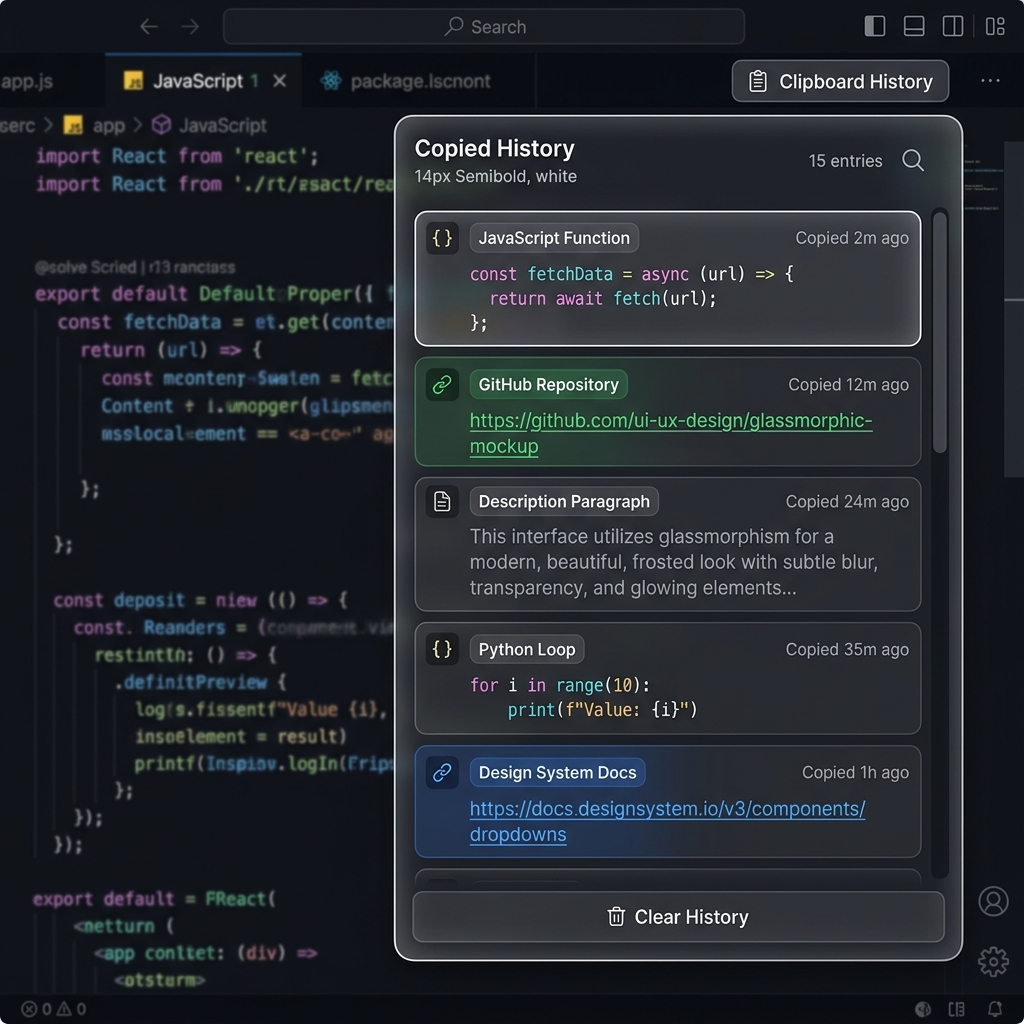
- Paste from a visual timeline: When you are ready to use the information, use a shortcut to bring up a clear, visual list of everything you copied and paste them in any order you want.
How to Upgrade for Free
To get this perfect memory setup, you need a dedicated tool. The easiest, most effective way to upgrade your system is with Cubix Clip.
It is a completely free clipboard manager for Mac that transforms your basic clipboard into a powerful, visual history log. Once it is running quietly in the background, you will never lose a copied item again.
Whether you copy a paragraph, a complex image, a file, or a quick web link, Cubix Clip remembers it. Instead of going up to the "Edit" menu to see just one item, you simply press a quick keyboard shortcut. Instantly, your entire history of copied items appears right where you are typing. You just click the item you need, and it drops into your document.
It feels incredibly natural, completely removing the frustration of lost text and the tedious window-switching dance.
If you want to unlock the full potential of your copy-and-paste workflow and stop losing your hard work, you can get this free tool right here: Cubix Clip - Free clipboard manager for Mac.
📖 Dig deeper: how to access clipboard history, see your clipboard history, recover copied text, and copy multiple things at once.
Final Thoughts
Your Mac clipboard is an essential tool, but its default settings hold you back. By understanding its limitations and adding a simple, free manager to your workflow, you can save hours of time and mental energy every single week. Take control of your clipboard today and experience a much smoother way to work on your Mac!
Don’t miss the next one.
Join our newsletter for exclusive tips, product updates, and the latest from the Cubix team.