
Have you ever copied a crucial piece of text, a link, or an image on your Mac, only to get distracted and copy something else right after?
If you are like most people, your immediate reaction is panic. You probably search your computer settings or the internet trying to figure out how to access clipboard history on Mac to get that lost information back. It is a very common frustration, and it can disrupt your entire workflow, forcing you to retrace your steps and find that original text all over again.
The Truth About the Default Mac Clipboard
When people search for ways to view their copy-paste history on a Mac, they often expect to find a hidden setting they can simply turn on.
Here is the straightforward reality: the default Mac system does not have a built-in clipboard history. Your Mac has a very basic clipboard. It is designed to remember only one single item at a time. The exact second you press "Command + C" to copy something new, whatever you copied previously is instantly overwritten and erased forever.
You can view the current item on your clipboard by going to the top menu bar, clicking Edit, and selecting Show Clipboard. However, this will only show you the very last thing you copied, not a history list.
The Recipe for Keeping Your Copied Items Safe
Since the native system cannot save your history, the best real-life solution is to add a small upgrade to your Mac. If you regularly do research, write emails, or fill out forms, you need a workflow that catches everything you copy without you having to think about it.
Here is the simple "recipe" for never losing a copied item again:
- Get a dedicated memory tool: Equip your Mac with a lightweight application designed specifically to remember your copy history.
- Copy without worry: Go about your day copying text, links, and images freely. Do not worry about overwriting anything.
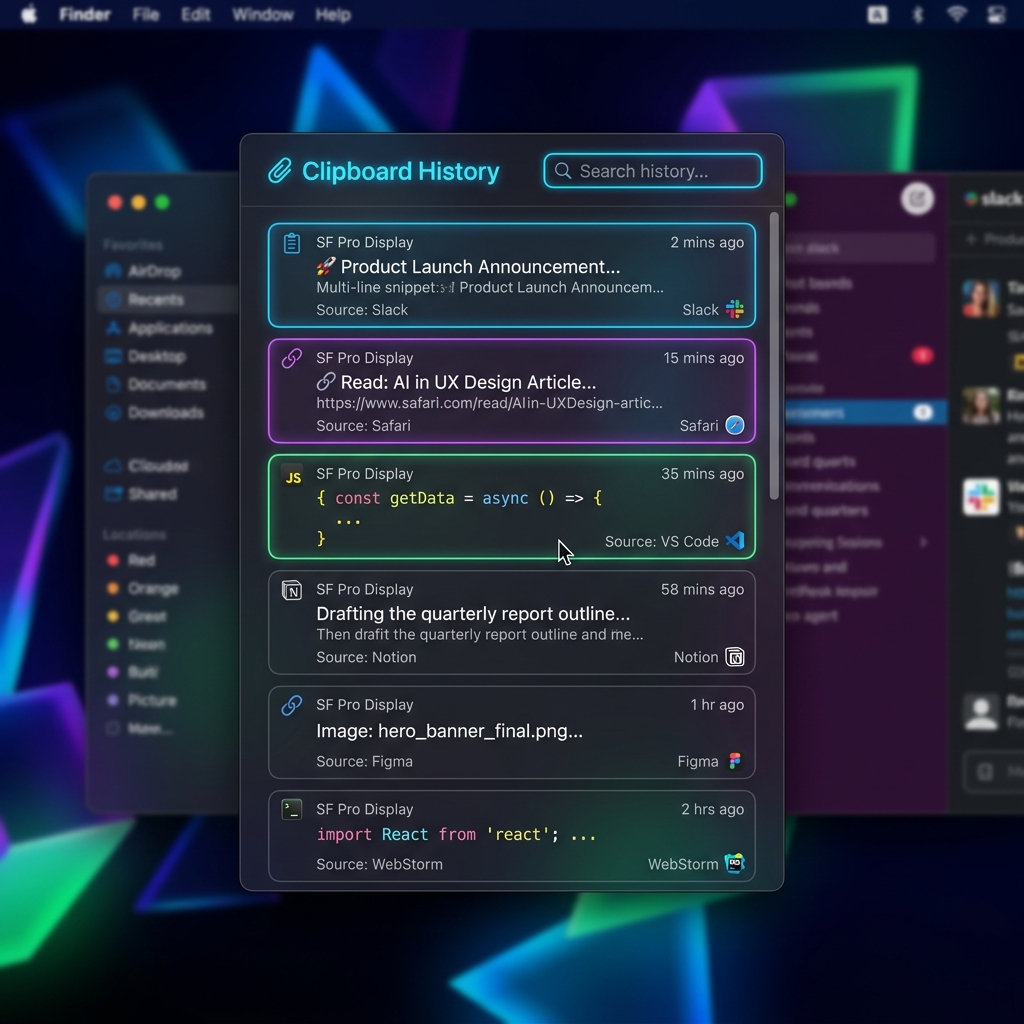
- Bring it back instantly: Use a simple keyboard shortcut to open a visual list of everything you have copied throughout the day, and click the one you want to paste.
Enjoying this read?
Get weekly insights on video editing, AI workflows, and creator growth straight to your inbox.
The Free Solution: Upgrading Your Workflow
To make this recipe work seamlessly, you do not need to spend money or learn complicated software. The most effective way to solve this problem is with Cubix Clip.
It is a completely free clipboard manager for Mac that runs silently in the background. Once it is active, it completely transforms how you copy and paste.
Here is how it makes your daily computer tasks much easier:
- Total Memory: It remembers everything you copy. This includes plain text, complex images, entire files, and web links.
- Instant Access: Instead of losing your older copies, you just press a shortcut, and your complete clipboard history appears.
- Focus and Speed: You can copy multiple things from a website at once, then go to your document and paste them one by one. This stops the exhausting process of bouncing back and forth between different windows.
It is a straightforward, human-friendly tool designed to fix a very specific, annoying problem. If you are ready to stop losing your copied items and make your Mac work better for you, you can get this free tool here: Cubix Clip - Free clipboard manager for Mac.
📖 Keep reading: Does macOS have a clipboard history?, how to recover copied text on Mac, and our complete guide to the Mac clipboard.
Final Thoughts
You no longer have to settle for a copy-paste system that forgets your important information. While the default Mac settings might not offer a history log, taking a few seconds to upgrade your clipboard will save you hours of frustration in the future. Keep your workflow smooth, protect your copied data, and enjoy a much faster way to work!
📖 Keep reading: keyboard shortcuts to paste faster on Mac.
Don’t miss the next one.
Join our newsletter for exclusive tips, product updates, and the latest from the Cubix team.