
You just wrote the best paragraph of the whole piece. It is sharp, it flows, and you know it belongs at the very end of the draft instead of where it sits now. So you cut it, planning to scroll down and paste it in a moment.
Then a thought hits you: you need a source link for the next sentence. You flick over to your browser, copy the URL, flick back, and paste. The URL lands fine — but your paragraph is gone. Cutting it put it on the clipboard; copying the link overwrote it. There is no draft of it anywhere, because you never typed it twice. You sit there trying to reconstruct sentences that were perfect ten seconds ago, and the momentum that produced them has evaporated.
Writing is the one job where your short-term memory and your computer's short-term memory are supposed to work together. On a default Mac, they actively fight each other.

Why "Cut" Is Quietly Dangerous for Writers
Most people think of the clipboard as storage. For a writer, it is really a relay baton — and a default Mac only lets one runner hold it at a time.
Every time you press Command+C or Command+X, macOS overwrites whatever was there before. No warning, no undo, no second slot. That single-slot design is invisible right up until the moment it costs you something irreplaceable: a cut paragraph you hadn't pasted yet, a quote you grabbed before getting distracted, a title you were "holding" while you finished a sentence.
The danger is sharpest with cut, because cutting removes text from your document and parks it somewhere fragile. If anything else touches the clipboard before you paste — even copying a single space — the original is unrecoverable. (If you want the full breakdown of why this happens, we cover it in why the Mac's built-in clipboard is not enough.)
Separate Researching From Writing
The fastest writers almost never research and draft in the same breath. Switching between "find information" mode and "produce sentences" mode dozens of times per page is what makes a 1,000-word article take an entire afternoon. Each switch is a small reset your brain has to recover from.
A clipboard with memory lets you split the work cleanly:
- Do a research pass first. Read your sources end to end and copy every quote, statistic, name, and link as you go — five, ten, twenty items in a row. Never open your draft during this pass.
- Then close the tabs and write. With your raw material already captured, you can stay in a blank document and let the words come without leaving to "go look something up."
- Pull from history as you need it. When a sentence calls for that statistic from item #4, you open your clipboard history, click it, and it drops in — no browser, no scrolling, no broken sentence.
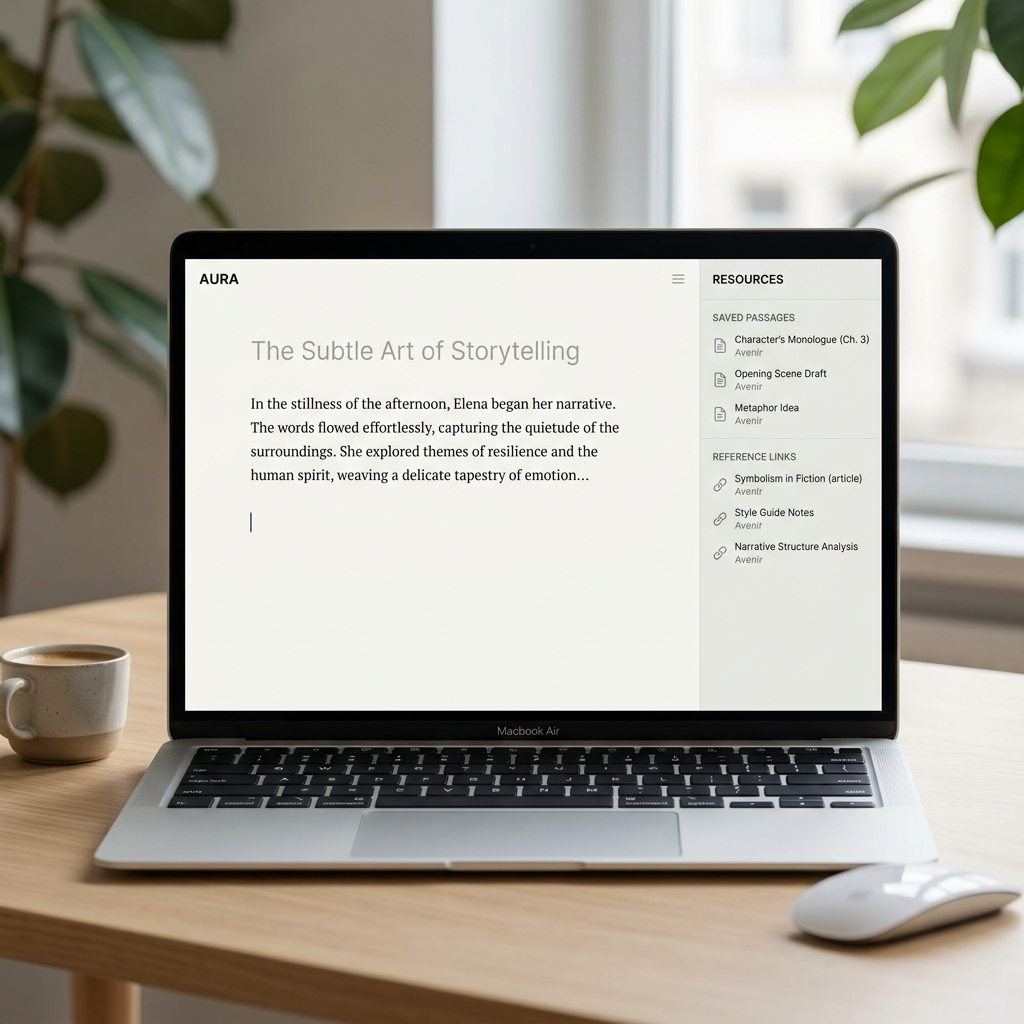
Writers who do a lot of templated work — pitch emails, bylines, recurring sign-offs, a stock author bio — get an extra benefit: those snippets live permanently in history instead of being retyped. (Bloggers especially should see the best clipboard manager for writers and bloggers.)
Enjoying this read?
Get weekly insights on video editing, AI workflows, and creator growth straight to your inbox.
The Free Tool That Gives Your Mac a Memory
To make this work, your Mac needs a second piece that Apple never shipped: something that quietly keeps a running list of everything you copy instead of throwing the last item away.
Cubix Clip is a free clipboard manager for Mac built for exactly that. It sits in the menu bar and records each copy and cut — text, links, images, files — in order, so cutting a paragraph to "move it later" is finally safe. Copy a dozen quotes in a row and all twelve are waiting for you.
When you need something, a keyboard shortcut brings up your history; you click the item and it pastes straight into your draft. You stay in the document the entire time, which is the whole point — the tool disappears and the writing stays in front of you.
If you are new to the idea, what a clipboard manager is and why Mac users need one explains the concept from scratch.
The Takeaway
The blank page deserves your full attention, and so does the paragraph you just cut. A writer who never loses copied text — and never breaks flow to re-find a source — simply finishes faster and rewrites less. Give your Mac the memory it's missing with Cubix Clip, and let the only thing you have to hold in your head be the next sentence.
Don’t miss the next one.
Join our newsletter for exclusive tips, product updates, and the latest from the Cubix team.