
For years, Mac users have been asking Apple for one simple feature: a way to remember more than just one copied item at a time.
If you are running the newest software, macOS 26 (Tahoe), Apple finally listened. They introduced a built-in clipboard history hidden inside the Spotlight search bar. You might think that this completely solves the problem of losing your copied text, images, and links.
But as soon as you start relying on it for your daily work, you quickly realize that the built-in tool is very restricted. While it is a step in the right direction, it is simply not enough for anyone who relies on copying and pasting to get serious work done.

The Hidden Limits of the Apple System
The new macOS clipboard history has a few major limitations that can instantly disrupt your workflow. If you are doing research, designing, or writing, these restrictions become incredibly frustrating:
- The 8-Hour Memory Wipe: The built-in system automatically deletes your copied items after eight hours. If you copied an important link or a paragraph at the end of your workday on Monday, it will be completely gone by the time you open your laptop on Tuesday morning.
- It Destroys Formatting: The Apple system only saves plain text. If you copy a beautifully formatted list or a paragraph with bold words and hyperlinks, the built-in history strips all that styling away. You are left with plain, unformatted words that you have to manually fix.
- The iPhone Blind Spot: Many of us use Universal Clipboard to copy a text message on our iPhone and paste it on our Mac. Strangely, the built-in Mac history does not save these cross-device copies. If you copy something on your phone and forget to paste it immediately, it will not be in your Mac's history list.
- Clunky Shortcuts: To access it, you have to open Spotlight and then press a combination of keys, which feels slower and less natural than a dedicated drop-down menu.
The Recipe for a Perfect Memory
You do not have to settle for a system that deletes your work while you sleep or ruins your formatting. You need a workflow that catches everything perfectly.
Here is a simple recipe to give your computer the memory it actually deserves:
- Bypass the built-in limits: Stop relying on the limited Spotlight history. Equip your Mac with a dedicated tool that has no time limits and respects your formatting.
- Copy without the clock ticking: Do your research throughout the week. Copy text, links, and images, knowing they will still be there tomorrow, exactly as you copied them.
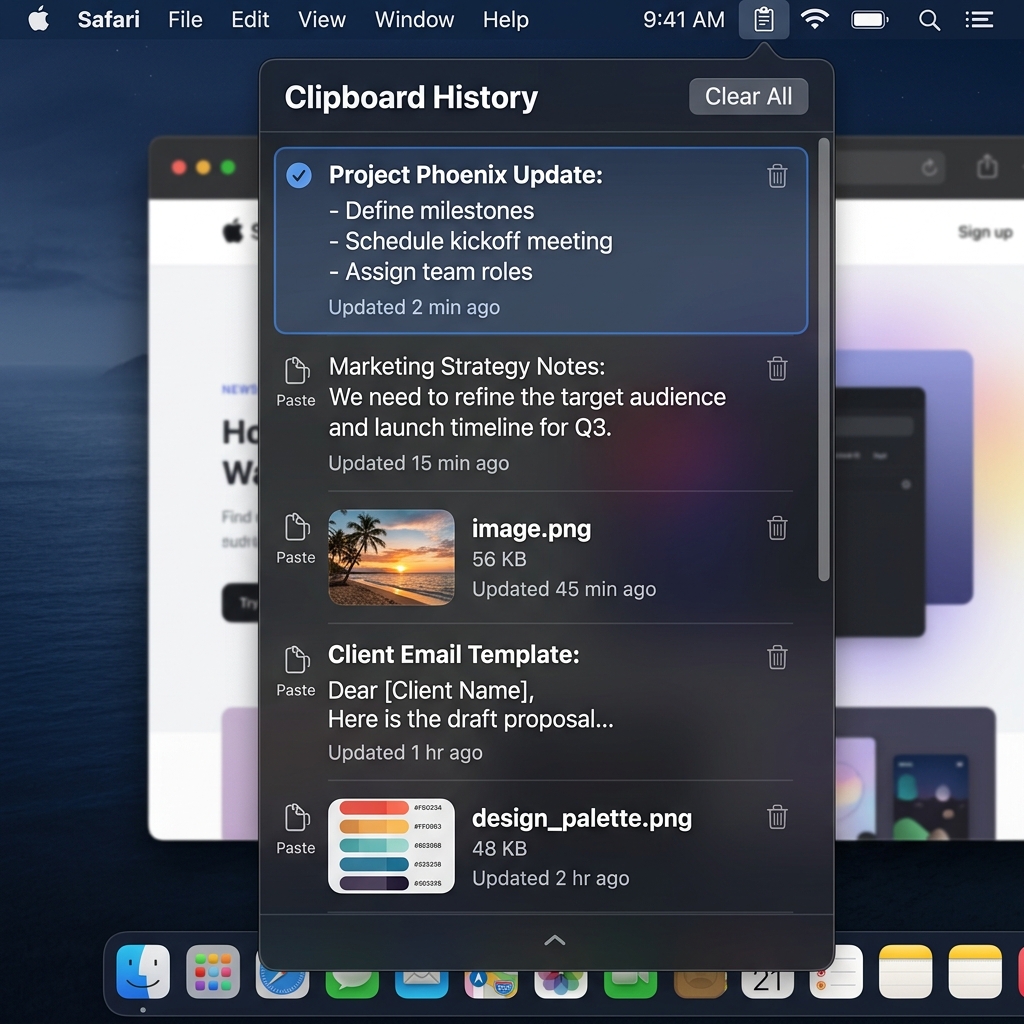
- Keep it visual and fast: Use a quick, single keyboard shortcut to bring up a clear, easy-to-read list of your history, rather than digging through the search bar.
Enjoying this read?
Get weekly insights on video editing, AI workflows, and creator growth straight to your inbox.
The Ultimate Free Upgrade
Line up the built-in history against a purpose-built manager and the gaps become obvious:
| What you need | macOS built-in (Spotlight) | A dedicated manager |
|---|---|---|
| How long copies are kept | Wiped after ~8 hours | Until you delete them |
| Formatting | Plain text only | Preserved |
| Items copied from iPhone | Not saved | Captured |
| Access | Open Spotlight, then a key combo | One direct shortcut |
That right-hand column is Cubix Clip, a free clipboard manager for Mac that exists precisely to close those four gaps. Your history does not evaporate overnight, your formatted lists and links stay styled, and the items you hand off from your iPhone via Universal Clipboard actually land in the list. One shortcut brings the whole history up wherever your cursor is.
Download it free here: Cubix Clip - Free clipboard manager for Mac.
Final Thoughts
Apple adding any clipboard history is genuinely good news, it signals the feature finally matters. But "exists" and "enough" are different bars. If you copy for a living, the eight-hour wipe and the plain-text flattening will catch you eventually. For the full list of where macOS falls short, see macOS Clipboard Limitations and How to Fix Them, or learn how to see clipboard history on Mac the right way. A dedicated manager simply removes the asterisks.
Don’t miss the next one.
Join our newsletter for exclusive tips, product updates, and the latest from the Cubix team.