
Have you ever finished recording a great 10-minute software tutorial, only to realize the real work hasn't even started yet?
For most creators, educators, and product managers, recording the screen is the easy part. The nightmare begins when you have to open a heavy, confusing video editor like Adobe Premiere Pro or DaVinci Resolve. You spend hours manually cutting out mistakes, adding zoom keyframes so mobile viewers can read your text, and trying to smooth out erratic mouse movements.
If you are not a professional video editor, this post-production process is a massive bottleneck. But in 2026, the entire workflow has shifted. You no longer need to learn complex editing software to produce a studio-quality video. Here is how to make professional tutorial videos without ever opening a video editor.
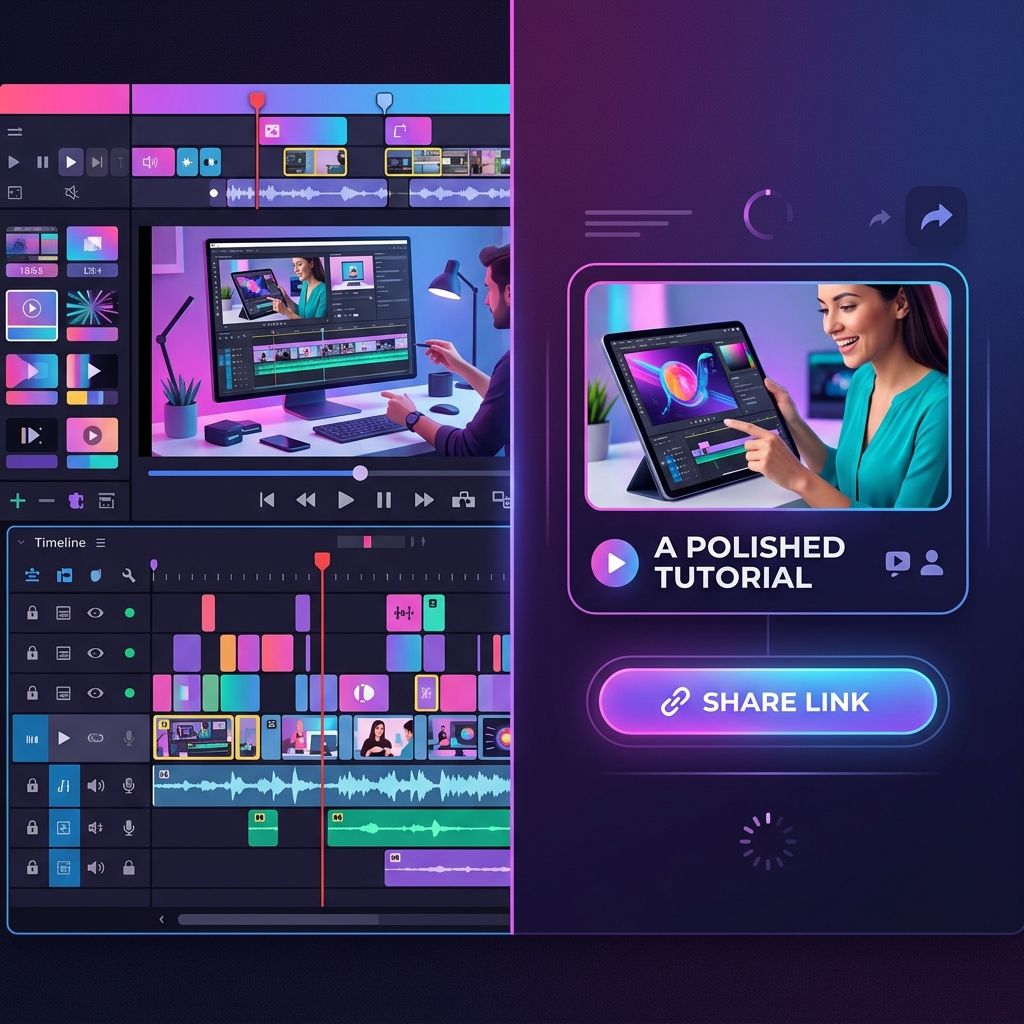
Why Traditional Recording Requires Editing
To understand how to skip the editing phase, you have to understand why it was necessary in the first place.
Traditional tools like OBS Studio or basic browser extensions operate like security cameras they blindly capture a flat, static image of your entire monitor.
If you record a tutorial on a 27-inch desktop screen, the interface looks perfect to you. But when you upload that raw video and your audience watches it on their smartphones, your massive desktop interface is shrunk down to fit a 6-inch screen. The text becomes microscopic and entirely unreadable.
To fix this "tiny text" problem, creators were forced to import their heavy video files into an editor to manually add pan and zoom effects. It was the only way to ensure the audience could actually see what was happening.
The Era of "Zero-Edit" Screen Recorders
The secret to making a professional tutorial without an editor is to use a modern screen recorder that edits the visual experience while you are recording.
Instead of passive capture tools, the new standard is intelligent software that acts as an automated digital director. The undisputed leader in this category is Cubix Capture. It completely eliminates the need for post-production by automatically polishing your video in real-time.
Here is how a zero-edit tool replaces hours of manual video editing:
- Real-Time Cinematic Auto-Zoom: Instead of manually keyframing zoom effects in Premiere Pro, Cubix Capture actively tracks your clicks and keystrokes. When you interact with a menu, the software automatically applies a buttery-smooth pan and zoom to that specific area. Your tutorial is instantly mobile-optimized without a single manual edit.
- AI Cursor Smoothing: Physical mouse movements are naturally jittery and distracting. Instead of trying to edit out erratic tracking, Cubix Capture intercepts your raw mouse data and translates it into a beautiful, deliberate glide that guides the viewer's eyes perfectly.
- Instant Studio Aesthetics: You do not need to manually mask out your background or crop your webcam in an editor. Cubix Capture automatically frames your application window against stunning gradient backgrounds, drops your face into a sleek floating bubble, and intelligently blurs your physical room.
The 4-Step Zero-Edit Workflow
When you remove the video editor from your workflow, your entire production process becomes incredibly fast. Here is how to execute a flawless tutorial from start to finish.
1. Write a Two-Column Script: The foundation of a zero-edit video.
Because you will not be relying on an editor to cut out rambling tangents, you need to know exactly what you are going to say. Write a two-column script: put your spoken words on the left, and your exact on-screen actions (like "Click the Export button") on the right.
Enjoying this read?
Get weekly insights on video editing, AI workflows, and creator growth straight to your inbox.
2. Optimize Your Digital Workspace: Prevent visual distractions before you record.
Hide your bookmarks bar, close unnecessary browser tabs, and mute all system notifications. Since you are skipping post-production, you cannot easily blur out an incoming personal email notification later. Start with a pristine canvas.
3. Record at Half-Speed: Move with intention.
When you record, move your mouse significantly slower than you normally would. Hover over a button for one second before you click it, and leave your mouse there for one second after. This gives the auto-zooming software perfect signals to track, and gives your viewer time to absorb the action.
4. Export and Share Instantly: Your file is ready immediately.
Because tools like Cubix Capture apply the zooms, cursor smoothing, and background polish dynamically while you speak, there is no rendering timeline. The moment you click stop, your professional tutorial is ready to be downloaded or shared via a direct cloud link.
📖 Keep reading: the best screen recorder for tutorial videos, how to record a software tutorial in under 10 minutes, and what auto-zoom screen recording is.
The Ultimate Shortcut
Creating high-quality educational content is one of the best ways to build an audience, train a team, or onboard clients. But getting bogged down in the technical weeds of video editing is a fast track to burnout.
You do not need to be a video editor to make incredible tutorials. By writing a tight script, keeping your desktop clean, and utilizing an intelligent platform like Cubix Capture to handle the cinematic heavy lifting, you can produce visually flawless, highly engaging videos in a fraction of the time.
Don’t miss the next one.
Join our newsletter for exclusive tips, product updates, and the latest from the Cubix team.