
Your frame counter should sit rock-steady at 30 or 60, but instead it sags, spikes, and stalls. Playback looks like a flipbook with pages missing, even though the audio track underneath stays perfectly smooth. Frame rate drops in OBS always trace back to one specific stage overloading, and the right fix depends entirely on which one it is.
The mistake most people make is changing settings at random. OBS actually tells you where the problem is, if you know where to look: it keeps three separate frame-drop counters, and each one points to a completely different fix. Guessing wastes an afternoon; reading the counters takes ten seconds.
So this guide starts with that diagnosis, then walks the targeted fix for whichever counter is climbing, whether the bottleneck is your network, your GPU, or your encoder.
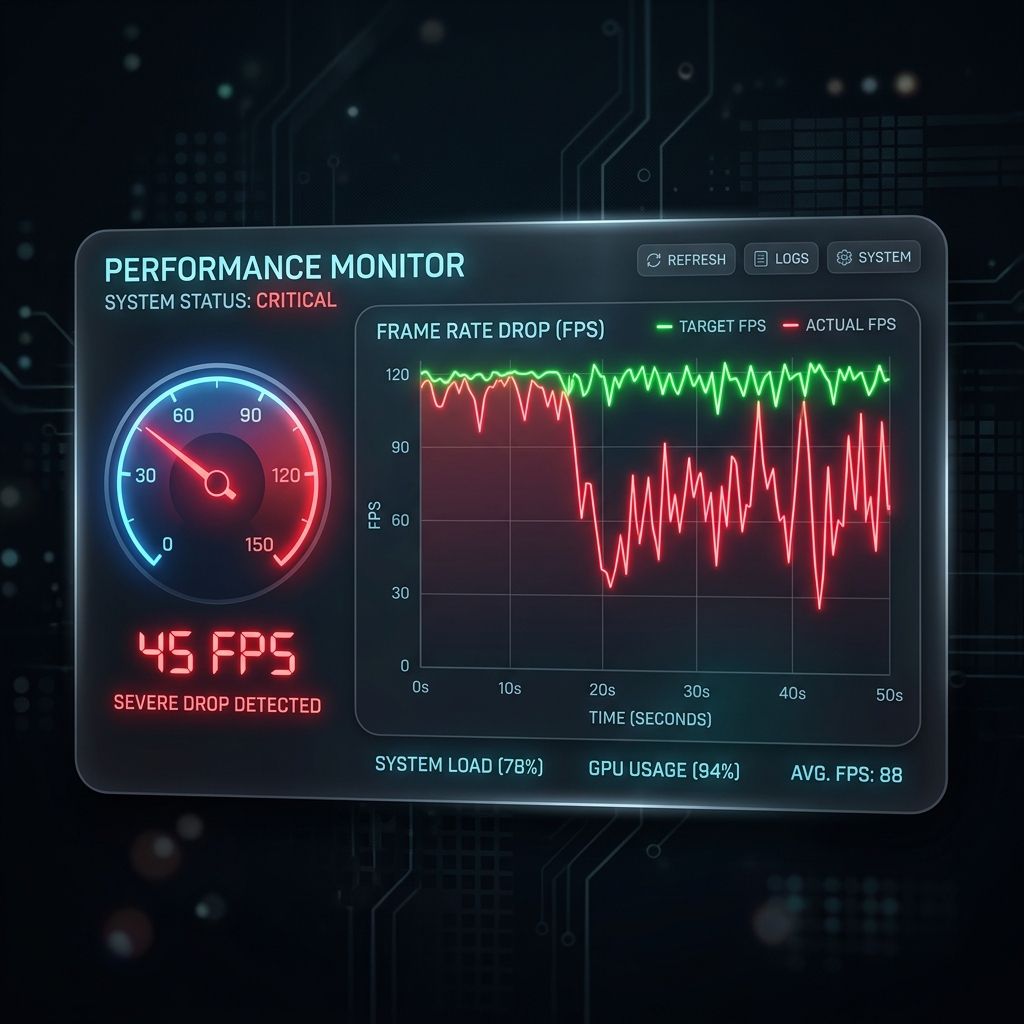
The Three Profiles of Frame Drops
Before changing any settings, open the Stats dock inside OBS Studio (View > Docks > Stats in the top menu bar). When frames vanish, OBS categorizes them into three distinct buckets. Knowing which bucket is filling up tells you exactly how to respond:
- Dropped Frames (Network): The counter ticks upward while the bitrate square in the bottom-right corner constantly jumps between green, yellow, and red. Your computer is fine, but your internet upload pipeline cannot carry the data fast enough.
- Skipped Frames (Rendering Lag): The stats panel points to an overloaded rendering layer. Your graphics card (GPU) is running out of memory processing power to compile your layouts onto the core canvas.
- Lagged Frames (Encoding Lag): The stats panel warns of an overloaded encoder. Your CPU or graphics chip is choking during the intense compression phase and cannot write the data fast enough to meet its frame budget (e.g., under 16.6 ms per frame for a 60 fps target).
Step-by-Step Fixes to Stop the Drop
Work through these targeted hardware and software adjustments in order to clear out system dropouts.
Step 1: Run OBS as Administrator (The GPU Render Fix)
If you are suffering from Rendering Lag, Windows is likely starving your capture engine. By default, the operating system routes nearly 100% of graphics card performance to whatever application or game is actively focused in the foreground. Because OBS needs a small fraction of GPU power just to map your visual canvas layout, it gets pushed to the back of the processing line, resulting in immediate frame skips.
- The Fix: Close OBS Studio completely. Right-click the OBS launcher icon or desktop shortcut and select Run as administrator.
- Make it Permanent: Right-click the shortcut, go to Properties, click the Compatibility tab, check the box for "Run this program as an administrator", and click Apply.
Why it works: Launching with administrative privileges activates an architectural graphics flag. It commands the Windows kernel to treat OBS's video rendering pipeline with equal priority to your foreground apps, ensuring your canvas never starves for GPU cycles.
Enjoying this read?
Get weekly insights on video editing, AI workflows, and creator growth straight to your inbox.
Step 2: Offload Processing to a Hardware Video Encoder
If the Lagged Frames (Encoding) row is the one climbing, your main processor is handling too much compression math because OBS is set to the CPU-bound x264 profile. The quick fix: open Settings > Output, set Output Mode to Advanced, and change the Video Encoder to a hardware chip (NVENC, AMD HW, QuickSync, or Apple VT), then set Rate Control to CBR around 6000 Kbps for 1080p60.
Because encoding lag is the single most common reason frames drop, it has a dedicated deep dive with bitrate tables and a full NVENC walkthrough: OBS Encoder Lag: NVENC vs x264 Fix.
Step 3: Rule Out a Refresh-Rate Mismatch
If all three counters read zero but playback still micro-stutters, the cause is usually frame desynchronization: a 144 Hz or 240 Hz monitor feeding a 60 fps capture, so the frames do not divide evenly. Lock your screen refresh rate to a clean multiple (120 Hz or 60 Hz) while recording, and make sure your Base (Canvas) Resolution matches your monitor natively so OBS is not rescaling every frame in real time. The full frame-pacing breakdown lives in OBS Recording Stuttering: Fix Choppy Video.
Performance Parameters At a Glance
| Optimization Parameter | Impact on Rendering Lag | Impact on Encoding Lag | Impact on Network Drops |
|---|---|---|---|
| Run as Administrator | Drastically Reduces (Highest Priority) | Neutral | Neutral |
| Hardware Encoder (NVENC/VT) | Neutral | Drastically Reduces (Offloads CPU) | Neutral |
| Process Priority (Above Normal) | Reduces Processing Latency | Reduces Computation Choke | Neutral |
| Downscaling Frame Rate (60 to 30) | Reduces Processing Burden | Reduces Computation Load | Reduces Bandwidth Burden |
A Recorder That Never Drops the Frame
Reading the Stats dock and routing each counter to its fix is the right way to tame OBS. It is also work you repeat before every important session.
If your goal is tutorials rather than broadcasts, Cubix Capture sidesteps the whole diagnostic loop. It holds a steady frame rate on standard hardware without preset tuning, then adds automatic zoom and cursor smoothing on top, so you get a polished, phone-legible recording the second you hit stop instead of a stats panel to babysit.
Related reading:
- OBS Encoder Lag: NVENC vs x264 Fix
- OBS Dropping Frames: Why It Happens and How to Stop It
- OBS Using Too Much CPU: Best Settings to Fix It
Don’t miss the next one.
Join our newsletter for exclusive tips, product updates, and the latest from the Cubix team.