
Play your OBS recording back and it looks fine while the screen is still, then the instant you scroll or drag a window the picture shatters into little squares. Text along a moving edge breaks into coloured blocks, gradients turn into visible steps, and the whole frame looks like a low-quality stream that stalled halfway through loading.
Those squares have a name: macroblocks. They appear when the encoder does not have enough bitrate to describe everything that changed between two frames, so it groups thousands of unique pixels into a handful of blocky averages and moves on. Unlike soft, out-of-focus blur, which is a scaling problem covered in OBS Recording Looks Blurry, pixelation is specifically a bitrate problem, and it always shows up worst during motion.
Give the encoder room to work and the squares vanish. Here is how to do it without ballooning your file sizes.
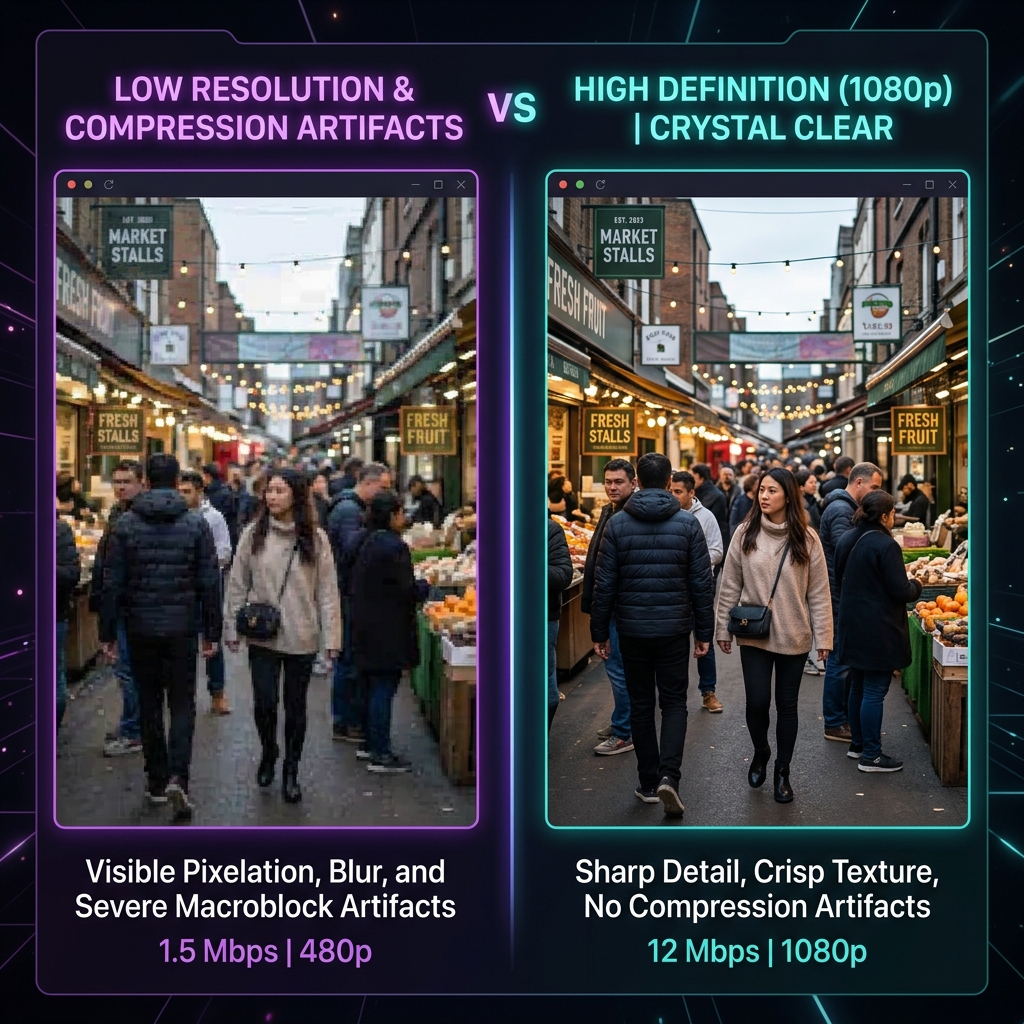
Why Your OBS Recordings Look Pixelated
Video compression works by analyzing changes between frames. If you are recording a static desktop with no movement, very little data is required. However, the exact millisecond you scroll down a page, open a complex menu, or switch tabs, millions of pixels change simultaneously.
If your Bitrate, the volume of data allocated per second of video is set too low, the encoder runs out of tokens to draw these sudden movements. To prevent the recording from freezing entirely, the encoder is forced to guess, compressing thousands of unique colors into large, low-resolution block configurations called macroblocks. This artifacting is what we call pixelation.
Step-by-Step Fixes for Razor-Sharp Video
Work through these targeted hardware and settings configurations to completely eliminate macroblocking from your output files.
Step 1: Switch to a Constant Quality (CQP) Rate Control
Most default OBS tutorials recommend using CBR (Constant Bitrate). While CBR is the absolute industry standard for live streaming because it forces a strict, predictable data flow across an internet connection, it is the worst possible choice for local recording.
Local recording writes directly to your hard drive, meaning you don't have to worry about network bottlenecks. Instead of restricting your system to a fixed bandwidth, you should use CQP (Constant Quality), which automatically shifts your bitrate dynamically to guarantee perfect frame clarity regardless of how much action is happening on screen.
-
Navigate to Output Settings: Open internal platform configurations. Launch OBS Studio, click on Settings in the bottom-right control corner, and select the Output tab from the left sidebar panel.
-
Switch the Output Mode to Advanced: Unlock advanced encoder metrics. Locate the Output Mode dropdown at the top of the interface block and switch it from Simple to Advanced. Click onto the Recording sub-tab.
-
Change Rate Control to CQP: Modify the data allocation strategy. Locate the Rate Control dropdown menu. Change this option from CBR entirely to CQP (Constant Quality).
-
Tune the CQ Level Value: Define the target visual compression baseline. Configure the CQ Level input field. Set this number between 16 and 20 (where 16 outputs pristine, near-lossless clarity and larger numbers increase compression). A setting of 18 serves as the perfect golden standard, delivering razor-sharp text and zero pixelation without generating massive, bloated files. Click Apply.
Step 2: Offload Processing to a Hardware Encoder
If you must use CBR (for instance, if you are streaming and recording simultaneously), your pixelation may be caused by your CPU bottlenecking on an inefficient encoder profile called x264. Shifting this burden to a dedicated chip on your graphics card stops frame dropping instantly.
-
In the same Output > Recording (or Streaming) tab, locate the Video Encoder dropdown.
-
Change it away from x264 to your graphics hardware's dedicated processing engine:
-
NVIDIA NVENC H.264 / AV1 (For NVIDIA graphics cards)
-
AMD HW H.264 / AV1 (For AMD configurations)
-
Apple VT H.264 Hardware (For Mac setups)
-
If you are forced to stick with CBR for streaming, raise your Bitrate field to at least 6000 Kbps for a standard 1080p 60 fps layout to give the encoder enough data room to breathe.
Enjoying this read?
Get weekly insights on video editing, AI workflows, and creator growth straight to your inbox.
Step 3: Confirm It Is Bitrate, Not Scaling
If CQP and a hardware encoder did not fully clean things up, check whether a scaling issue is stacked on top of the bitrate one. Open the Video tab and set your Base (Canvas) Resolution and Output (Scaled) Resolution to the same numbers, so OBS is not resizing the frame as well as compressing it. If a soft, out-of-focus quality survives even at high bitrate, that half of the problem is scaling rather than macroblocking, and OBS Recording Looks Blurry walks through the downscale-filter settings that fix it.
Anti-Pixelation Parameter Grid
| Recording Variable | Pixelated Profile (Default) | Crisp Profile (Optimized) | Visual Resolution Outcome |
|---|---|---|---|
| Rate Control (Local) | CBR @ 2500 Kbps | CQP @ 18 | Allocates infinite data tokens dynamically for movement |
| Rate Control (Stream) | CBR @ 3000 Kbps | CBR @ 6000+ Kbps | Bypasses macroblock generation over network lines |
| Hardware Core Assignment | x264 (CPU Software) | Hardware (NVENC / AMD / VT) | Protects processing pipelines from frame chokes |
| Canvas Resolution Balance | Downscaled Ratios | 1:1 Native Parity (Base = Output) | Eliminates spatial rounding artifacts across UI elements |
When You Would Rather Not Tune Bitrate at All: Cubix Capture
Chasing macroblocks means thinking in CQP levels and encoder chips before every recording, then re-checking them whenever you change what you capture. OBS hands streamers that control on purpose. If you are making tutorials, it is overhead you never asked for.
Cubix Capture encodes local recordings at visually lossless quality by default, so motion stays clean without you choosing a rate control at all. There is no CBR-versus-CQP decision and no bitrate field left sitting too low, which is the exact setting that produces the blocks in the first place.
Keep Reading
- OBS Recording Looks Blurry: Fix Video Quality for soft blur rather than blocky squares.
- OBS Video Quality Bad: Best Settings to Fix for the full settings pass in one place.
- OBS Encoder Lag: NVENC vs x264 Fix if choosing an encoder is where you are stuck.
- OBS Best Settings for Screen Recording in 2026 for a clean baseline profile.
Don’t miss the next one.
Join our newsletter for exclusive tips, product updates, and the latest from the Cubix team.