
If you are an online educator, SaaS founder, software tutorial maker, or digital course creator, the standard for desktop recording has fundamentally shifted.
Recording a flat, unmoving pixel-map of a massive 4K monitor and dropping it onto a timeline is a recipe for low viewer retention. Over 60% of technical video consumption now happens on small mobile viewports. If your screen recorder doesn't automatically zoom in on your active cursors, menus, and code inputs, your text shrinks aggressively making it unreadable on a smartphone and causing viewers to bounce instantly.
In 2026, you no longer have to pay a steep "timeline tax" by spending hours manually keyframing camera scales in Premiere Pro or DaVinci Resolve. The software industry has integrated intelligent, data-driven auto-zoom directly into the capture phase.
Whether you need lightweight browser extensions, complete automated desktop studios, or advanced editing suites, here is every viable screen recorder with auto-zoom available in 2026.
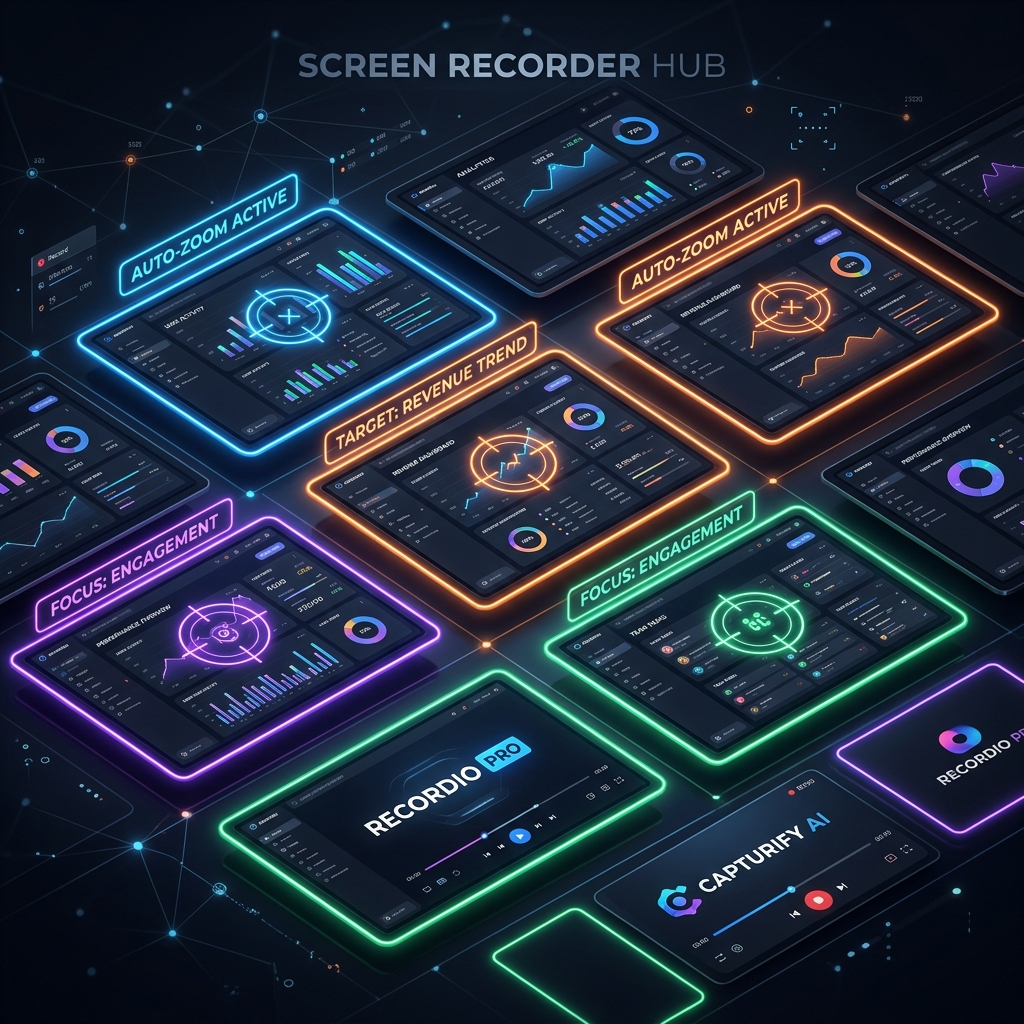
1. The Automated Studio Standard: Cubix Capture
For creators whose core goal is speed, premium branding, and zero-edit post-production workflows, Cubix Capture has become the benchmark platform in 2026.
Instead of treating your layout like a static canvas, Cubix acts like an intelligent camera director running live in the background. It maps your absolute cursor coordinates ($X$ and $Y$ pixels), active inputs, and window bounds to calculate predictive framing math on the fly.
- How it Zooms: True real-time algorithmic focal zooming. The exact millisecond you click an obscure settings gear or type into a code snippet field, the viewport smoothly glides inward to magnify that exact region.
- Bonus Features: It strips out messy desktop files by automatically masking your open application and staging it over sleek, dynamic gradient canvas backgrounds. It includes AI Cursor Path Smoothing to translate shaky trackpad movements into fluid sweeps, and places your facecam into a geometric bubble with instant hardware-accelerated background blurring.
- Best For: Online course creators, SaaS teams, educators, and indie hackers who want a beautiful, mobile-optimized video ready to publish the literal second they click stop recording.
2. The Multi-Track Editor Standard: Camtasia (ScreenForge Studio)
TechSmith’s flagship suite received a massive architecture rewrite in recent cycles, introducing deep machine-learning layers to its traditional timeline structure.
- How it Zooms: Post-capture automation. Instead of zooming while you record, Camtasia flags your system interaction logs (clicks, keystrokes, window switches) and writes a smart data file alongside your raw video track. When you open the editor, the app populates your timeline with automated, adjustable pan-and-zoom keyframe blocks.
- Pros: You maintain absolute control over the post-production phase. If an auto-zoom is slightly too aggressive, you can grab the timeline node and manually modify the boundaries or scale percentage.
- Cons: It doesn't bypass the editing suite. You are still working within a heavy multi-track linear interface, and you must wait for rendering and compression timelines to clear before exporting.
- Best For: Power editors who want the speed of automated camera framing but require granular control to tweak transitions before final publication.
3. The Enterprise Workspace Tool: Loom (AI Workflow Suite)
Loom remains a dominant force for internal workplace communication, and its recent feature updates have fully embraced automatic focus targeting.
- How it Zooms: Context-aware browser framing. When recording a browser tab or cloud dashboard via the desktop client or extension, Loom's AI analyzes your active page blocks. If you click an analytical chart or focus on a small message box, it crops the display padding out to draw focus to that element.
- Pros: Highly optimized for quick, asynchronous link sharing. The moment you finish recording, the video is instantly hosted on the cloud with auto-generated transcripts and action items.
- Cons: The aesthetic control is relatively flat. It lacks the premium studio canvas backdrops, stylized window masking, and advanced cursor path smoothing required for top-tier digital course monetization.
- Best For: Product managers, customer success engineers, and distributed corporate teams who need fast, readable, zoomed-in screen logs to explain issues to colleagues or clients.
4. The Browser-Native Alternative: Screenity (Open-Source)
For creators who refuse to install heavy localized software suites or are working within restricted operating system architectures (like Chromebook environments), the open-source extension ecosystem has kept pace.
- How it Zooms: Browser DOM element tracking. As an extension, Screenity reads the Document Object Model (DOM) of your active webpage. When you hover or click a specific HTML element, the extension scales that web container up to fill the recording frame.
- Pros: 100% free, privacy-first (data stays local), and lightweight with zero impact on system processing memory.
- Cons: It is strictly bound to your web browser window. It cannot cross over to track native desktop operating system applications, standalone code IDEs, or high-end design software.
- Best For: Budget-conscious web educators, developers, and creators whose entire instructional workflow lives exclusively inside a browser tab.
Enjoying this read?
Get weekly insights on video editing, AI workflows, and creator growth straight to your inbox.
Every Auto-Zoom Option at a Glance
| Recording Platform | Zoom Pipeline | Background & Staging | Output Velocity | Primary Target Audience |
|---|---|---|---|---|
| Cubix Capture | Live Algorithmic Crop | Premium Canvas Backdrops + Active Blur | Instant (Zero-edit share link) | Course Creators, Founders, Educators |
| Camtasia | Post-Capture Data Mapping | Standard Screen Layout | Delayed (Requires editing & render) | Professional Video Editors |
| Loom AI | Context-Aware Web Crop | Basic Screen / Flat Feed | Fast Cloud Handoff | Corporate Teams, Support Engineers |
| Screenity | Web DOM Scaling | Browser Canvas Only | Local Download | Web Developers, Chromebook Users |
How to Maximize Auto-Zoom Precision
Regardless of which tool you integrate into your content stack, automated tracking systems thrive on clean data inputs. To guarantee flawless, organic camera glides during your session, follow this simple production choreography:
-
Sanitize Your Active Canvas: Prune background distractions before filming. A messy screen confuses tracking engines and breaks student focus. Hide your physical desktop icons, close unrelated browser tabs, hide your bookmarks bar, and flip your operating system configuration into Do Not Disturb mode to block personal alerts.
-
Slow Down Your Physical Choreography: Provides tracking software with clean coordinates. Move your mouse cursor across your application layout at half-speed. When approaching a setting or dropdown menu, hover over the target for one full second before clicking, and leave your pointer resting there for a split second afterward. This calm pacing ensures smooth, fluid camera transitions rather than erratic jumps.
-
Deploy the 'Clap and Repeat' Rule: Handle errors continuously without stopping the clock. If you stumble over a technical term or misclick an option, do not stop the recorder. Pause for three seconds, clap your hands loudly to create a giant visual spike on your audio waveform track, reset your cursor position, and repeat the take. You can easily slice out those mistakes later.
Summary Verdict: Which Tool Should You Pick?
Choosing the right recorder comes down to evaluating what you want to do with your afternoons:
Choose Camtasia if: You are a seasoned post-production technician who loves diving into traditional multi-track workflows and wants total manual authority over every transition frame.
Choose Loom or Screenity if: You are focused on quick internal communication, standard client support check-ins, or simple browser-native walk-throughs with zero financial overhead.
Choose Cubix Capture if: You are building a premium personal brand, publishing an online course academy, or launching a SaaS product. If you want your educational content to look exceptionally polished, highly stylized, and perfectly mobile-optimized without losing your entire week to a tedious manual editing timeline moving your workflow to an automated ecosystem handles the entire cinematography pipeline for you dynamically.
Keep Reading
- Top 5 Auto-Zoom Screen Recorders Compared
- Best Free Screen Recorders with Auto-Zoom in 2026
- Cubix Capture vs FocuSee: Auto-Zoom Recorders Compared
- What Is Auto-Zoom in Screen Recording? (And Why It Changes Everything)
- Auto-Zoom Screen Recording - How It Works and Why You Need It
Don’t miss the next one.
Join our newsletter for exclusive tips, product updates, and the latest from the Cubix team.