
We have all experienced that sudden sinking feeling. You carefully highlight an important piece of information maybe a long registration code, a detailed paragraph you just wrote, or a complex web link and press "Command + C" to copy it.
Before you get the chance to paste it safely into your document, you accidentally highlight a blank space, a random letter, or a different link, and you press copy again.
Panic sets in. You press paste, and only the random letter appears. You realize you just accidentally overwrote your clipboard on Mac. Your important information is gone, and you need to figure out how to recover it immediately.

Can You Actually Recover the Overwritten Text?
When this accident happens, the first thing most people do is mash "Command + V" over and over, hoping the old text will somehow reappear. Then, they search their computer for an "undo" button for the clipboard.
Here is the harsh reality of the default Mac system: If you are using the standard macOS settings, you cannot recover that overwritten item.
Your Mac's clipboard is designed to be a temporary holding space for exactly one item. The exact millisecond you copy something new, the old item is permanently erased from your computer's memory to make room. Unless you are typing in a word processor where you can hit "Command + Z" to undo a recent typing mistake, the clipboard itself has no built-in recovery folder. Once it is overwritten, it is gone forever.
The Recipe to Prevent the Panic
While you cannot turn back time on a default Mac, you can absolutely guarantee that this never happens to you again. To protect your hard work, you need to change how your computer handles copied information.
Here is a simple, real-life recipe to secure your workflow and stop the panic for good:
- Install a safety net: Stop relying on the limited, one-item memory of your Mac. Equip your computer with an automatic tool that logs every single action in the background.
- Copy without fear: Go about your day copying passwords, paragraphs, and links. Even if you accidentally copy a blank space right after a crucial password, do not panic—both items are safely saved.
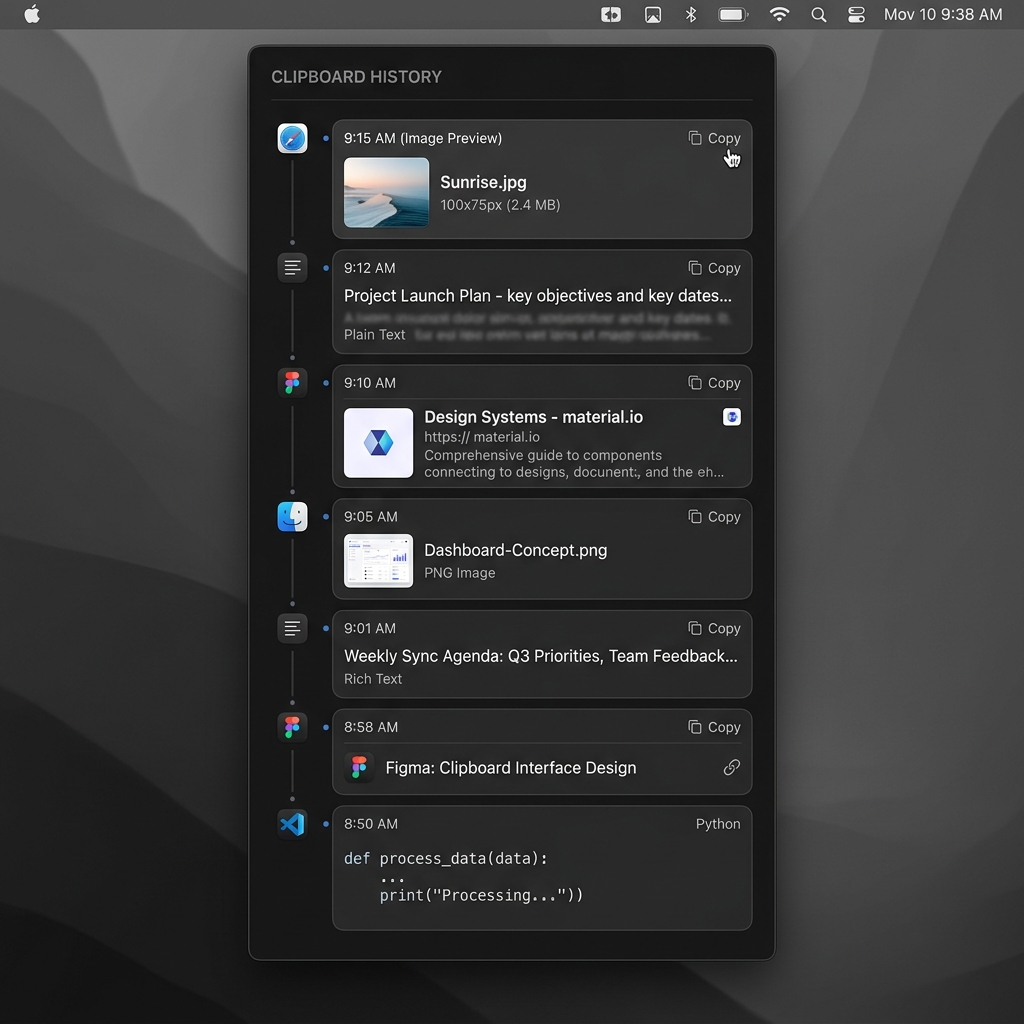
- Retrieve instantly from history: When an accident happens, use a quick keyboard shortcut to bring up a visual timeline of your recent copies. Click the important item you thought you lost, and paste it safely.
Enjoying this read?
Get weekly insights on video editing, AI workflows, and creator growth straight to your inbox.
The Real Fix: Make "Overwriting" Impossible
You cannot recover what the standard clipboard already erased, but you can make sure today is the last time it ever happens. The trick is to stop treating the clipboard as a single slot and start treating it as a log.
Cubix Clip is a free clipboard manager for Mac that does exactly that. With it running, a new copy never replaces the old one, it stacks on top. So in the panic scenario above, your registration code or paragraph is still sitting one row down in the history, untouched by the stray copy that landed after it. You open the list, click the original, and paste it where it belongs.
In other words, "overwriting" stops being a thing that can happen to you. The accident still occurs, you still copy the wrong thing by reflex, but it costs you nothing because the previous item was never thrown away.
Download it free here: Cubix Clip - Free clipboard manager for Mac.
Final Thoughts
The cruel part of an overwritten clipboard is that there is no warning and no undo, you only discover the loss when you paste. macOS will not retrieve it for you, so the honest fix is to never rely on a one-slot memory again. For more on what is (and isn't) recoverable, see How to Recover Copied Text on Mac, and if losing snippets mid-task is your recurring pain, here is the permanent fix. Set up a history once, and the sinking feeling never comes back.
Don’t miss the next one.
Join our newsletter for exclusive tips, product updates, and the latest from the Cubix team.