
We have all been there. You are working hard on a project, gathering information, and you find the perfect paragraph. You highlight it and press "Command + C" to copy it.
But a few seconds later, before you can paste it, you get distracted. Maybe you need to copy a quick link for a coworker or a difficult spelling of a name. You copy that new item, switch to your document, and hit paste. Suddenly, you realize your important paragraph is completely gone.
If you constantly find yourself saying, "I keep losing copied text on Mac," you are dealing with one of the most common and frustrating computer problems in the world. Fortunately, there is a very simple fix.

Why Your Mac Forgets Your Text
To fix this problem, you first need to understand why it happens.
By default, your Mac has an incredibly short memory. The standard clipboard is built with a strict "one-item limit." It is designed to only remember the very last thing you copied. The exact second you copy a new piece of text, a web link, or an image, your previous item is instantly overwritten and permanently erased.
Even though Apple has recently started adding a very basic, hidden history feature in the newest macOS updates, it is usually turned off by default, limited to a few days, and hidden deep inside the Spotlight search menu. For most people doing daily work, the Mac still acts like a tiny whiteboard that is constantly being wiped clean.
The Recipe to Stop Losing Your Work
You do not have to accept a workflow where your computer constantly deletes your hard work. Here is a simple recipe to permanently fix your Mac and protect your text:
- Install an automatic safety net: Stop relying on the default one-item limit. Equip your Mac with a tool that runs silently in the background and automatically saves a history of every single thing you copy.
- Copy without the panic: Read through your articles, emails, or coding documents. Copy multiple sentences, links, and images one right after the other. Trust that your new tool is catching all of it.
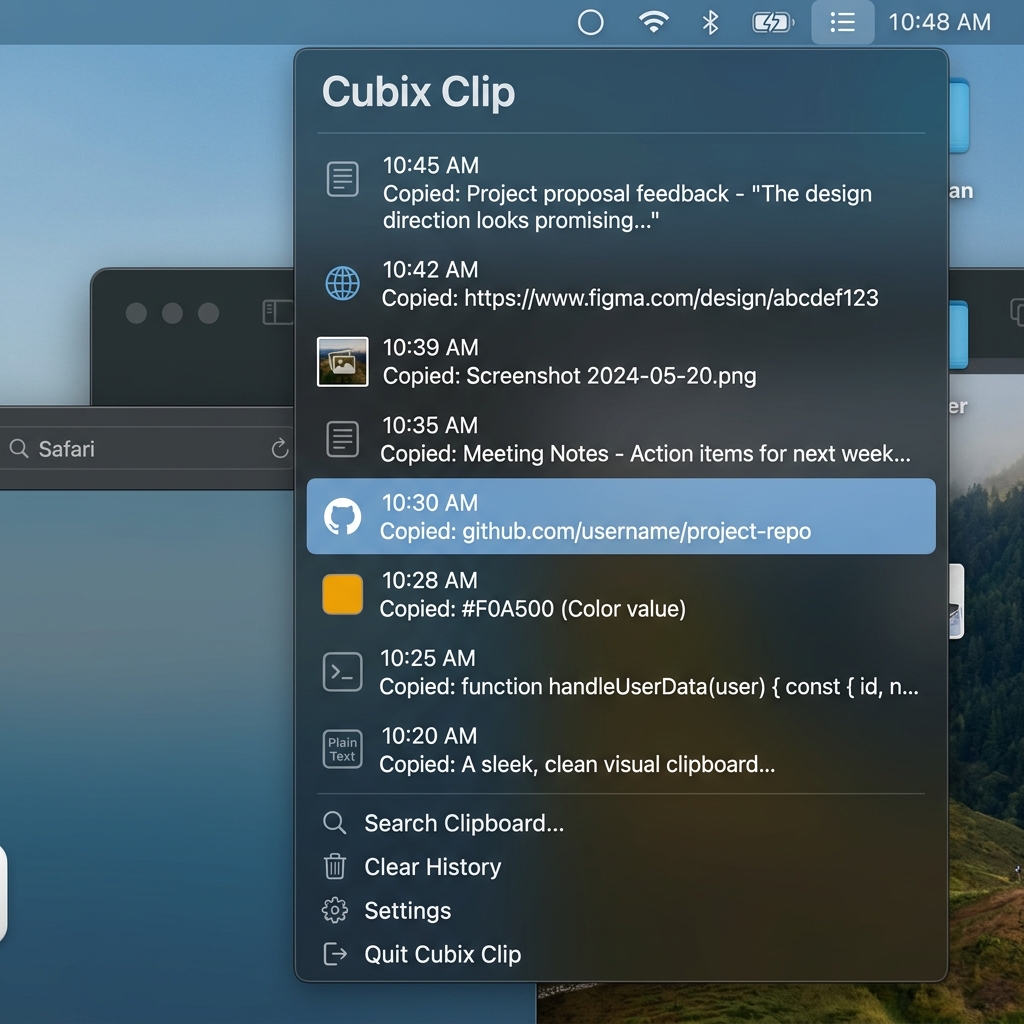
- Paste from a visual list: When you are ready to write, do not use the standard paste button. Use a quick keyboard shortcut to open a neat, visual list of your entire copy history. Click exactly what you need and drop it onto your page.
Enjoying this read?
Get weekly insights on video editing, AI workflows, and creator growth straight to your inbox.
The Free Fix for Your Mac
You do not need to be a computer expert to set up this safety net, and you definitely do not need to pay for an expensive monthly subscription.
The simplest fix is Cubix Clip, a free clipboard manager for Mac built specifically to kill the one-item limit. It sits quietly in your menu bar, watches everything you copy, and keeps a running list you can scroll back through at any time.
So the next time you copy a paragraph and then grab a quick link before pasting, nothing gets erased, both are waiting for you. Tap your shortcut, your full copy history slides onto the screen, and you click the exact paragraph you thought you lost. Text, images, files, and links are all stored the same way, so you can copy five or ten things back to back and pull any of them up again later.
Download it free here: Cubix Clip - Free clipboard manager for Mac.
What If You Already Lost the Text?
If you are reading this after overwriting something important, here is the honest truth: the default macOS clipboard has no recovery folder. Once a new copy lands, the old one is gone for good. We break down your (limited) options in Accidentally Overwrote Your Clipboard on Mac, How to Recover. The only dependable cure is prevention, a history tool that was already saving your copies before the accident happened.
Final Thoughts
Constantly re-copying the same text is a small tax that quietly drains your focus all day. The moment your Mac remembers more than one item at a time, that entire category of interruption disappears. If you want to dig deeper, see why your Mac only remembers one copy by design, and how to keep every copied link safe while you research. Set it up once, and you will never lose a snippet to a stray Command + C again.
Don’t miss the next one.
Join our newsletter for exclusive tips, product updates, and the latest from the Cubix team.