
We all know the drill. You are working on your Mac, researching a topic, or writing an important email. You find a perfect sentence, highlight it, and press "Command + C" to copy it.
Before you switch over to your document to paste it, you notice a helpful link right below the text. Thinking ahead, you copy the link too. You switch to your email, hit "Command + V" to paste, and... only the link appears. Your perfect sentence is completely gone.
If you have ever felt the frustration of having to go back, find the original page, and copy your text all over again, you are not alone. It is a daily annoyance that slows down your work, and it is exactly why a copy paste manager for Mac is an absolute necessity.

What a Copy-Paste Manager Actually Is
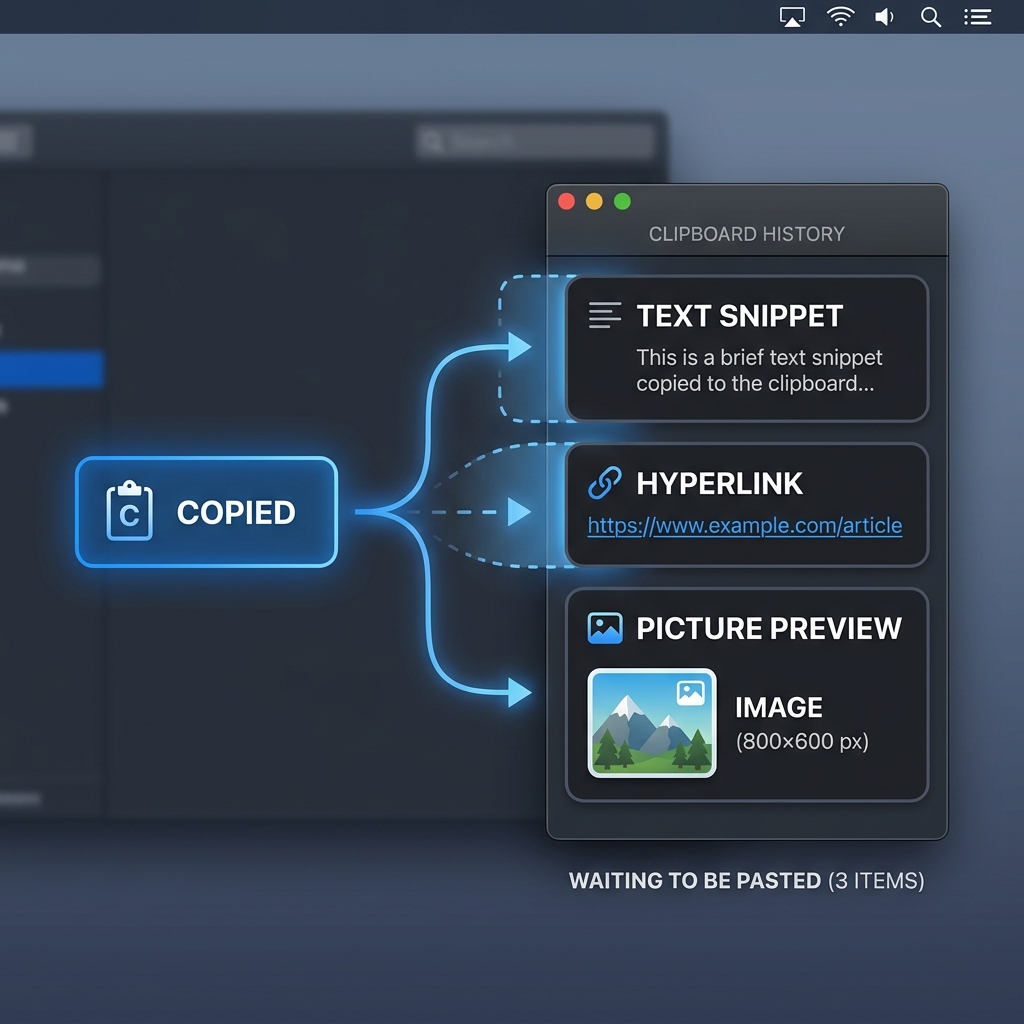
A copy-paste manager (also called a clipboard manager) is a small utility that sits between you and the system clipboard. Instead of letting each new copy erase the last, it keeps a searchable history of everything you have copied, text, images, files, links, and lets you paste any of it on demand.
That definition matters because most people have never been told this category exists. They assume the one-item clipboard is just "how computers work," so they quietly absorb the cost: copy one thing, switch windows, paste, switch back, find the next thing, copy again. A manager collapses that loop. You copy everything you need in one pass, then paste from a list whenever you are ready.
The reason you need one is simple math. The more often you copy and paste in a day, the more times the single-slot clipboard forces you to backtrack, and those seconds add up to a real chunk of your working hours.
The Recipe for a Much Better Workflow
You do not have to accept this limitation. By changing how your computer remembers information, you can drastically speed up everything you do.
Here is a simple recipe to build a much smoother workflow:
- Stop the memory wipe: Equip your computer with a tool that bypasses the 1-item limit and automatically saves everything you copy into a secure list.
- Copy in batches: Stay on your web browser or source document. Read through the page and copy text, quotes, and links one right after the other without ever switching windows.
- Paste from a visual timeline: Open your final document. Bring up a visual list of your recent copies on your screen, click the exact items you need, and drop them perfectly onto your page.
Enjoying this read?
Get weekly insights on video editing, AI workflows, and creator growth straight to your inbox.
The Free Tool You Actually Need
The good part: you do not need an expensive software suite to get this. The whole point of a copy-paste manager is that it does one job well and then gets out of your way.
Cubix Clip is a free clipboard manager for Mac built around that idea. It runs in the menu bar, captures everything you copy, and surfaces your full history with a single shortcut, no account, no subscription, no learning curve. Copy ten things in a row, paste any of them in any order.
Different people lean on it differently. Writers and researchers use it to gather quotes and links without losing their place; developers use it to juggle commands, keys, and snippets, we get into that in How Developers Use Clipboard Managers to Code Faster. And if you have already tried macOS Tahoe's built-in history and found it lacking, here is why it isn't enough.
Download it free here: Cubix Clip - Free clipboard manager for Mac.
Final Thoughts
Once you have used a real copy-paste manager for a week, going back to the single-slot clipboard feels like typing with one hand. It is one of those tools you do not realize you needed until the friction is gone. For developers specifically, Cubix Clip pairs well with a dedicated developer setup. Spend two minutes installing it and reclaim the dozens of tiny backtracks hiding in your day.
Don’t miss the next one.
Join our newsletter for exclusive tips, product updates, and the latest from the Cubix team.