
If you watch a master of productivity at work, you will notice one thing immediately: their hands almost never leave the keyboard.
Every time they reach for the mouse to click an "Edit" menu or select a "Paste" button, they lose a fraction of a second. When you do that hundreds of times a day, those tiny fractions of a second turn into wasted hours. If you are serious about speeding up your work on your Mac, the secret is mastering your keyboard shortcuts.
But there is a catch. The default macOS "Command + V" shortcut is only half of the equation. It only lets you paste the very last thing you copied. If you want to be truly fast, you need a shortcut that gives you access to everything you have copied all day.

Why Default Pasting Is Too Slow
The standard way to paste is a bottleneck. Because your Mac has a one-item limit, you are stuck in an exhausting, repetitive loop:
- Copy an item.
- Move your mouse to your document.
- Click to select where to paste.
- Press "Command + V."
When you have to move five different items into a document, you are forced to jump back and forth between your source and your destination five separate times. It is a slow, manual process that breaks your concentration.
The Recipe for High-Speed Pasting
To move at the speed of a pro, you need to turn your keyboard into a command center. Here is a simple recipe to build a high-speed pasting workflow:
- Stop the back-and-forth: Equip your Mac with a tool that lets you stay in your document while gathering everything you need in the background.
- Assign a custom shortcut: Set a dedicated keyboard shortcut that pulls up your entire history list instantly.
- The "Select and Drop" rhythm: Instead of "Copy, Paste, Copy, Paste," switch to a rhythm of "Gather, Gather, Gather" followed by "Paste, Paste, Paste."
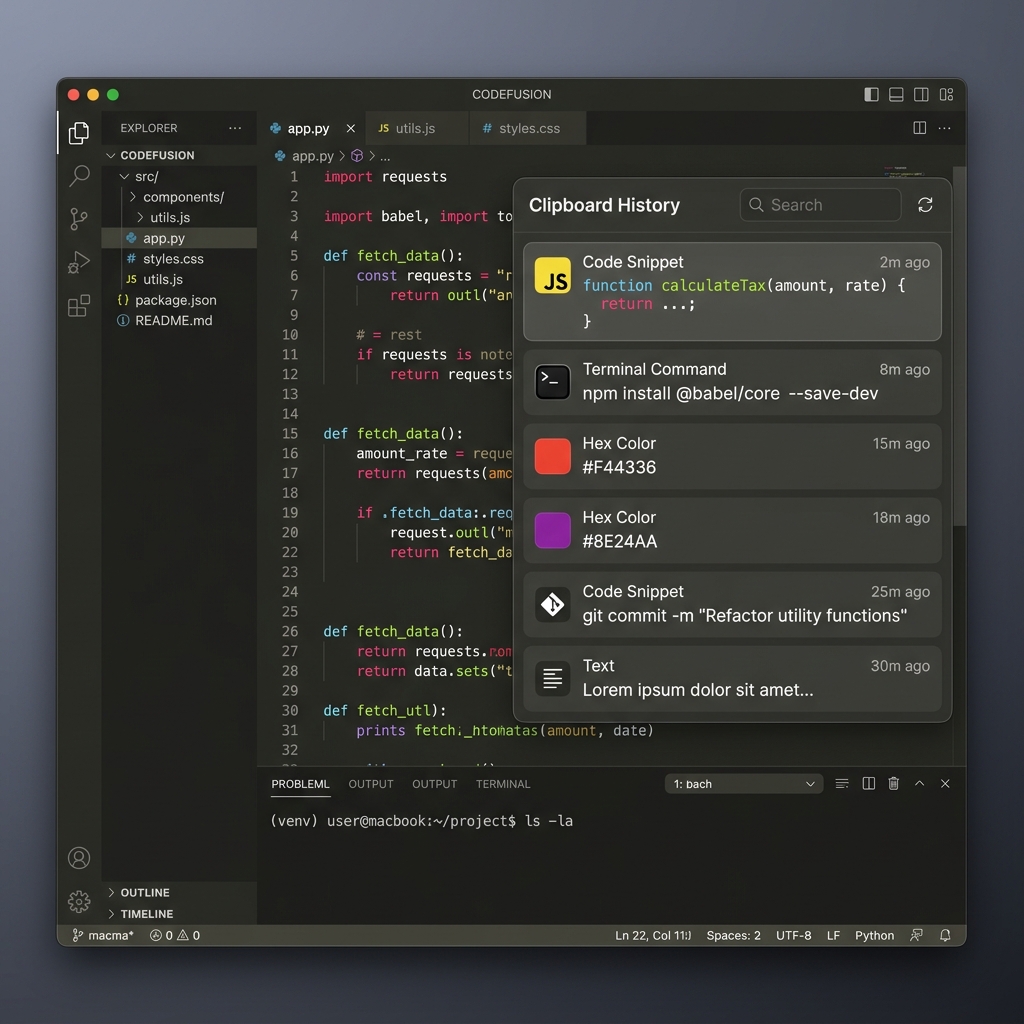
By using a history-based shortcut, you stop navigating between windows. You just tap your shortcut, look at your visual list, and hit the number or click the item you need to drop it into place.
Enjoying this read?
Get weekly insights on video editing, AI workflows, and creator growth straight to your inbox.
The Free Way to Master Your Shortcuts
You do not need to learn complex coding or buy expensive automation software to master these shortcuts. You just need the right tool.
The absolute best way to turn your keyboard into a high-speed engine is with Cubix Clip. It is a completely free clipboard manager for Mac that gives you a dedicated keyboard shortcut to your entire copy history.
Once it is running in the background, it silently logs every single thing you copy: text, images, files, and links. When you are ready to paste, you just hit your custom keyboard shortcut. Your complete list of copied items instantly pops up right under your cursor.
You can use the arrow keys on your keyboard to navigate through your history, find the snippet you want, and press "Enter" to paste it all without ever touching your mouse. It keeps your hands on the home row, your eyes on your work, and your speed at a maximum.
If you want to stop the endless mouse-clicking and start working at a pro level, you can download this essential free tool right here: Cubix Clip.
📖 Keep reading: how to paste without formatting on Mac, how to access clipboard history on Mac, and what a snippet manager is (vs a clipboard manager).
Final Thoughts
The difference between an average worker and a master of efficiency is often just the ability to navigate their machine without looking away from the screen. By moving your clipboard access to a custom keyboard shortcut, you remove the biggest bottleneck in your daily routine. Take a few minutes to set up your new shortcut today, and experience how much faster and more fluid your work can actually be!
Don’t miss the next one.
Join our newsletter for exclusive tips, product updates, and the latest from the Cubix team.