
We have all been there. You are trying to learn how to use a new software feature or fix a technical glitch. You click on a YouTube tutorial, and immediately, you are met with a rambling five-minute introduction. When the presenter finally gets to the point, they are recording their entire 4K monitor. You are watching on your laptop, and the text is so microscopic that you have to squint just to find their mouse pointer, which is violently shaking across the screen.
You click away within thirty seconds.
Creating a tutorial video is easy. Creating a tutorial video that people actually watch all the way through is an entirely different skillset. In 2026, viewer attention spans are shorter than ever, and tolerance for poor audio or unreadable screens is zero.
If you want to create educational content that actually helps your audience, builds trust, and keeps viewers engaged from start to finish, you need to rethink your production process. Here is the exact blueprint for making a tutorial video that people will actually watch.
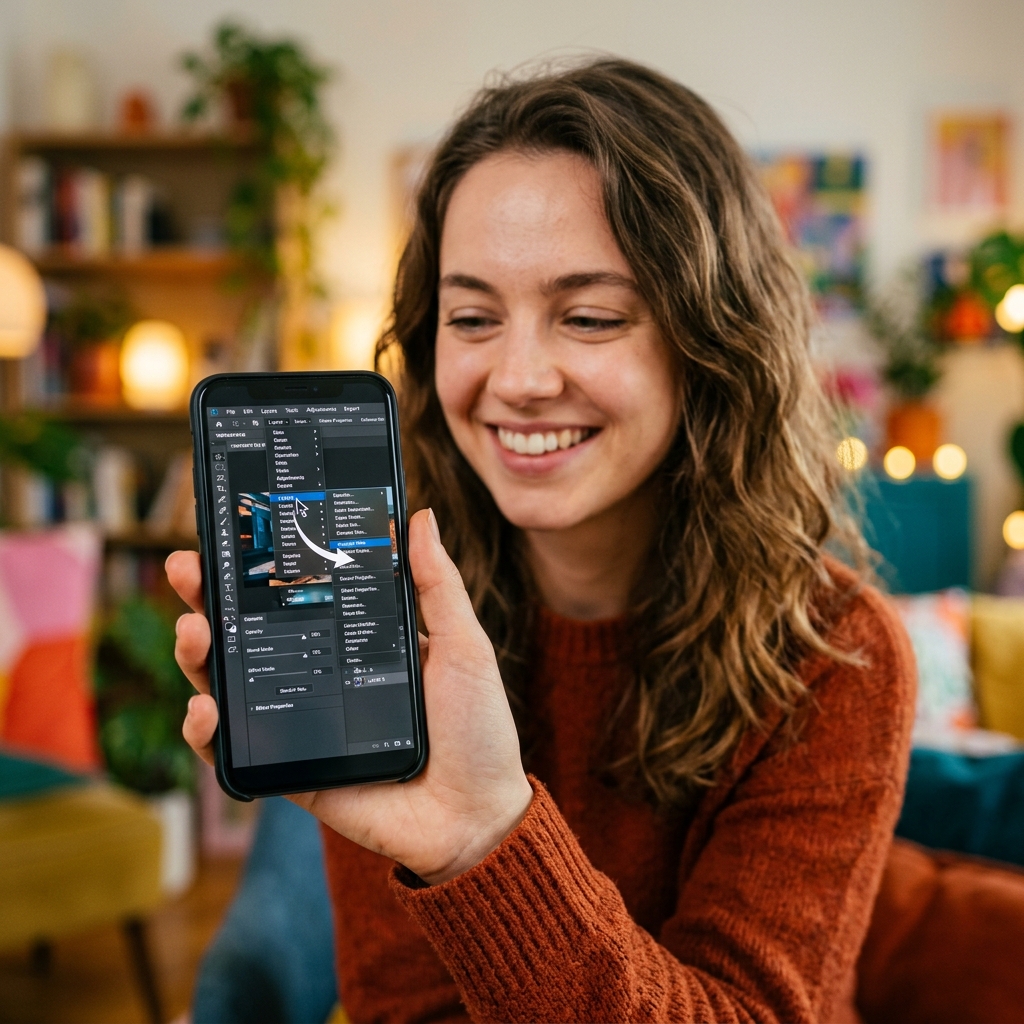
The Blueprint for High-Retention Tutorials
The secret to a great tutorial is realizing that the recording phase is actually the least important part of the process. The real magic happens before you ever hit the record button.
1. Write a Modular Script: Never improvise a tutorial.
Winging it leads to rambling, filler words, and confused viewers. Write a script that breaks the task down into discrete, manageable steps. A great method is the two-column script: write your exact voiceover in one column, and the specific on-screen action in the other. This ensures your words perfectly match your visuals.
2. Optimize Your Setup: Audio is more important than video quality.
Viewers will forgive a slightly blurry screen; they will instantly click away from terrible audio. Do not use your laptop's built-in microphone. Invest in a decent external USB microphone, and record in a quiet room. Before you start, clean up your digital desktop—close unnecessary tabs, hide your bookmarks bar, and mute all system notifications.
Enjoying this read?
Get weekly insights on video editing, AI workflows, and creator growth straight to your inbox.
3. Record with Purpose: Move intentionally.
When you are recording, move your cursor significantly slower than you normally would. What feels natural to you looks chaotic and frantic to a viewer. Pause for two seconds before and after you click an important menu. If you make a mistake, don't stop the recording—just pause, take a breath, and repeat the action so you can easily cut the mistake out later.
4. Edit Ruthlessly: Cut the fluff.
The ideal tutorial is dense with value. Cut out any pauses longer than two seconds. Remove your mistakes. If you have a 10-second clip of a loading bar, speed it up or cut it entirely. Respect your viewer's time, and they will watch until the end.
The "Tiny Text" Epidemic
You can write the perfect script and record with a studio-quality microphone, but your tutorial will still fail if you ignore how your audience consumes video.
Most creators record their tutorial on a large, high-resolution desktop monitor. They forget that over 60% of their audience will watch the video on a smartphone or a small laptop. When a massive desktop interface is shrunk down to fit a 6-inch phone screen, the text becomes completely unreadable.
To solve this traditionally, you have to import your video into a heavy editor like Premiere Pro and spend hours manually adding zoom keyframes to ensure the viewer can see what you are clicking. It is an exhausting, manual process that burns out most creators.
📖 Keep reading: why your tutorial videos lose viewers after 30 seconds, the complete guide to recording a tutorial video for YouTube, and what auto-zoom screen recording is.
The Modern, Zero-Edit Solution
If you want your videos to be perfectly legible on any device without spending your weekends trapped in a video editor, you need to let modern software do the heavy lifting for you.
This is exactly why creators are abandoning traditional recorders and moving to Cubix Capture. It is an intelligent workflow engine that edits your tutorial for you while you speak:
- Automatic Screen Choreography: As you click through your workflow, Cubix Capture dynamically pans and zooms into your active windows. This completely eradicates the tiny text problem, guaranteeing a cinematic, perfectly framed view for mobile users without a single manual edit.
- Cursor Smoothing: Cubix Capture intercepts your physical mouse movements and translates them into a fluid, elegant glide, instantly removing the distracting, nervous shakes of a standard trackpad.
- Instant Studio Polish: If you present on camera, Cubix Capture drops your webcam feed into a sleek floating bubble and intelligently blurs your physical background.
Making a tutorial video that people actually watch requires empathy for your viewer. You have to ensure they can easily hear your voice, read your screen, and follow your mouse. While writing a tight script and buying a good microphone are up to you, upgrading to a platform that guarantees effortless visual clarity ensures your audience actually absorbs the lesson you worked so hard to create.
Don’t miss the next one.
Join our newsletter for exclusive tips, product updates, and the latest from the Cubix team.