
You are browsing the internet and finally find the exact webpage you have been looking for. Maybe it is a recipe for dinner, an important research article, or a funny video you want to send to a friend. You quickly click the address bar and press "Command + C" to copy the link.
But right before you send the message or paste the link into your notes, you see a funny quote on the page. You highlight the quote and copy it, too.
When you go to paste your findings, only the quote appears. The website link you just found is completely erased. You now have to open your browser history, search for the page again, and start over. It is incredibly frustrating to lose a copied link, especially when you are working fast.

Why Your Mac Forgets Your Links
If you are wondering why your computer deleted your web address, it is because of how the default system is designed.
The standard Mac clipboard only remembers one single item at a time. It does not matter if you just copied a long, complicated URL that took you an hour to find. The exact second you copy a new piece of text, a picture, or a file, your Mac completely overwrites the old link to make room for the new item.
There is no built-in list or easy "undo" button to bring that erased web address back. Because of this one-item limit, gathering information on the internet becomes a slow, repetitive process of bouncing between windows to paste things one by one.
The Real-Life Recipe to Save Every Link
You do not have to work this way. You can easily upgrade your computer so it automatically saves every web address you copy. Here is a simple recipe to build a workflow where you never lose a link again:
- Add a memory bank: Stop relying on the default one-item clipboard. Add a lightweight tool to your Mac that automatically records every single link, text, and image you copy.
- Gather links in batches: Open your web browser. Go from tab to tab and copy as many links and quotes as you need, one right after the other. Do not worry about overwriting them.
- Unload your history: Open your chat window, email, or document. Use a quick keyboard shortcut to bring up a visual list of your recent copies, and paste your links exactly where you need them.
Enjoying this read?
Get weekly insights on video editing, AI workflows, and creator growth straight to your inbox.
The Free Way to Protect Your Web History
Browser history is not a substitute here, it logs pages you visited, not the exact URLs you deliberately copied (tracking links, anchor links, search-result URLs, or a link someone DM'd you). Once that copied address is overwritten, retracing it can be impossible. What you actually need is a tool that captures the link the instant you press Command + C.
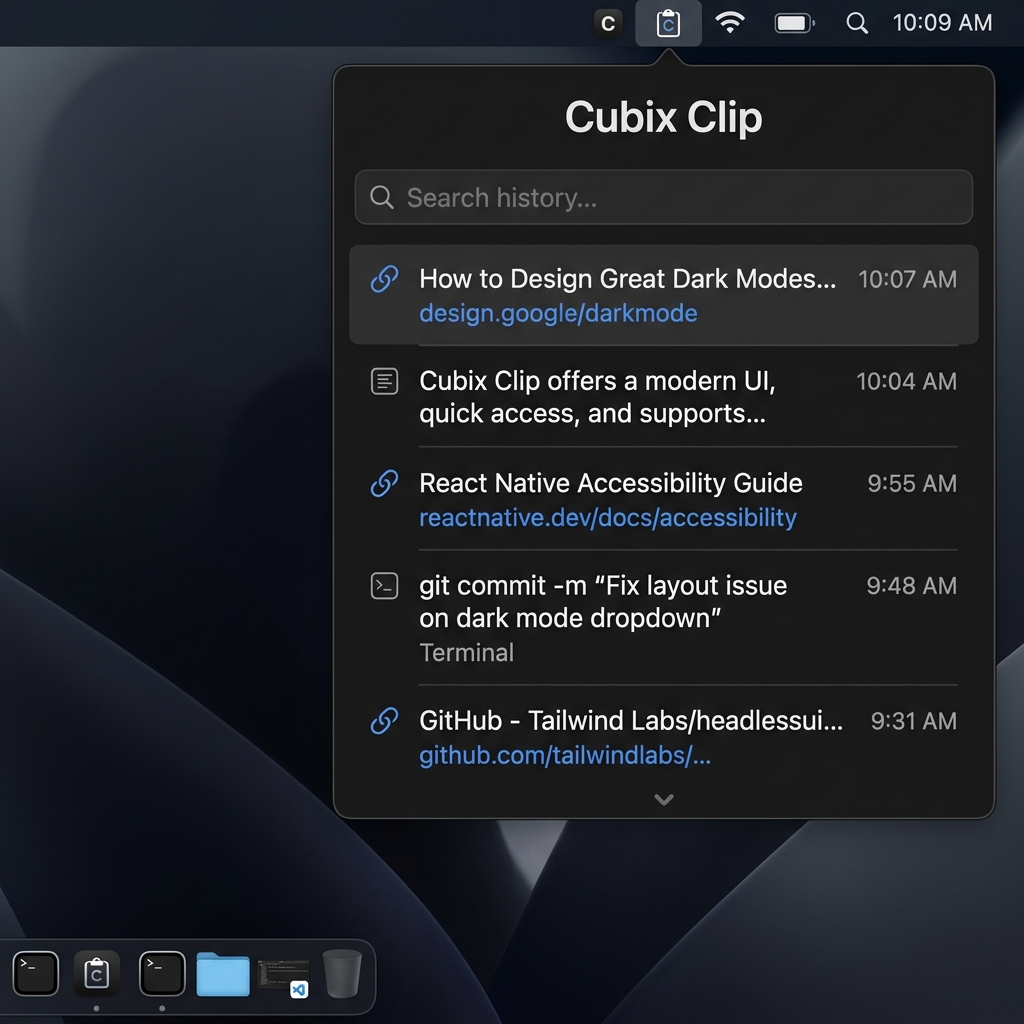
That is exactly what Cubix Clip does. It is a free clipboard manager for Mac that keeps a running list of every link, snippet, and image you copy, so collecting sources across a dozen tabs becomes a single sweep instead of a frantic back-and-forth.
Copy five URLs in a row while you read, then open your doc or chat once and drop them in. Each link keeps its full address intact, so the long, query-heavy links that are easiest to lose are the ones it protects best. If you are gathering more than just links, the same habit applies to quotes and snippets, see Copy Paste Manager for Mac, Why You Need One.
Download it free here: Cubix Clip - Free clipboard manager for Mac.
Final Thoughts
A lost link is uniquely annoying because finding it again often means re-running the search, re-opening the tab, and hoping the page hasn't moved. Keeping a copy history removes that gamble entirely, every URL you grab stays grabbed. The same one-item limit is what makes people lose copied text mid-task too, and the fix is the same: give your Mac a memory and stop retracing your steps.
Don’t miss the next one.
Join our newsletter for exclusive tips, product updates, and the latest from the Cubix team.