
Look at what you actually paste in a given week and a pattern shows up fast. The same standing Zoom link. The same "thanks, I'll get back to you by Friday" reply. Your address. Your business email. A wallet address or invoice number. A handful of strings you reuse constantly — and re-fetch constantly, because the moment you copy anything else, they're gone from the clipboard and you're back in your sent folder hunting them down.
There's a much better way to handle the snippets you use every day: stop letting them flow through your clipboard at all, and pin them so they sit at the top, permanent and one click away. Here's how pinning works on a Mac and why it's the upgrade that pays off fastest.

History Solves "Lost"; Pinning Solves "Repetitive"
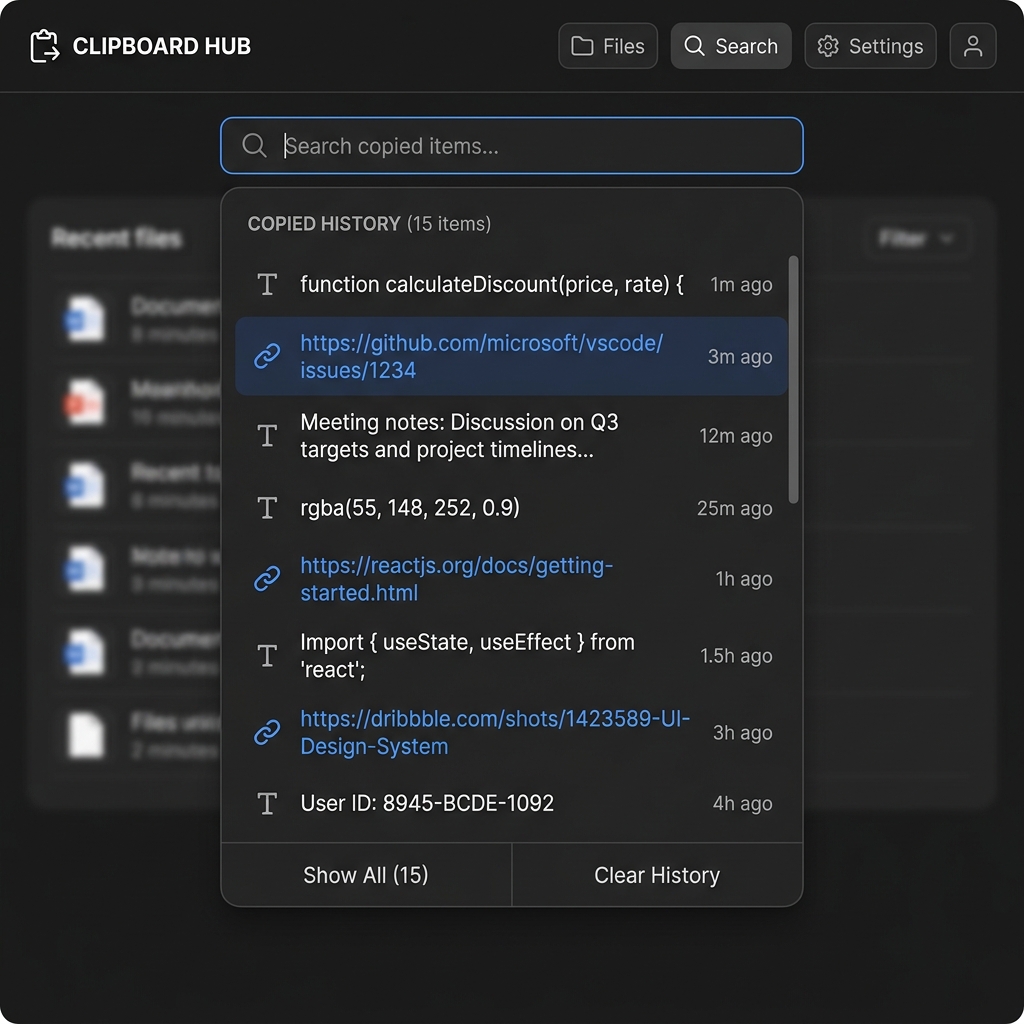
It's worth separating two different problems. A plain clipboard history fixes losing things — every copy is recorded, so nothing vanishes. But history is chronological: your standing meeting link from this morning gets buried under everything you've copied since, and you're back to scrolling.
Pinning is the answer to the second problem. A pinned item is lifted out of the timeline and locked to the top of your list, where it stays no matter how many hundreds of things you copy afterward. History is for recovering the unexpected; pins are for reusing the predictable. The best workflows use both. (For the broader system, see a clipboard manager with collections to organize your snippets.)
Naturally, people open System Settings looking for a pin or favorite button — and find nothing, because macOS doesn't even keep a list to pin from. The one-item clipboard has no history, so there's nothing to favorite. Pinning is a feature you add.
What's Worth Pinning
Pins shine for anything you'd otherwise retype or re-hunt:
- Communication — email signatures, canned replies, your standing meeting links, support macros.
- Personal details — address, phone, business email, tax/VAT number, shipping info for forms.
- Work strings — invoice templates, common file paths, hex codes, frequently used hashtags, a wallet or account number.
Anything on that list, pinned once, is paste-ready forever — no sent-folder archaeology, no Notes app, no sticky notes around your monitor.
Enjoying this read?
Get weekly insights on video editing, AI workflows, and creator growth straight to your inbox.
How to Pin on Mac
- Add a clipboard manager that supports pinning. It records your copies and gives you a pin/favorite action on each entry.
- Copy the snippet once — your meeting link, your signature, whatever you reuse.
- Pin it. Open the history, click the pin icon on that item, and it locks to the top. Copy a hundred things afterward; the pinned item never moves and never gets overwritten.
From then on, reusing it is: open history → click the pinned item → paste.
The Free Tool With Pinning Built In
Cubix Clip is a free clipboard manager for Mac that keeps a full copy history and lets you pin the items you reach for daily. Copy your standing Zoom link or your standard greeting, open Cubix Clip with its shortcut, and pin it — it stays parked at the top, immune to being pushed out by everything you copy next.
The everyday rhythm becomes effortless: the unpredictable stuff is safe in history, and the predictable stuff you reuse all day lives in your pinned section, always one click from pasting. If you'd like the foundation first, how to enable clipboard history on Mac covers the setup.
The Takeaway
Retyping the same email line or re-fetching the same link a dozen times a day is pure wasted motion. Pin those snippets once and they're ready forever. Grab Cubix Clip, pin the five things you reuse most, and feel how much friction quietly disappears from your day.
Don’t miss the next one.
Join our newsletter for exclusive tips, product updates, and the latest from the Cubix team.