
Windows has long been the world's go-to operating system for software developers, business professionals, and educators. Because of this, the demand for clear, concise Windows software tutorials is higher than ever.
In 2026, creating an impactful software tutorial on Windows 11 doesn't mean configuring complex video matrices or getting stuck inside a technical editing timeline for hours. Audiences expect immediate visual clarity, clean audio, and seamless focus especially since over 60% of your viewers will watch your video on a smartphone screen.
Whether you are teaching an Excel workflow, demonstrating a programming setup, or walking a client through a custom dashboard, here is your complete guide to recording a tutorial video on Windows this year.
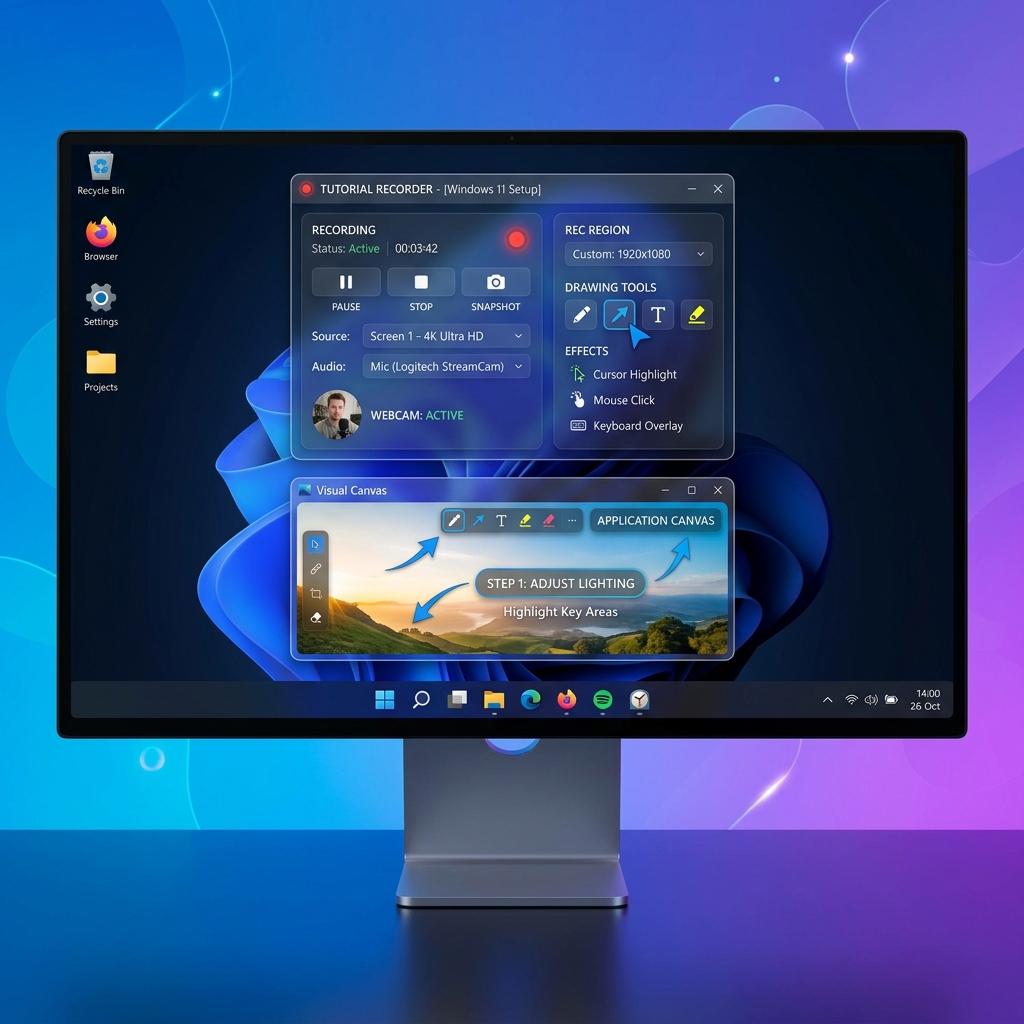
Phase 1: Prepping the Studio (Your Digital Canvas)
Before you touch any recording shortcuts, you need to sanitize your desktop. A cluttered workspace completely pulls a viewer's attention away from your lesson.
- Purge the Desktop: If your Windows desktop is drowning in local file shortcuts, right-click an empty space on your desktop, hover over View, and uncheck Show desktop icons. This instantly creates a blank canvas.
- Mute System Traps: Windows notifications can be incredibly loud and disruptive. Open your system tray or press Windows Key + N to open your notifications panel and toggle on Do Not Disturb or Focus Mode.
- Clean Your Web Workspace: If you are demonstrating a web-based tool or software, close unrelated browser tabs, hide your bookmarks bar (
Ctrl + Shift + B), and maximize the window to hide system extension icons.
Phase 2: Choosing Your Capturing Tool
Windows 11 features two incredible, free native tools built directly into the operating system. However, depending on your target audience, you may want to leverage a smart, automated alternative.
Option A: The Native Snipping Tool (Best for Fast, Region-Based Clips)
Microsoft has expanded the classic Snipping Tool to serve as an exceptional, lightweight regional video recorder.
- Press Windows Key + Shift + R on your keyboard to instantly dim the screen and pull up the video recording overlay toolbar.
- Click and drag a bounding box around the exact section of your screen or application window you wish to isolate.
- On the top toolbar overlay, ensure your Microphone and System Audio (internal computer sounds) toggles are switched on according to your presentation needs.
- Click Start. When your tutorial is finished, click the stop button on the widget. Your video will automatically open in a preview window, allowing you to instantly save it to your
Videos > Screen Recordingsfolder.
Option B: The Xbox Game Bar (Best for Single-App Fluidity)
If you are recording a continuous tutorial inside a single window (like a video game or an isolated full-screen app), press Windows Key + G to open the gaming overlay ecosystem. Hit Windows Key + Alt + R to immediately start recording your active window with crisp internal system sound.
The Native Bottleneck: Both the Snipping Tool and Game Bar are passive encoders—they record static pixels exactly as they exist on your monitor. If you record an application on a high-resolution 1080p or 4K monitor, your text will scale down aggressively and become microscopic when someone watches the clip on a mobile phone.
Option C: Automated AI Recorders (Best for High-End Tutorials)
To skip the video editor entirely and fix the mobile legibility crisis, professional creators in 2026 rely on intelligent recording platforms like Cubix Capture.
Instead of acting like a blind security camera, it uses real-time automation to edit your video while you speak:
- Algorithmic Focal Zooming: It tracks your clicks and keys natively. The moment you select a drop-down menu or highlight a text field, the software smoothly glides in and magnifies that workspace, ensuring perfect clarity on smartphone screens without manual keyframing.
- AI Cursor Fluidity: It completely smooths out the nervous, shaky hand movements of your physical mouse or laptop trackpad, turning your pathing into an elegant visual glide.
- Instant Studio Staging: It isolates your face into a clean floating webcam circle, blurs your background, and frames your software application windows against gorgeous, fluid gradient backgrounds automatically.
Enjoying this read?
Get weekly insights on video editing, AI workflows, and creator growth straight to your inbox.
Phase 3: The Recording Roadmap
Once your staging is complete and your software choice is active, use this procedural checklist to deliver a world-class presentation.
-
Build a Two-Column Outline: Winging it creates disjointed pacing. Write out a brief script structure. On the left side, put your spoken narration sentences. On the right side, note the exact on-screen mouse movements or keyboard entries that match those words.
-
Configure Audio Priorities: Prevent privacy and clipping errors. Click your volume icon in the bottom right taskbar, open your sound mixer, and ensure your input device is pointed strictly to your external USB microphone. If using a native recorder, verify that system sound capture is checked so your audience can hear application chimes.
-
Execute Slow, Deliberate Choreography: Allows automated tracking algorithms to lock on. Move your cursor across your Windows canvas at half-speed. When you approach a menu item, hover over it for one full second before clicking, and hold your cursor there for a brief moment after. This calm pacing reduces cognitive load for your viewer.
-
Utilize the 'Clap and Repeat' Method: Saves you from restarting your clip. If you stumble over your words or make a mistake, don't stop recording. Stop speaking, clap your hands loudly once near your microphone to create a dramatic visual spike on your audio track, take a slow breath, and repeat the step. You can easily find and slice out those visual spikes later.
Summary
Recording an impactful tutorial on Windows in 2026 is all about choosing the right tool for your specific objective. If you just need a raw, quick, and unedited regional grab to send to a colleague over chat, hitting Windows Key + Shift + R using the built-in Snipping Tool is incredibly fast and efficient.
But if you want to create premium, high-retention software tutorials for YouTube or an educational course videos that feature fluid cursor movements, instant canvas backdrops, and cinematic zooms that make text perfectly readable on mobile screens upgrading your workflow to a platform like Cubix Capture handles the entire production pipeline for you dynamically.
📖 Keep reading: How to record a tutorial video on Mac, how to record software tutorials that look cinematic, and how to use the Clipchamp screen recorder.
Don’t miss the next one.
Join our newsletter for exclusive tips, product updates, and the latest from the Cubix team.