
We’ve all watched a software tutorial that felt like a chore to sit through. The presenter captures their entire massive 4K monitor, their mouse cursor jerks frantically across the screen, and the application text is so microscopic you have to squint to see what button they just clicked. It feels less like an educational experience and more like reading a flat spreadsheet.
In 2026, the standard for digital education has completely shifted. Audiences have zero patience for raw, unedited screen captures. If you want your tutorials to captivate viewers, hold their attention, and look like a premium production, you need to make them cinematic.
"Cinematic" doesn’t mean shooting on a Hollywood camera, it means applying intentional visual choreography, elegant motion, and clean staging to your desktop. Here is the blueprint for recording software tutorials that look like a movie.
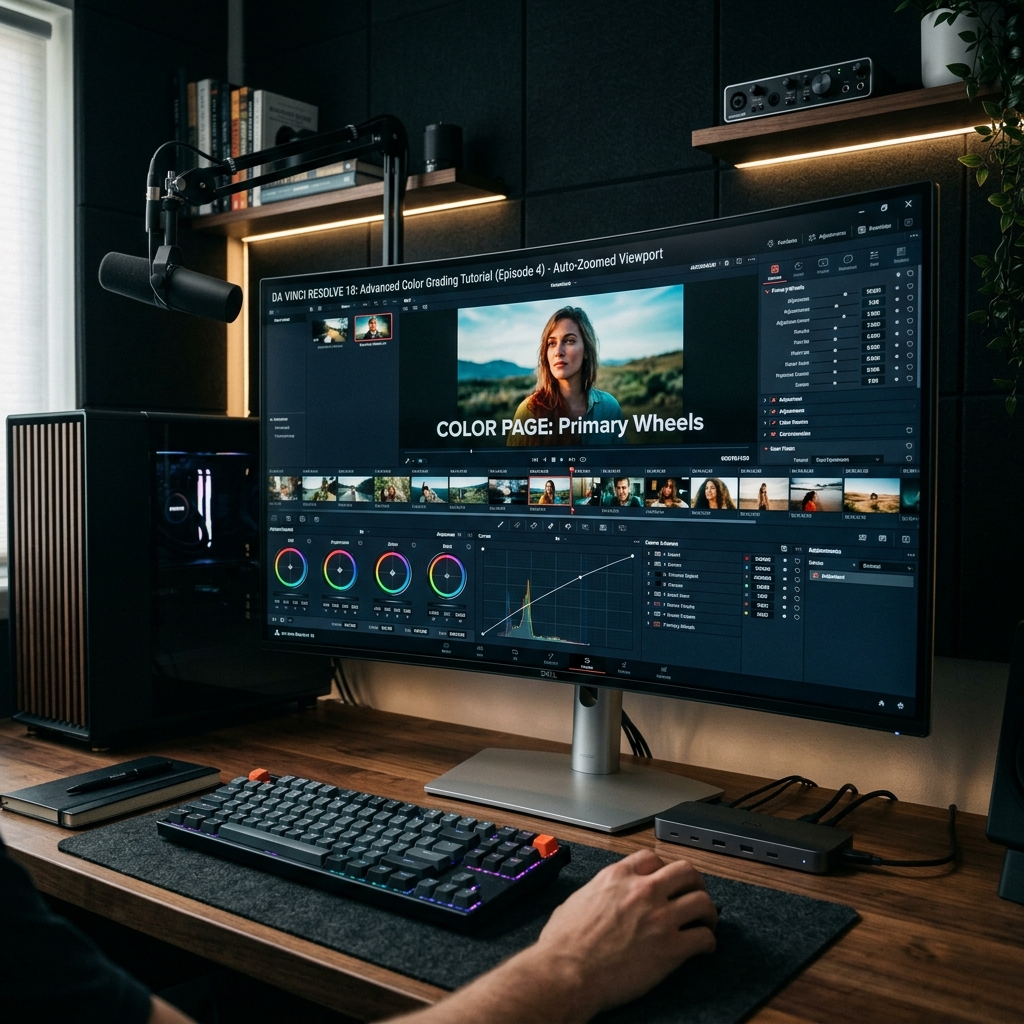
The Three Pillars of Cinematic Screen Recording
Making a screen recording look premium comes down to eliminating visual chaos. A raw desktop is full of distractions. To fix this, you must control three main elements before and during your recording.
-
Curate Your Digital Canvas: Pre-Production. A messy desktop ruins the cinematic illusion immediately. Before you hit record, hide your desktop icons entirely. Close every unnecessary browser tab, hide your browser bookmarks bar, and force your computer into "Do Not Disturb" mode to block random system pop-ups or Slack notifications.
-
Slow Down Your Choreography: Production. When you are using your computer normally, your eyes move faster than your mouse, causing you to flick and dash across the screen. On video, this looks frantic. Move your cursor at half-speed. Imagine your mouse is a physical movie camera floating on a dolly track glide it smoothly and deliberately toward your destination.
-
Anchor the Focus with Pacing: The Execution. Never click an item the exact millisecond your mouse arrives. Hover over the button or menu for one full second, click it deliberately, and leave your cursor there for another second. This gives the viewer's brain time to naturally track the focal point of your lesson.
The "Tiny Text" Epidemic
The absolute biggest immersion killer in screen recordings is a lack of scale. Most creators record their applications in full-screen mode on large desktop monitors. They forget that over 60% of their audience will watch the video on a smartphone or a small laptop. When a massive software dashboard is shrunk down to fit a mobile display, the user interface elements become completely unreadable.
To fix this traditionally, you have to open a heavy video editor like DaVinci Resolve or Premiere Pro, slice your footage into dozens of clips, and spend hours manually animating custom pan-and-zoom keyframes to track your mouse. It is an exhausting process that kills creative momentum.
Enjoying this read?
Get weekly insights on video editing, AI workflows, and creator growth straight to your inbox.
The Smart Way to Automate the Cinema
If you want your software tutorials to look incredibly polished without spending your weekends trapped inside a complex video editing timeline, you need to upgrade from passive recorders to intelligent directorship.
This is exactly why high-end educators and creators are moving away from traditional tools and adopting Cubix Capture. Instead of acting like a blind security camera, Cubix Capture applies professional video editing rules to your screen automatically while you talk:
- Dynamic Algorithmic Zooms: You don't have to worry about the tiny text problem. The software actively reads your mouse clicks and keystrokes. The moment you click a menu, it smoothly glides and magnifies that specific region, perfectly optimizing the viewport for mobile screens.
- Cinematic Pointer Stabilization: It intercepts your physical, jittery trackpad data and translates it into a silky-smooth, elegant glide instantly making your movements look calm and professional.
- Studio Framing and Depth: Instead of showing a raw, jagged application border, Cubix Capture elegantly frames your software window against beautiful, dynamic canvas gradients. If you show your webcam, it drops your face into a clean floating geometric bubble and automatically blurs your physical background.
Final Thoughts
A cinematic software tutorial isn't about flashy special effects; it's about reducing cognitive load for your viewer. By cleaning your desktop workspace, managing your mouse pacing, and utilizing an intelligent platform like Cubix Capture to handle the heavy camera movements automatically, your videos will look like a studio production while saving you hours of post-production friction.
📖 Keep reading: The best screen recording setup for tutorial creators, how to record a tutorial video on Mac, and how to record a tutorial video on Windows.
Don’t miss the next one.
Join our newsletter for exclusive tips, product updates, and the latest from the Cubix team.