
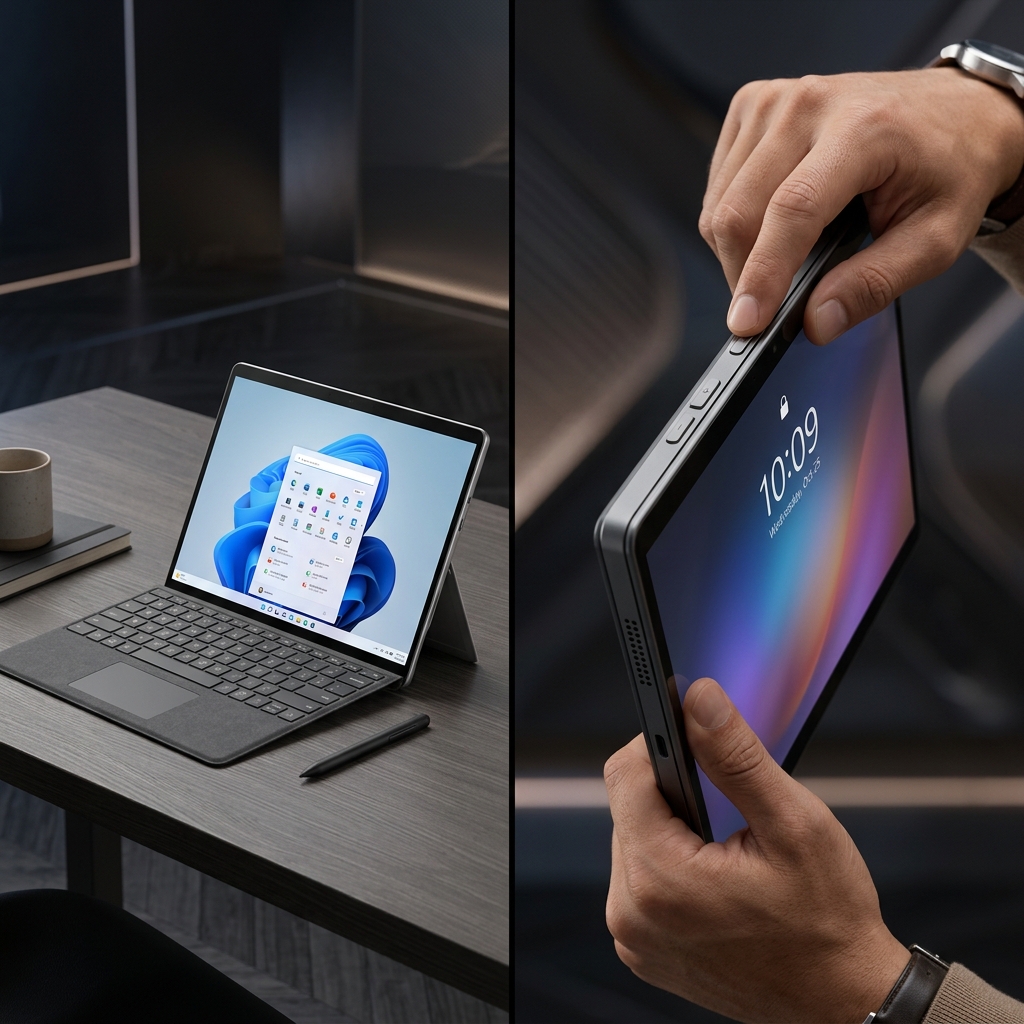
The Microsoft Surface Pro is the ultimate hybrid device. By combining the power of a laptop with the flexibility of a 3:2 touchscreen tablet, it has become the go-to tool for digital artists, designers, educators, and field professionals who need to work on the move.
Whether you are sketching out a new blueprint with the Surface Pen, marking up a PDF in tablet mode, or presenting a deck with the Type Cover attached, there will be times when you need to capture and share your digital actions. Writing out a long explanation is slow and tedious. Sending a quick, clear video recording is much faster and more natural.
If you want to record your screen on a Surface Pro, you don't need complex software. Here is how to capture high-quality videos using the built-in Windows features, and how to elevate your recordings for a professional audience.
Windows 11 Native Recording: The Snipping Tool
If your Surface Pro is running Windows 11, the pre-installed Snipping Tool is one of the easiest ways to record video. It supports both mouse clicks and touch taps.
- Open your Windows Start Menu, search for "Snipping Tool," and open it.
- Tap the Video Camera icon at the top of the interface.
- Tap New. Your screen will dim, and a crosshair will appear.
- Use your finger, stylus, or trackpad to select the exact section of the display you want to record.
- Tap Start to begin. When you are finished, tap the red stop button in the floating menu and save your video.
The Widescreen/Mobile Contrast Challenge
Enjoying this read?
Get weekly insights on video editing, AI workflows, and creator growth straight to your inbox.
While the built-in Snipping Tool is perfect for a quick memo, it presents a hidden obstacle when you need to create tutorials, client presentations, or walkthroughs.
The Surface Pro features a stunning 3:2 aspect ratio PixelSense display. This means you have more vertical space than a standard 16:9 laptop. While this is great for reading document pages and drawing, it creates black bars and tiny text when viewed on standard 16:9 screens or mobile devices.
Furthermore, recording touch interactions or stylus drawings often looks jumpy on screen. Without physical mouse cursor paths, the viewer has a hard time following where you tapped or what you highlighted next.
Automatically Enhancing Your Hybrid Recordings
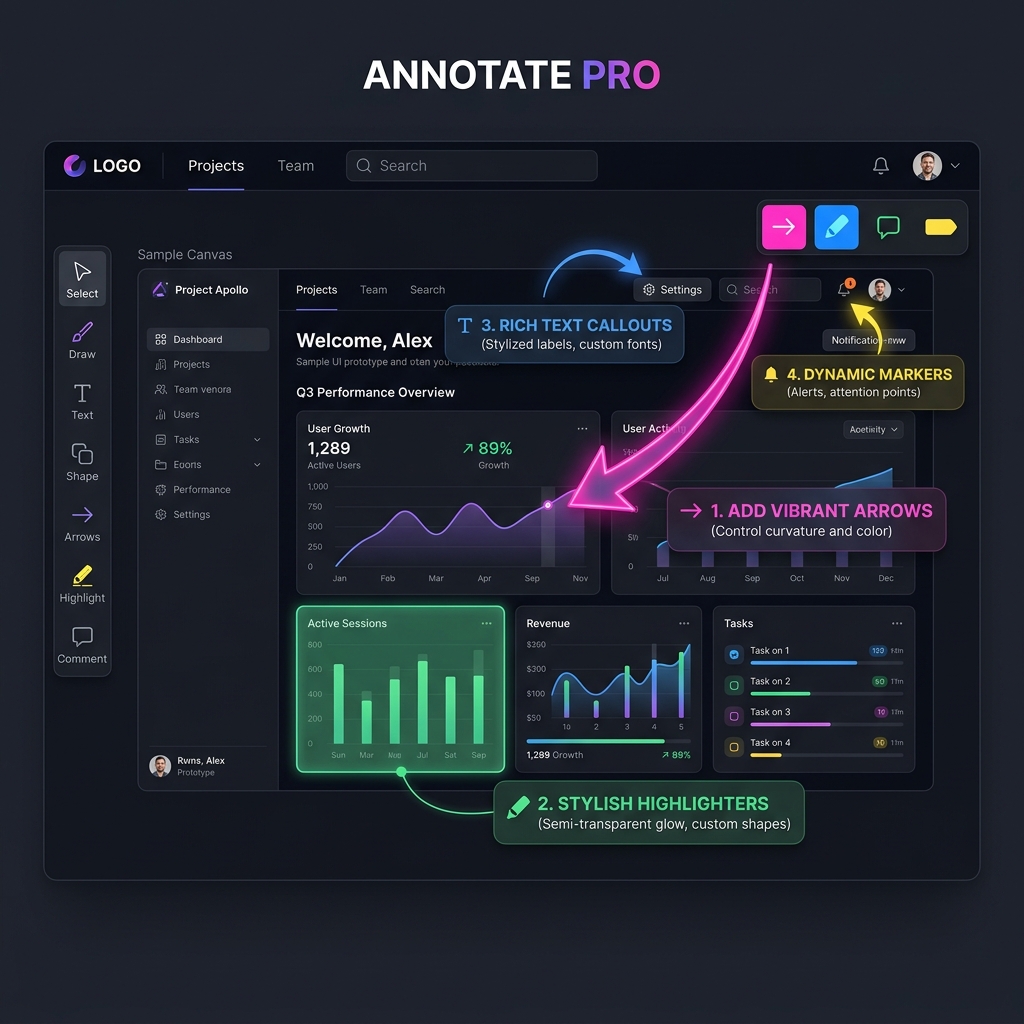
To make sure your Surface recordings look polished and readable on any screen, you need a smart, automated tool that adapts to your screen and touch inputs.
This is where Cubix Capture changes the game for Surface Pro users. It acts as an automated camera assistant, keeping your audience focused on your content:
- Action-Guided Auto-Zoom: It dynamically centers and zooms in on the active area of your screen (like where your pen is drawing or where you are typing). This removes the tiny-text issue, ensuring your content is perfectly readable on mobile phones.
- Smoothed Drawing Paths: It refines stylus and touch movements into clean, stabilized pointer paths, preventing sudden jumps and chaotic transitions on screen.
- Smart Web Camera Integration: It takes advantage of the Surface Pro’s high-quality front-facing camera, automatically cropping out your background clutter and placing you in a professional virtual workspace.
Using basic shortcuts is fine for occasional, quick screen captures. But when you need to guide clients or publish content, upgrading to Cubix Capture ensures your final video is always clean, clear, and engaging.
Recording on a more traditional laptop instead? The same auto-zoom workflow is covered in our Lenovo ThinkPad guide, and you can find the complete rundown of every native option in the Windows 11 screen recording guide.
Don’t miss the next one.
Join our newsletter for exclusive tips, product updates, and the latest from the Cubix team.