
When you buy a computer, you don't necessarily want to go hunting for third-party software just to record your screen. Both Apple and Microsoft understand this, which is why both operating systems come with high-quality, completely free recording tools built right into the core environment.
On Apple's side, you have the native macOS Screenshot Toolbar (frequently paired with the QuickTime engine). On Microsoft's side, you have the Xbox Game Bar, a system-level overlay baked directly into Windows 11.
Both utilities cost zero dollars, leave no watermarks, and can be summoned in less than a second with a simple keyboard shortcut. But they approach screen recording with entirely different philosophies. Here is the definitive, head-to-head comparison of how they stack up against each other, and how they both compare to modern recording standards.
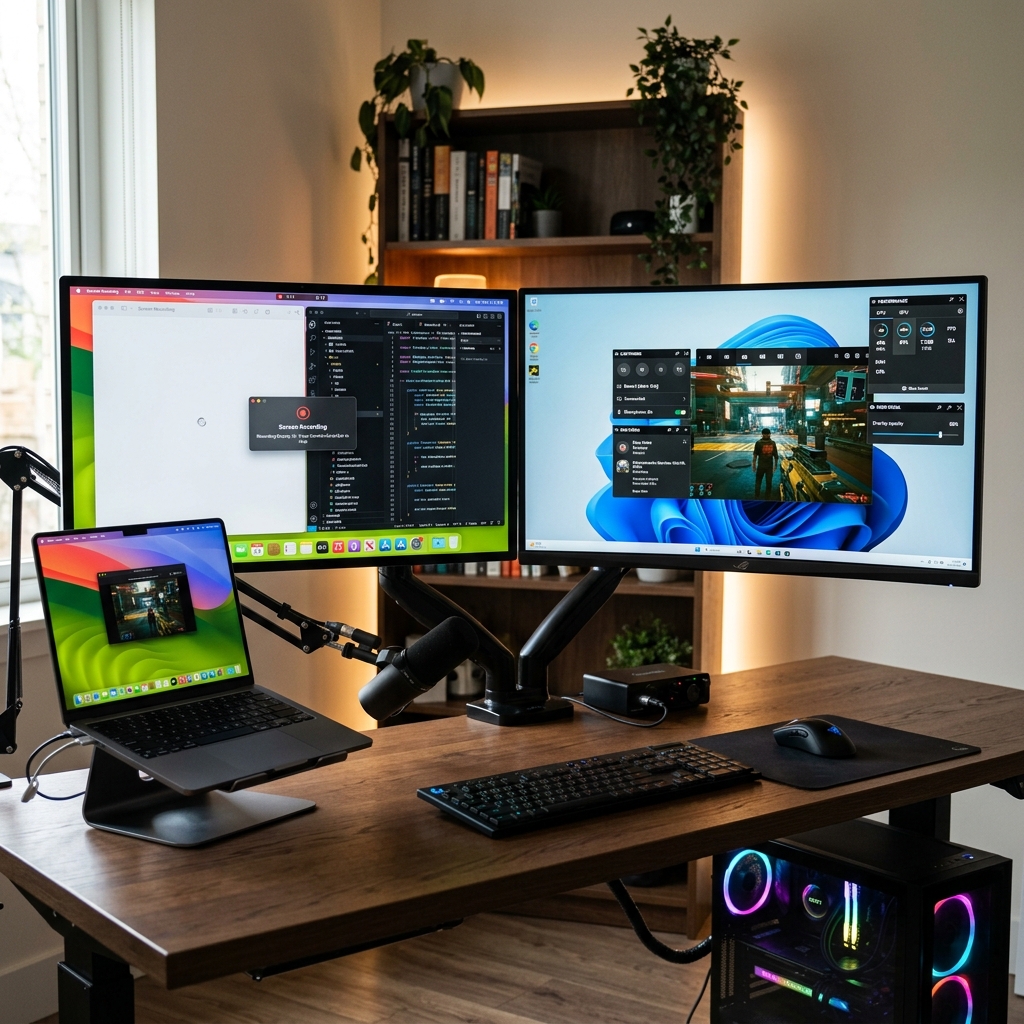
The Matchup: Minimalist Canvas vs. Gaming Command Center
The fundamental difference between these two tools comes down to their targeted audience. Apple built a utility for general productivity, while Microsoft built a dashboard tailored for performance.
The macOS Recorder: Elegant and Modular
Summoned by pressing Command (⌘) + Shift (⇧) + 5, the Mac screen recorder is a masterclass in minimalism. It gives you a clean, floating bar at the bottom of your screen that allows you to instantly record your entire monitor or drag a bounding box to record a selected portion.
The Pros: It is incredibly lightweight, doesn't drain your battery, and lets you easily choose where your files are saved natively. It records clean video frames and captures external microphone audio effortlessly.
The Major Mac Flaw: Apple's native recorder cannot record your Mac’s internal system audio out of the box. If you are recording a video call, an app demo, or a browser video, it records complete silence unless you download complex, third-party virtual audio routing drivers (like BlackHole) to pass the sound through.
The Windows Xbox Game Bar: The Performance Heavyweight
Summoned by pressing Windows Key + G, the Xbox Game Bar is a full-screen, multi-pane gaming dashboard. It features modular widgets for audio volume mixing, system hardware performance tracking (CPU/GPU load), and an active friend list.
The Pros: Unlike Mac, the Game Bar records internal system audio flawlessly out of the box. It isolates game or app audio cleanly and even allows you to adjust individual application volume balances while recording.
The Major Windows Flaw: The Game Bar is strictly built for a single application focus. It is designed to capture a video game window. Because of this security and framework design, it cannot record your full desktop canvas or your file explorer. If you minimize your active window to show something on your desktop, the recording will automatically cut off or fail to capture the transition.
Feature Matrix
| Feature | macOS Built-in Recorder | Windows Xbox Game Bar |
|---|---|---|
| Primary Shortcut | Cmd + Shift + 5 | Win + G |
| Desktop / Canvas Capture | Yes (Full freedom across windows) | No (Locked to a single active app/game) |
| Internal System Audio | No (Requires complex virtual plugins) | Yes (Flawless native capture) |
| Webcam Overlay Support | No | No |
| Performance Overlays | No | Yes (Live RAM, CPU, and GPU tracking) |
Enjoying this read?
Get weekly insights on video editing, AI workflows, and creator growth straight to your inbox.
The Modern Bottleneck: The Raw Pixel Problem
Whether you choose the Mac toolbar for its flexible window snapping or the Xbox Game Bar for its native internal audio capture, both native recorders suffer from the exact same modern limitation: they are passive recorders.
They both capture a flat, rigid pixel map of your monitor exactly as it sits. If you record a tutorial or product walkthrough on a large desktop monitor, it looks perfect to you. But when you send that raw video file to a client, teammate, or student, and they watch it on a smartphone, your desktop layout shrinks aggressively. The text becomes microscopic and entirely unreadable.
To make a raw video from a Mac or Windows native recorder watchable for a mobile audience, you are forced to spend hours inside a complex editing timeline manually cutting clips, animating zoom keyframes, and trying to stabilize shaky mouse tracking.
The Smart, Zero-Edit Alternative: Cubix Capture
If you want a screen recorder that combines the multi-window freedom of Mac with the native internal audio of Windows while completely removing the need for post-production editing, the ultimate upgrade is Cubix Capture.
Instead of acting like a blind security camera, Cubix Capture serves as an automated digital producer right while you record, making it the premier choice for both Windows and Mac users:
- Algorithmic Click-Based Auto-Zoom: It completely solves the readability problem. As you naturally click and navigate through a website or application, Cubix Capture dynamically scales up your active menus, ensuring text is instantly readable on smartphones with zero manual editing.
- AI Cursor Smoothing: It catches the natural, jittery, or frantic micro-movements of your physical mouse or trackpad and translates them into a fluid, elegant glide that guides the viewer's focus.
- Instant Studio Framing: No more messy backgrounds or boring layouts. Cubix Capture automatically places your application window against beautiful canvas backgrounds and isolates your facecam into a clean floating geometric bubble with automated background blurring.
- Instant Cloud Handoff: Because all visual formatting and smoothing are compiled in real-time, there is no rendering wait. The moment you hit stop, a polished cloud link is generated instantly, ready to share with your audience.
The Verdict
If you need a quick, raw capture of a webpage layout and you are on a Mac, the native Screenshot Toolbar is excellent for immediate desktop cropping. If you are a PC user looking to capture a single gameplay clip or an isolated app with full internal sound, the Xbox Game Bar handles the job reliably.
But if you are a professional, founder, or educator trying to create high-end software tutorials, product demonstrations, or client updates that look spectacular on any display without losing your afternoon to a video editing timeline, stepping up to Cubix Capture is the smartest choice you can make.
📖 Keep reading: How to screen record on Mac vs Windows, does Mac have a built-in screen recorder?, and how to fix the Xbox Game Bar when it's not working.
Don’t miss the next one.
Join our newsletter for exclusive tips, product updates, and the latest from the Cubix team.