
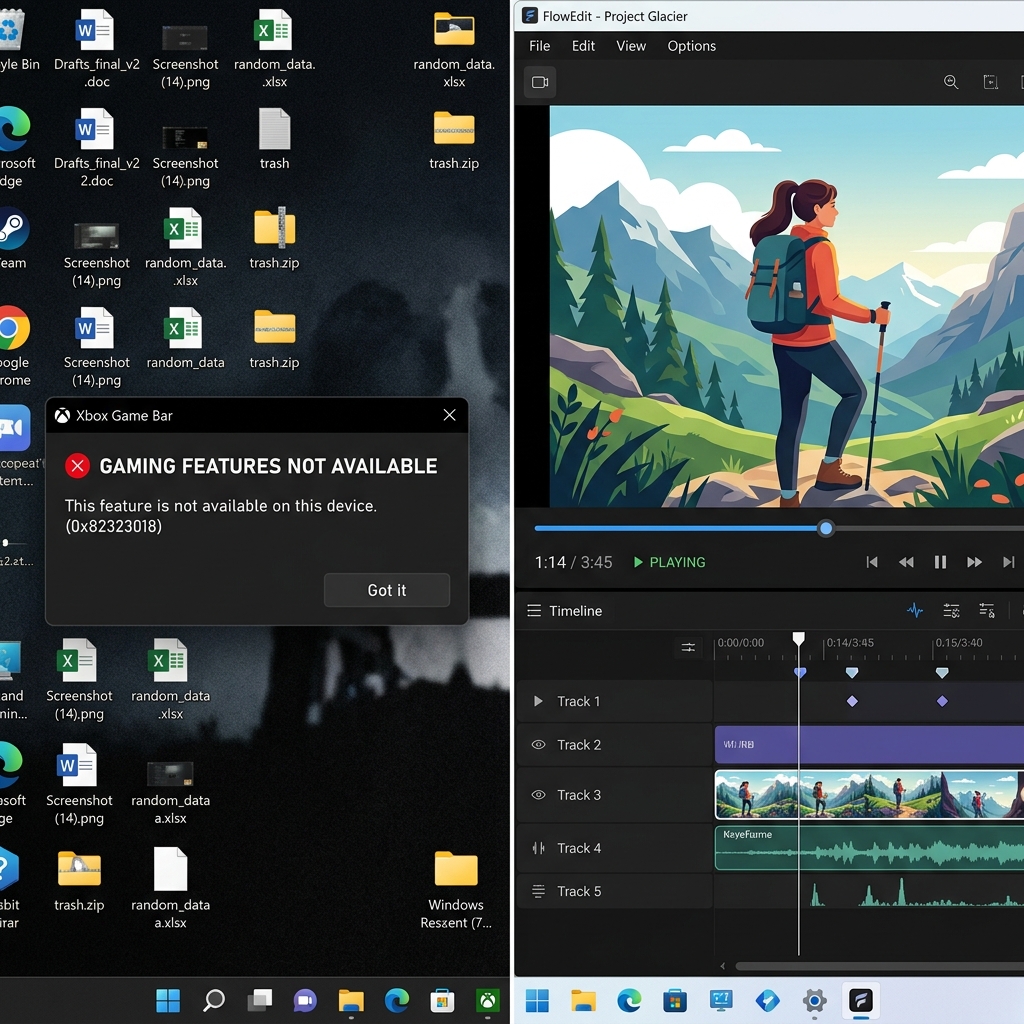
You press Windows + G. Nothing. Or the overlay opens but Record is gray. Or recording stops the second you leave Chrome—with no warning.
That is not always a broken PC. Xbox Game Bar is a game-highlight overlay duct-taped to general screen recording. Knowing its limits saves an hour of settings roulette.
Multi-app demos without desktop roulette: Cubix Capture records real workflows—browser, IDE, desktop—with capture-time zoom so UI stays readable when you stop. Try free · Windows
Long-form Windows path without Game Bar: How to Record a Screen on Windows 11 Without Xbox Game Bar.
60-second triage
| What you see | Meaning | Fastest move |
|---|---|---|
| Win+G does nothing | Game Bar disabled or blocked | Settings → Gaming → Xbox Game Bar → On |
| Record grayed out | No eligible foreground app | Open Chrome/Word/game first, then Win+G |
| Stops when you alt-tab | Desktop capture not supported | Use Snipping Tool video or Cubix Capture |
| No mic in clip | Wrong audio mode | Capturing → Audio to record: All (no audio fix) |
| Black video, audio OK | Different bug class | OBS black screen fix |
Fix 1: The desktop limitation (most common "broken" report)
Game Bar cannot record:
- Bare Windows desktop and wallpaper
- File Explorer as a "session" across folders
- Workflows that minimize the captured app
It records an eligible foreground window (many games, Chrome, Edge, Word). Click the desktop mid-take → capture ends.
What to do:
- Open the app you need (browser, IDE, slide deck).
- Click inside it so it is foreground.
- Win + G → confirm Record is active (not gray).
- Stay inside that app—or accept that Game Bar is the wrong tool.
For IDE + browser + settings in one clip, use Snipping Tool → Record (mic + system audio toggles) or Cubix Capture.
Fix 2: Enable Game Bar and capture toggles
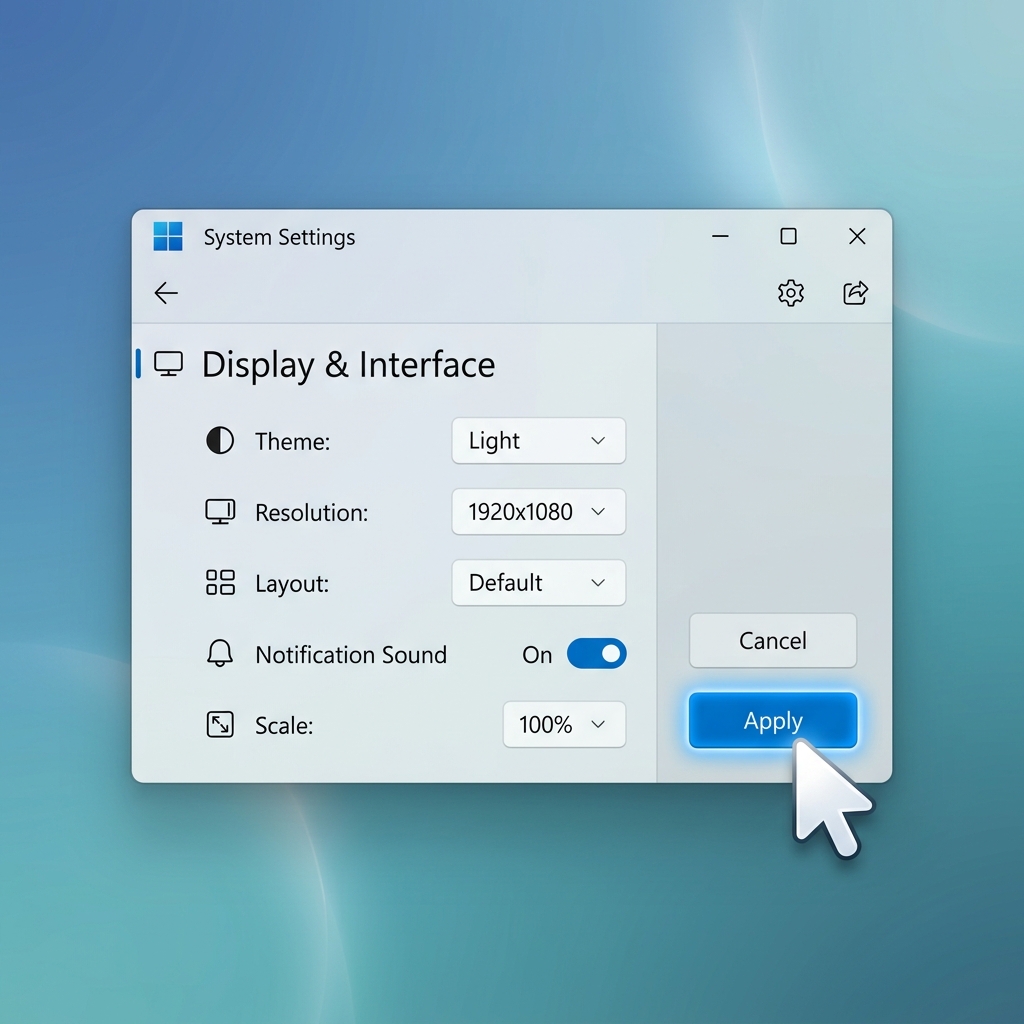
- Settings → Gaming → Xbox Game Bar → On (and allow keyboard shortcut).
- Settings → Gaming → Captures:
- Record what happened / background capture as needed
- Record audio when I record a clip → On
- Audio to record: All when you need browser + voice (not Game only)
- Retry Win + Alt + R for last-focused app capture.
Corporate images sometimes deploy MDM policies that disable gaming features—if toggles are missing, ask IT or use an approved recorder.
Fix 3: Repair or reset the Game Bar app
Overlay glitches, missing widgets, frozen Record:
- Settings → Apps → Installed apps → Xbox Game Bar.
- Advanced options → Repair → reboot → test Win+G.
- Still broken? Reset (resets Game Bar prefs; does not uninstall Windows).
Also confirm Xbox Game Bar Widget and Captures are updated via Microsoft Store if your build splits components.
Enjoying this read?
Get weekly insights on video editing, AI workflows, and creator growth straight to your inbox.
Fix 4: Shortcut conflicts and focus steals
- Win+G overridden by GPU utilities, stream decks, or remappers—check third-party hotkey tools.
- Fullscreen exclusive games may need Win + Alt + G for last 30s capture vs full session—read the Captures page tooltips.
- HDR exclusive fullscreen can produce odd outputs; windowed/borderless often behaves better (quality: blurry fix).
Snipping Tool vs Game Bar (pick the right free tool)
| Need | Snipping Tool video | Xbox Game Bar |
|---|---|---|
| Quick region / window | Strong | Weak for desktop |
| Game highlights | OK | Built for this |
| Multi-app tutorial | Better than Game Bar | Stops on alt-tab |
| Readable mobile UI | Neither auto-zooms | Neither auto-zooms |
Both export wide, static frames—fine for bugs, weak for customer-facing demos.
When Game Bar is fine vs when to upgrade
| Use case | Game Bar OK? |
|---|---|
| 5s gameplay clip | Yes |
| One-window browser bug | Yes |
| Onboarding / sales demo | No—use presentation capture |
| VC / course video | No—blur + lag follow |
Cubix Capture for Windows:
- Records multi-app flows without stopping on desktop clicks
- Auto-zoom on interactions (no Game Bar + CapCut zoom chain)
- Smooth cursor + clean stage for tutorials and demos
- Share-ready MP4; optional captions in Cubix
Game Bar fix checklist
- Foreground app open before Win+G
- Captures → Audio: All if you need system sound
- Not expecting Explorer/desktop capture
- Repaired Game Bar after an OS update
- Preview export on a phone if the video is customer-facing
Troubleshooting cluster
- No Audio on Screen Recording
- File Too Large
- OBS Black Screen
- Screen Recording Lag
- Blurry Screen Recording
Related reading:
- OBS Is Overkill for Screen Recording
- Best Screen Recorder for SaaS Founders (2026)
- How to Record Software Tutorial in Under 10 Minutes
Repair Game Bar for highlights—use presentation capture when your reputation rides on the recording.
Don’t miss the next one.
Join our newsletter for exclusive tips, product updates, and the latest from the Cubix team.