
The title bar says (Not Responding), the window has gone milky white, and Windows is offering to close the program for you. Before you accept that offer, stop for a moment, because this is the one OBS problem where the obvious reflex is frequently the wrong move.
Here is what most guides skip: "Not Responding" does not mean OBS has crashed. It is a message from Windows, not from OBS, and it means only that the app's interface thread has not answered a system ping for a few seconds. Sometimes that is a genuine deadlock. Quite often it is OBS doing exactly what you asked, on a thread that cannot answer the doorbell while it works.
Killing a busy OBS is how a recoverable session becomes a lost one. So we will work out which of the two you are looking at first, then act.
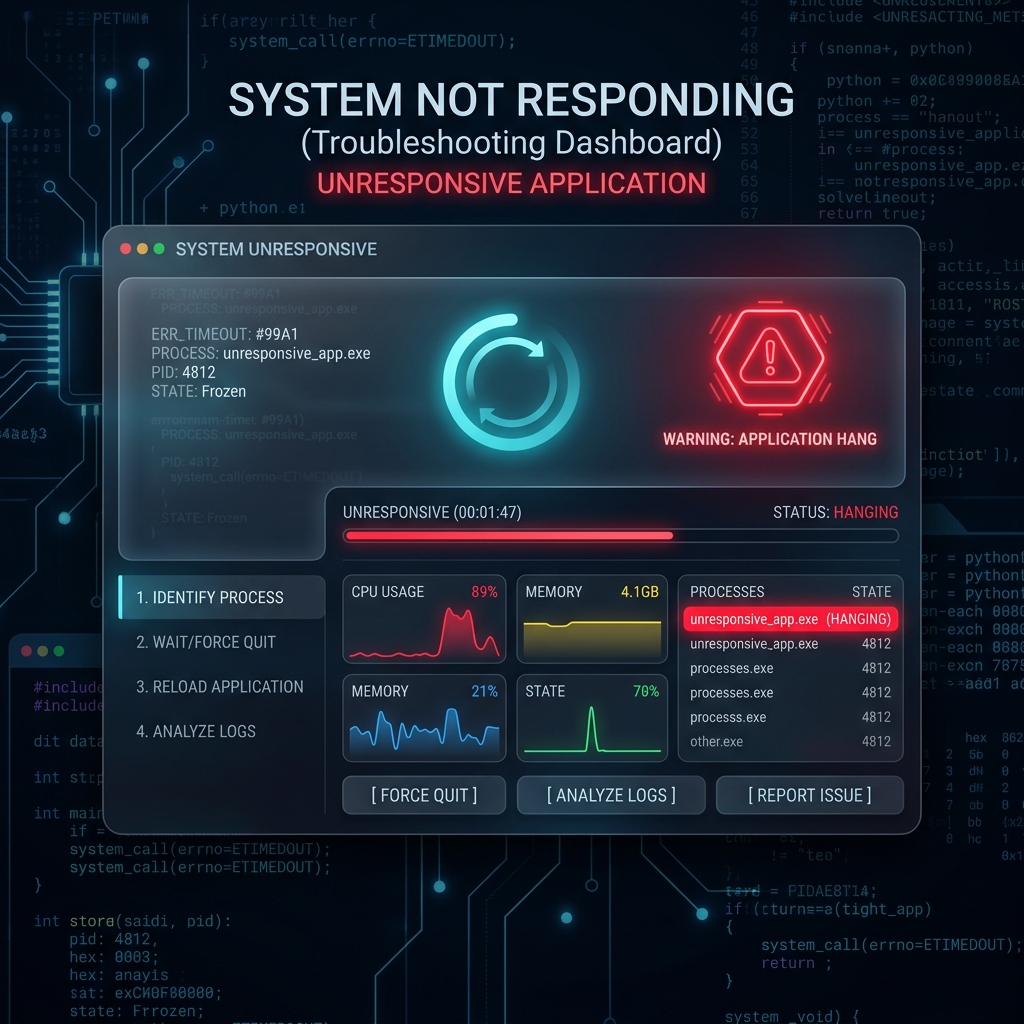
Step 1: Decide Whether It Is Hung or Just Busy
Open Task Manager with Ctrl + Shift + Esc, go to the Details tab, and find obs64.exe. The Details tab matters here because it reports the raw process rather than the window state, which is the thing Windows has already given up on.
Watch the CPU and I/O columns for a full sixty seconds:
- CPU above zero, or disk activity ticking: OBS is working, not dead. It is grinding through something it cannot interrupt. Leave it alone. It will very likely come back on its own.
- CPU pinned at exactly 0.0 with no I/O, for more than a minute: this is a real deadlock. It is waiting on something that is never going to answer. Proceed to Step 2.
Four things routinely lock the interface for thirty seconds or more while being completely healthy:
- Enumerating capture devices at launch, especially with a Bluetooth or virtual camera that is slow to answer.
- Loading a large scene collection with many browser sources.
- A browser source waiting on a network timeout, which can take the better part of a minute to give up.
- Finalising a large recording after you click stop, which is disk-bound and can take a while on a slow or nearly-full drive.
That last one deserves emphasis. If OBS goes unresponsive right after you stop a recording, do not kill it. It is almost certainly writing the file's index. Interrupt that and you turn a finished recording into a repair job, exactly as described in OBS Crashed Mid Recording: Is the File Recoverable?.
Step 2: Force-Kill Without Making It Worse
If you confirmed a true deadlock, and especially if you were recording when it froze, the order of operations matters.
- Accept the state of the recording before you kill it. A frozen OBS has not written its MP4 index. Killing the process ends any chance of a clean file. If the take was important, it is worth leaving OBS hung for another few minutes on the small chance it recovers and finalises properly on its own.
- Do not use "End Task" from the Processes tab first. Use the Details tab, right-click
obs64.exe, and choose End process tree. OBS spawns separate helper processes for browser sources, and killing only the parent leaves those orphaned, which is what causes the next launch to hang or report that OBS is already running. - Confirm it is actually gone. Stay in Details and check that no
obs64.exeorobs-browser-page.exeentries remain before relaunching. A leftover process is the single most common reason the freeze repeats immediately. - Say yes to Safe Mode. On the next launch OBS will notice the unclean shutdown and offer Safe Mode. Accept it. It is a free diagnostic: if OBS runs perfectly in Safe Mode, your hardware is fine and a plugin is responsible.
On macOS the same logic applies with Cmd + Option + Esc and Force Quit, though the orphaned-helper problem is far less common there.
Step 3: Read What Froze It
An unresponsive OBS almost always leaves a trace. Relaunch, then open Help > Log Files > Show Log Files and open the log from the frozen session. Read the last few lines before it stops, because a hang leaves the log truncated at the exact moment the thread stalled, which points straight at the culprit.
| Where the log stops | What was waiting | What to do |
|---|---|---|
After a plugin or .dll name | A third-party plugin stalled the load | Isolate it. See OBS Keeps Crashing: How to Fix It. |
After obs-browser or a URL | A browser source is waiting on the network | Purge the browser cache. See OBS Freezes on Startup. |
| After a video or audio device name | A capture device is not answering | Unplug it, relaunch, then reconnect. |
Right at Attempting to reset video | GPU or display driver stall | See OBS Keeps Freezing on Windows 11. |
| Nothing logged at all | It never got past config load | See OBS Freezes on Startup. |
Enjoying this read?
Get weekly insights on video editing, AI workflows, and creator growth straight to your inbox.
If It Freezes Every Single Time
A one-off hang is worth shrugging at. A repeating one is a specific fault, and the fix depends on when it happens rather than on the "Not Responding" label itself, which is generic to every Windows app.
- Freezes before the interface ever appears: the launch sequence is stalling. OBS Freezes on Startup: Fix Guide maps the freeze to the exact boot stage.
- Freezes on Windows 11 during use, at random: the operating system's graphics scheduling is a strong suspect. OBS Keeps Freezing on Windows 11.
- Freezes and then dies outright: you have a crash rather than a hang. OBS Keeps Crashing: How to Fix It.
Why a Recorder Should Never Be Able to Hold Your Work Hostage
Notice what Step 2 really asked you to do: make a judgement call, under time pressure, about whether to destroy your own footage. That decision only exists because OBS keeps your recording hostage in an unfinalised file until it is allowed to shut down cleanly.
Cubix Capture does not put you in that position. Recordings are written to be readable as they go, so no single frozen process stands between you and the take you just spent an hour on. There is no wait-or-kill gamble, because there is nothing being held back to lose.
You should never have to negotiate with your screen recorder for your own work.
Keep Reading
- OBS Freezes on Startup: Fix Guide if it hangs before the interface loads.
- OBS Keeps Freezing on Windows 11 for the OS-level causes.
- OBS Keeps Crashing: How to Fix It when it quits rather than hangs.
- OBS Crashed Mid Recording: Is the File Recoverable? if you killed it mid-take.
Don’t miss the next one.
Join our newsletter for exclusive tips, product updates, and the latest from the Cubix team.