
An OBS that freezes on startup is telling you more than it appears to. It is not failing randomly. It is failing at a specific point in a sequence it runs identically every single launch, and that point is nearly always visible from the outside if you know what to look at.
Get the stage right and the fix is usually one setting. Guess at it, and you will spend an evening reinstalling drivers for a problem that was a stale browser cache.
So rather than a list of fixes to try in hope, this guide maps the boot sequence. Find where yours stops, then jump to that stage.
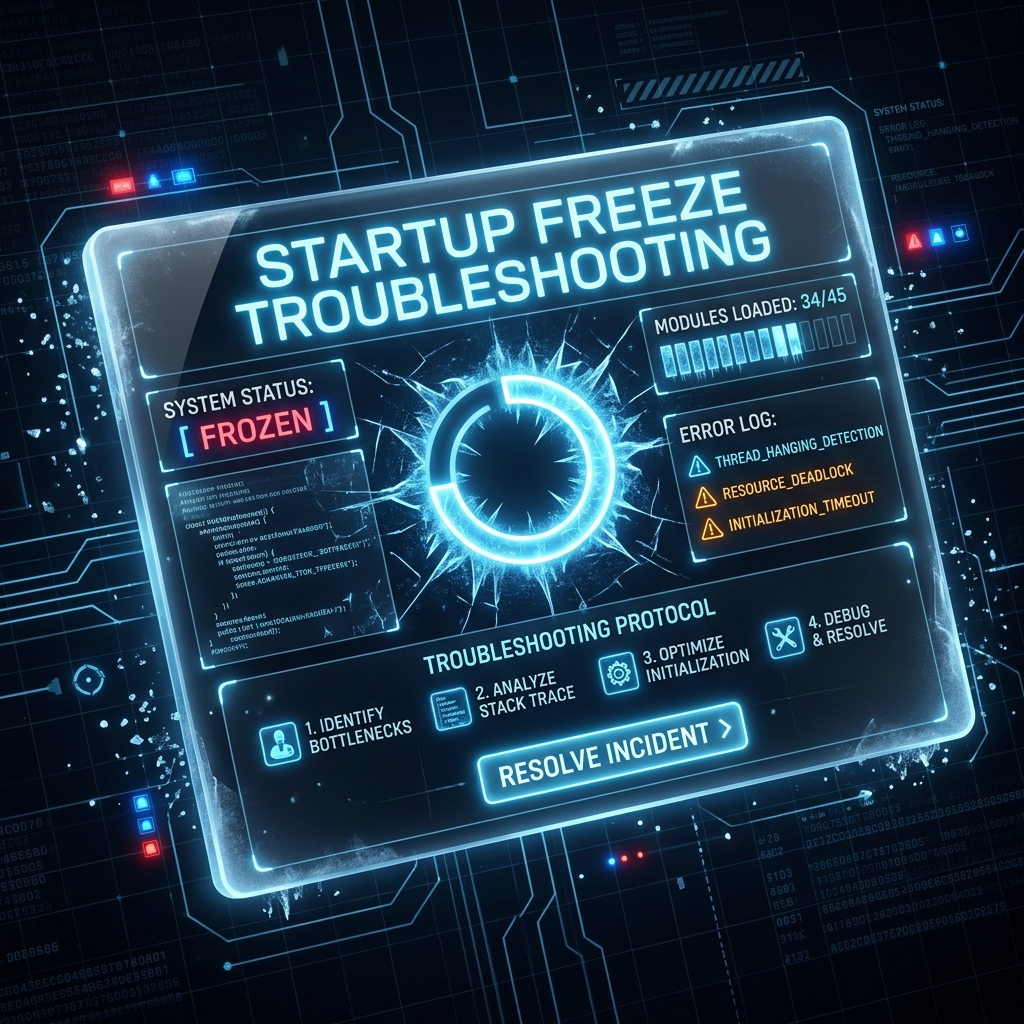
The Five Stages of an OBS Launch
Every time you double-click that icon, OBS works through the same five stages in the same order. Each one hands off to the next, so a stall at stage two means stages three through five never happen.
| Stage | What OBS is doing | What you see on screen |
|---|---|---|
| 1. Config load | Reading your profile and settings from AppData | Nothing. No window at all. |
| 2. Video reset | Enumerating GPUs and creating the render canvas | Splash screen, or a window with a black or grey canvas |
| 3. Plugin load | Loading every .dll in the plugins folders | Splash screen sitting on a plugin's name |
| 4. Scene restore | Rebuilding your scene collection and its sources | Interface visible, canvas empty, panels unresponsive |
| 5. Source init | Starting browser sources, cameras and audio devices | Interface fully drawn but frozen for several seconds |
Now match your symptom. The distinction that saves the most time is whether you ever see the OBS window. No window at all means stages 1 or 2. A drawn interface that then locks means stages 4 or 5, and those have completely different causes.
To confirm rather than guess, open Help > Log Files > Show Log Files after a failed launch and read the final line of the truncated log. It stops exactly where the freeze happened, and it names names.
Stage 1 and 2: No Window Ever Appears
If OBS never draws anything, it died before it could. Two candidates.
A corrupted config profile. Your settings live in %appdata%\obs-studio. If that folder was written during an unclean shutdown, OBS can hang trying to parse it. To test this safely without losing anything, press Windows Key + R, enter %appdata%, and rename the obs-studio folder to obs-studio-backup. Relaunch. OBS will build a fresh profile from scratch. If it launches cleanly, you have your answer, and you can copy your basic\scenes folder back from the backup afterwards to recover your scene collections.
A GPU that will not hand over a canvas. This is stage 2, and it is where a freeze with no window and no log output usually lands. If you are on a laptop with both integrated and dedicated graphics, or you recently updated a display driver, go to the Windows 11 guide below, because the causes there are OS-specific and worth treating properly rather than patching blindly: OBS Keeps Freezing on Windows 11.
Stage 3: The Splash Screen Sits on a Plugin Name
If the splash screen freezes while displaying a plugin's name, that plugin is the whole story. This is the most common startup freeze by a wide margin, and it clusters hard right after an OBS update, because a plugin compiled against the previous version will hang the loader rather than fail politely.
The diagnostic takes ten seconds: launch OBS with Safe Mode, which loads zero third-party plugins. If it starts cleanly, a plugin is holding your launch hostage.
Full isolation procedure, including where the plugin folders live and how to bisect them when you have several, is in the main crash guide: OBS Keeps Crashing: How to Fix It. It is the same procedure whether the plugin crashes OBS or hangs it, so there is no sense in duplicating it here.
Enjoying this read?
Get weekly insights on video editing, AI workflows, and creator growth straight to your inbox.
Stage 4 and 5: The Interface Loads, Then Locks
This is the stage most guides get wrong, because the fixes for stages 1 through 3 do nothing here. If you can see your full interface before it freezes, your plugins loaded and your GPU is fine. Something in your scene collection is stalling.
Browser sources are the usual offender. OBS embeds Chromium to render web widgets, and a source pointing at a dead URL, an expired overlay or an offline service will sit there waiting for a network timeout, freezing the interface while it waits. Clear the cache:
- Press Windows Key + R, enter
%appdata%\obs-studio\plugin_config\obs-browser. - Delete the cache folders inside it. You will not lose your sources, only their stored state.
- Relaunch.
Capture devices are the other. A webcam, capture card or virtual camera that is slow to answer will stall stage 5 for as long as it takes to time out. Unplug USB capture hardware and relaunch. If that fixes it, reconnect the device and open its properties in OBS, then untick Use Device Timestamps.
To isolate which source is responsible, start OBS in Safe Mode, then switch to a brand-new empty scene collection via Scene Collection > New. If OBS is stable with an empty collection, add your sources back a handful at a time. The one that reintroduces the freeze is your culprit.
Startup Freeze Diagnostic Summary
| What you see | Stage | Go to |
|---|---|---|
| No window, no log file at all | 1 | Rename the obs-studio AppData folder |
Splash screen, log ends on a .dll | 3 | Isolate the plugin |
| Black or grey canvas, log ends at video reset | 2 | Windows 11 graphics fixes |
| Interface draws, then locks | 4 to 5 | Purge browser cache, then bisect sources |
| Safe Mode is perfect, normal mode freezes | 3 | Isolate the plugin |
| Starts fine, freezes later during use | Not startup | OBS Not Responding: What to Do |
The Uncomfortable Question Behind All of This
Read that table again and notice what it really is: a map of the five separate systems your screen recorder touches before it has recorded a single frame. Every stage is a place your recording session can die before it starts.
That surface area buys real things if you are running a live multi-camera broadcast with custom overlays. It buys you nothing at all if you are recording a walkthrough of your own app. Cubix Capture has no plugin loader to hang, no scene collection to rebuild and no embedded browser waiting on a dead URL, because it was built to record your screen rather than to run a television studio.
The most reliable startup sequence is the one with the fewest things in it.
Keep Reading
- OBS Keeps Crashing: How to Fix It owns the plugin isolation procedure in full.
- OBS Keeps Freezing on Windows 11 for graphics scheduling and driver-level causes.
- OBS Not Responding: What to Do if it freezes after a successful launch.
- OBS Best Settings for Screen Recording once it is stable again.
Don’t miss the next one.
Join our newsletter for exclusive tips, product updates, and the latest from the Cubix team.