
If OBS ran fine for years and started freezing when you moved to Windows 11, you are not imagining it and your hardware has not aged overnight.
Windows 11 changed how the operating system hands out the GPU, how it isolates kernel memory, and how it manages audio endpoints. Each of those changes is defensible on its own. Together they created a handful of conflicts that hit screen recorders harder than almost any other category of software, because a recorder is the rare application that needs sustained GPU access while another application is in the foreground demanding the same thing.
This guide is deliberately narrow. It covers only the causes that are specific to Windows 11 itself. If your freeze is a plugin or a broken scene, those are not Windows 11 problems and are handled elsewhere, linked at the end.
First, Confirm It Is Actually a Windows 11 Problem
Thirty seconds here saves you from changing system settings that were never the cause.
Launch OBS in Safe Mode and use it normally for a few minutes. Safe Mode disables every third-party plugin while leaving all of Windows 11's behaviour exactly as it is.
- Still freezes in Safe Mode: it is environmental. This is your guide, keep reading.
- Perfectly stable in Safe Mode: a plugin is responsible and Windows 11 is a bystander. Go to OBS Keeps Crashing: How to Fix It and stop here.
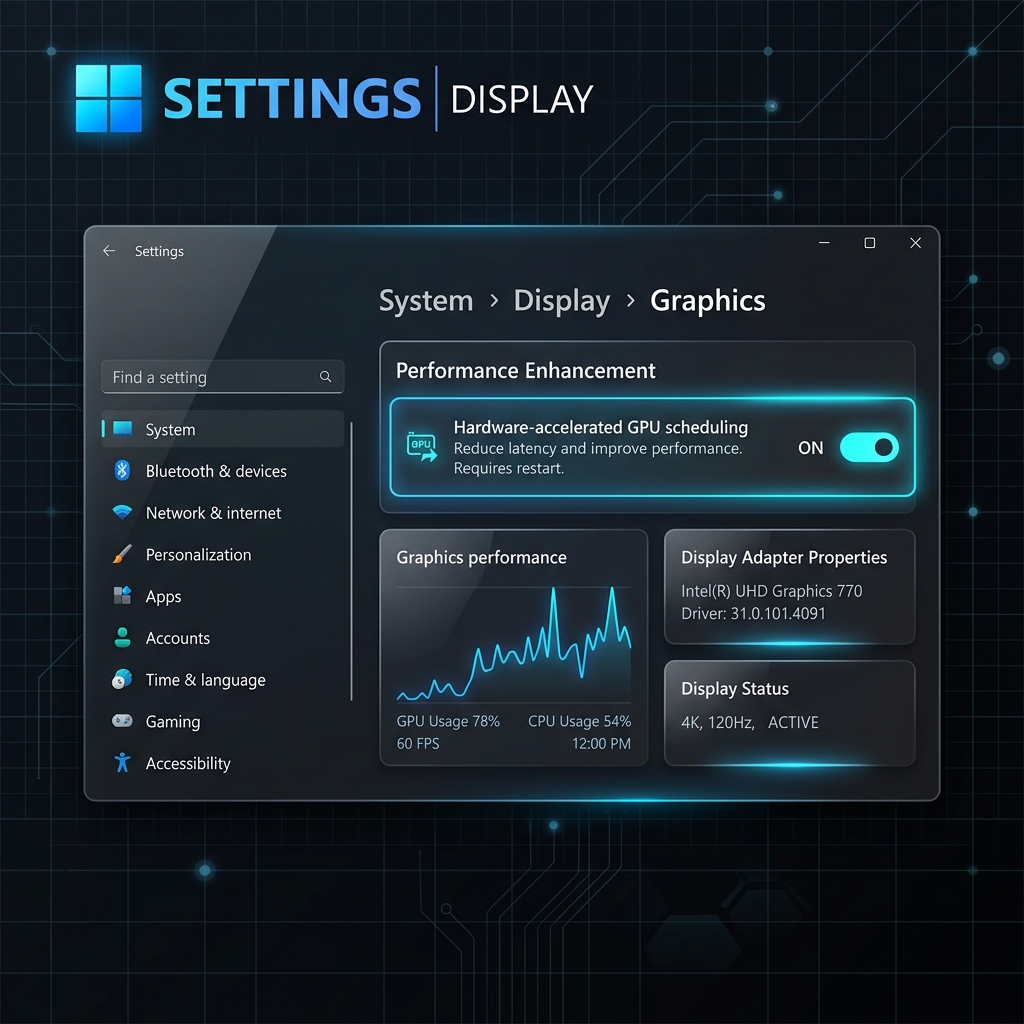
Cause 1: Hardware-Accelerated GPU Scheduling
HAGS lets your graphics card manage its own scheduling queue instead of Windows arbitrating it. For gaming it can shave latency. For OBS it is the single most reported cause of Windows 11 freezing, because OBS asks the GPU for a render surface at the same moment a foreground game or browser is saturating that same queue. When the card's own scheduler resolves that contention in favour of the foreground app, OBS's render thread waits, and a render thread that waits long enough is a frozen window.
This is the first thing to change, and often the only one.
- Press Windows Key + I for Settings.
- Go to System > Display > Graphics.
- Click Default graphics settings at the top.
- Toggle Hardware-Accelerated GPU Scheduling to Off.
- Restart your PC. This is not optional. The setting is only read at boot, and skipping the restart is why people report that disabling HAGS "did nothing".
Cause 2: Core Isolation and Memory Integrity
This is the one almost nobody checks, and it is a genuine Windows 11 exclusive.
Memory Integrity runs your drivers inside a virtualised container to keep untrusted code away from the kernel. It is a real security benefit with a real cost: every GPU driver call pays a virtualisation tax. On a machine that was already close to its limits, that overhead is enough to turn a smooth capture into periodic hard stalls, and it disproportionately affects sustained GPU work like encoding.
Check it under Windows Security > Device security > Core isolation details.
Turning it off will measurably reduce stalls on older hardware. It also genuinely lowers your security posture, so treat this as a diagnostic first: if turning it off fixes the freeze, you have learned that your system is running out of GPU headroom, and lowering your OBS output resolution or switching to a hardware encoder may let you turn it back on and stay stable. That is the better outcome.
Cause 3: Driver Timeout Detection and Recovery
If your screen goes black for a second, comes back, and OBS is frozen or showing a black canvas, you hit a TDR. Windows waited two seconds for the display driver to respond, decided it was dead, and reset it out from under OBS. Windows recovers. OBS, holding a render surface that no longer exists, does not.
The tell is unmistakable: check Event Viewer > Windows Logs > System for a warning reading "Display driver stopped responding and has recovered" with a timestamp matching your freeze.
The fix is not to extend the timeout. It is to stop starving the GPU:
- Clean-install your display driver rather than updating over the top. Use the manufacturer's own installer and choose the clean install option. Windows 11 frequently ships a generic driver over a working vendor one during feature updates, and that is why this often begins right after an update.
- Lower your OBS output resolution or frame rate, so the card is not pinned at 100 percent while it also has to service your desktop.
- Do not turn off Game Mode. It is widely repeated advice and it is wrong for recording. Game Mode on Windows 11 helps by suppressing background interference during captures.
Enjoying this read?
Get weekly insights on video editing, AI workflows, and creator growth straight to your inbox.
Cause 4: Audio Endpoint Switching
Windows 11 is aggressive about moving your default audio endpoint. Plug in a headset, let a Bluetooth device sleep, or open a call app, and the default device changes underneath every app listening to it. OBS, told simply to follow "Default", is left reading an endpoint that no longer exists, and the audio thread stalls waiting on it.
- Open Settings > Audio in OBS.
- Under Global Audio Devices, change Desktop Audio and Mic/Auxiliary Audio away from Default.
- Select your hardware by name, for example Speakers (Realtek(R) Audio) or Microphone (Elgato Wave:3).
Naming the device explicitly means Windows can reshuffle its defaults all it likes and OBS keeps reading the same physical endpoint.
Windows 11 Freeze Diagnostic Table
| What you observe | Windows 11 cause | Fix |
|---|---|---|
| Freezes when a game or browser takes focus | HAGS scheduling contention | Cause 1: disable HAGS, then reboot |
| Constant micro-stalls on older hardware | Memory Integrity virtualisation overhead | Cause 2: test with Core Isolation off |
| Screen blanks, returns, OBS is dead | Driver TDR reset | Cause 3: clean-install the display driver |
| Freezes when a headset connects or sleeps | Audio endpoint switching | Cause 4: name your devices explicitly |
| Began right after a Windows feature update | Generic driver replaced the vendor one | Cause 3: clean-install the display driver |
| Freezes only at launch | Not OS-specific | OBS Freezes on Startup |
The Pattern Worth Noticing
Every fix above is you manually re-negotiating priority between OBS and the rest of Windows 11. HAGS, Memory Integrity and TDR are not bugs. They are the operating system making reasonable decisions for the general case, and OBS sits outside that general case because it demands sustained GPU access as a background process.
An application that cannot survive its own operating system's defaults is asking a lot of you. Cubix Capture is built for how Windows 11 actually behaves today, with no HAGS toggling, no security features to weaken and no driver archaeology in Event Viewer.
Your recorder should adapt to your operating system. Not the other way round.
Keep Reading
- OBS Keeps Crashing: How to Fix It if Safe Mode proved a plugin is at fault.
- OBS Freezes on Startup: Fix Guide if it only ever hangs at launch.
- OBS Not Responding: What to Do for handling a live freeze safely.
- OBS Lag Fix on Windows 11 if it lags rather than freezes outright.
Don’t miss the next one.
Join our newsletter for exclusive tips, product updates, and the latest from the Cubix team.