
You spent twenty minutes presenting a flawless software tutorial or capturing an epic gaming session in OBS Studio. But when you open the file to review your footage, your heart sinks: the video stutters, frames are dropped, and the audio is completely out of sync with the visuals.
OBS is the industry standard for screen recording, but because it processes video at a deep, hardware-intensive level, it is highly prone to rendering and encoding lag. When your processor or graphics card gets overwhelmed, OBS is forced to skip frames, leaving you with a choppy, unusable mess.
If your recordings look like a slideshow, don't panic. You don't need a $3,000 computer to fix this. Here is the definitive guide to troubleshooting OBS lag, optimizing your settings, and getting smooth, buttery footage.
Step 1: Diagnose the Lag (The Stats Panel)
Before blindly changing settings, you need to find out exactly why OBS is lagging.
Open OBS and go to the top menu bar. Click View and select Stats. Keep this window open while you run a quick test recording. Look closely at these two indicators:
- Frames dropped due to rendering lag: This means your Graphics Card (GPU) is maxed out. It cannot draw the visual elements fast enough.
- Skipped frames due to encoding lag: This means your Processor (CPU) or dedicated encoder is overloaded. The computer can't package the video data fast enough.
Step 2: The Practical Fixes
Once you know what is causing the bottleneck, use these three high-impact adjustments to eliminate the lag entirely.
-
Run OBS as Administrator: Bypasses standard Windows throttling. By default, Windows prioritizes games or web browsers over background apps. If your GPU is hitting 100% usage, it steals power from OBS, causing rendering lag. Right-click your OBS desktop shortcut and choose Run as administrator. This forces Windows to give OBS high-priority access to your graphics card.
-
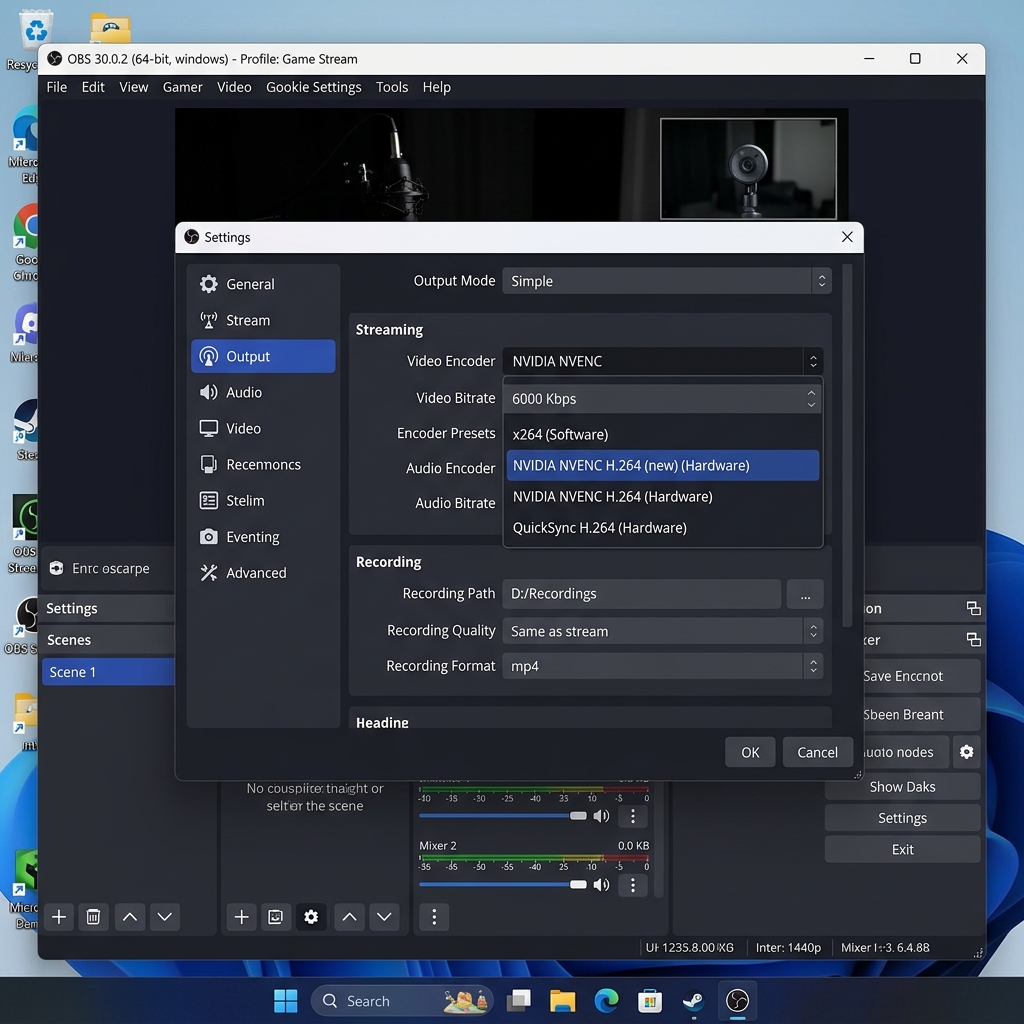
Switch to a Hardware Encoder: Offloads the heavy lifting from your CPU. If you are experiencing encoding lag, your CPU is suffocating. Go to Settings > Output and set the Output Mode to Advanced. Under the Recording tab, look at the Video Encoder dropdown. Change it from x264 (which uses your CPU) to a hardware encoder like NVIDIA NVENC, AMD HW, or Intel QuickSync. This shifts the heavy video processing to a dedicated chip on your graphics card.
-
Turn Off the OBS Preview: Saves a massive amount of system resources. When you are recording your screen, OBS uses extra graphics power just to display the live preview window inside the app. If you are on a mid-range laptop or PC, right-click the large black display preview in the center of OBS and uncheck Enable Preview. This instantly drops your GPU usage by 10% to 15%.
Enjoying this read?
Get weekly insights on video editing, AI workflows, and creator growth straight to your inbox.
The Underlying Headache of Technical Tweaking
While tweaking encoders, toggling administrator rights, and lowering frame rates from 60 FPS to 30 FPS will usually fix your OBS lag, it highlights a frustrating reality: traditional screen recorders demand constant technical babysitting.
Even when OBS runs smoothly, it functions purely as a passive recorder. If you are creating a tutorial or a product demo on a high-resolution screen, the interface will look tiny and completely unreadable to anyone watching the video on a smartphone. You are then forced to take that heavy, unlagged video file, drop it into a complex editing timeline like Premiere Pro, and spend hours manually adding zoom keyframes just to make it watchable.
If you are a professional, founder, or teacher, your time shouldn't be divided between acting as a technical troubleshooter and a video editor.
The Smart, Smooth, Zero-Lag Alternative
If you want to record pristine, professional screen captures without ever dealing with bitrates, encoding overloads, or tedious post-production timelines, the modern solution is Cubix Capture.
Instead of acting like a heavy broadcast control room that drains your system resources, Cubix Capture operates as a lightweight, intelligent workflow engine designed specifically for effortless delivery:
- Zero-Configuration Architecture: It utilizes highly optimized, cloud-first frameworks that gracefully record your desktop without forcing your CPU or GPU into an overload state. No lag, no stuttering, no settings menus required.
- Real-Time Auto-Zooming: It completely eliminates the legibility problem. As you click through your software or website, the platform dynamically pans and scales up your active windows so your text is crystal clear on mobile displays with zero editing required.
- Cinematic Pointer Interpolation: It automatically catches and smooths out the nervous, shaky micro-movements of your physical trackpad or mouse, turning it into a fluid visual guide.
- Instant Link Exporting: Because the visual formatting, smooth cursors, and webcam frames are rendered in real-time, your video is packaged into a pristine cloud sharing link the exact second you hit stop.
Mastering the backend technical matrices of OBS Studio is essential if you are live-streaming a multi-camera tournament to Twitch. But when it is time to build a clean tutorial, share a workflow with a client, or record an important digital lesson without wasting your day adjusting encoding presets, stepping up to a platform built for automated clarity saves your sanity and your time.
📖 Keep reading: OBS Recording Black Screen Fix - Why It Happens, OBS vs Cubix Capture — which should you use, and best screen recorder for tutorial videos.
Don’t miss the next one.
Join our newsletter for exclusive tips, product updates, and the latest from the Cubix team.