
You open OBS Studio, set up your sources, and get ready to record an important tutorial, gameplay clip, or presentation. But instead of seeing a preview of your desktop or active game, you are greeted by an empty, frustrating void: the dreaded OBS black screen.
This is arguably the most common issue encountered by OBS users. Because OBS is incredibly powerful and handles video encoding at a deep system level, a single misconfigured toggle between your operating system, graphics card, and the app can completely block the video feed.
If you are staring at a blank preview window, don't panic. This isn't an unfixable glitch. Here is the breakdown of why the OBS black screen happens and exactly how to fix it in less than five minutes.
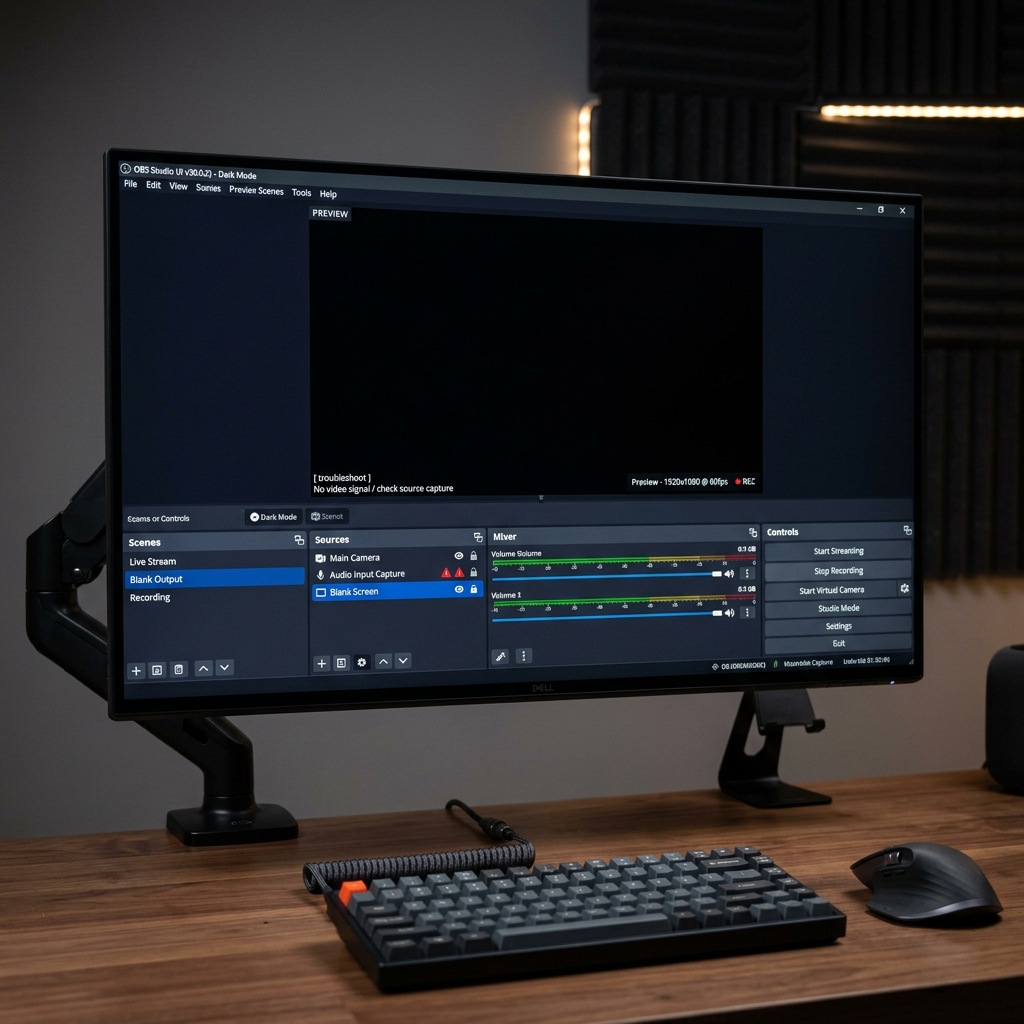
Why It Happens: The Core Culprits
The black screen issue rarely means your computer is broken. Instead, it is usually a conflict over permissions or hardware routing.
- GPU Mismatches (Dual-GPU Laptops): This is the leading cause for laptop users. Many modern laptops have two graphics processors: an energy-efficient Integrated GPU (like Intel or AMD) for handling your desktop workspace, and a high-performance Dedicated GPU (like NVIDIA or AMD Radeon) for heavy gaming. If OBS tries to capture the desktop using the dedicated card while Windows is rendering the desktop on the integrated card, they cannot see each other, resulting in a black screen.
- Administrative Privilege Locks: Modern operating systems tightly guard active application data. If you are using "Game Capture" to record a high-end game or "Window Capture" for an app running with system-level security, Windows actively blocks outside recorders unless the recorder has matching administrative authorization.
- Incorrect Capture Mode Selection: OBS provides distinct tools for a reason. Using Game Capture to record a basic web browser, or Window Capture to record a full-screen, DirectX-powered video game often causes the application hook to fail entirely.
How to Fix the OBS Black Screen
Follow these standard diagnostic steps to restore your video preview immediately.
-
Run OBS as Administrator: Bypasses strict system security blocks. Close OBS completely. Locate the OBS Studio shortcut icon on your desktop, right-click it, and select Run as administrator. If you want to make this permanent, right-click the icon, go to Properties > Compatibility, check the box for Run this program as an administrator, and click Apply.
-
Resolve the Multi-GPU Conflict: Forces Windows to assign OBS to the correct card. Open your Windows Settings and navigate to System > Display > Graphics. Click Browse and select your OBS executable file (
obs64.exe). Once added to the list, click on OBS, select Options, and change the preference to Power Saving (if trying to fix Display Capture) or High Performance (if trying to fix Game Capture). Click Save and restart OBS. -
Switch Capture Modes Natively: Ensures OBS hooks into the exact app engine. If your source is still black, delete your current capture source and add a fresh one by clicking the (+) icon under the Sources panel. Match the source strictly to your content:
- Use Display Capture for recording multiple switching apps or the desktop canvas.
- Use Game Capture for full-screen video games.
- Use Window Capture for static desktop applications like Microsoft Word or a browser tab.
Enjoying this read?
Get weekly insights on video editing, AI workflows, and creator growth straight to your inbox.
The Hidden Trade-off of Technical Troubleshooting
Wrestling with graphics settings, administrative overrides, and backend GPU routing will usually get your OBS preview working again. But the entire ordeal highlights the hidden cost of traditional open-source tools: they take up your valuable time.
Even after you solve the black screen, OBS still functions purely as a passive recorder. If you are recording a tutorial or a product demo on a high-resolution desktop screen, the interface will look tiny and unreadable to viewers watching on a mobile phone. You are then forced to take your raw video file, drop it into a heavy video editor, and spend hours manually adding zoom keyframes just to make your footage readable.
If you are a professional, founder, or educator, you shouldn't have to moonlight as a technical troubleshooter and video editor just to share a video.
The Smarter, Frictionless Alternative
If you want to create flawless, studio-grade screen recordings without ever dealing with black screens, graphics configuration panels, or tedious post-production timelines, the modern solution is Cubix Capture.
Instead of acting like a rigid, system-heavy broadcasting platform, Cubix Capture operates as an elegant, cloud-first recording workspace designed specifically for effortless presentation:
- Zero-Configuration Screen Hooks: It utilizes intelligent framework APIs that instantly recognize your application layouts without requiring admin overrides or manual GPU routing. No black screens, no settings adjustments.
- Algorithmic Auto-Zooming: It completely solves the legibility problem. As you click and navigate through your workflow, the software dynamically glides in to magnify your active menus, ensuring text remains perfectly clear on any smartphone screen automatically.
- Cursor Path Smoothing: It automatically filters out the shaky, frantic micro-movements of your physical trackpad or mouse, translating your actions into a smooth, elegant visual guide.
- Instant Export Workflow: Because all the visual formatting, smooth cursors, and webcam frames are rendered in real-time, your video is instantly wrapped in a pristine cloud sharing link the second you click stop.
Mastering the backend settings of OBS Studio is a useful skill if you are building a complex live-streaming broadcast or recording competitive gameplay. But when it is time to build a professional tutorial, guide a client, or share an important digital lesson without wasting your day on technical troubleshooting, stepping up to a platform built for automated clarity saves you time and ensures your audience absorbs your message perfectly.
📖 Keep reading: Fix OBS screen recording lag, the best OBS settings for screen recording, and why OBS is overkill for most recordings.
Don’t miss the next one.
Join our newsletter for exclusive tips, product updates, and the latest from the Cubix team.