
Have you ever scrolled through social media or YouTube and watched a perfectly polished software tutorial? The camera smoothly zooms in on the exact right button, the mouse glides perfectly across the screen, and the software window floats over a beautiful, colorful background.
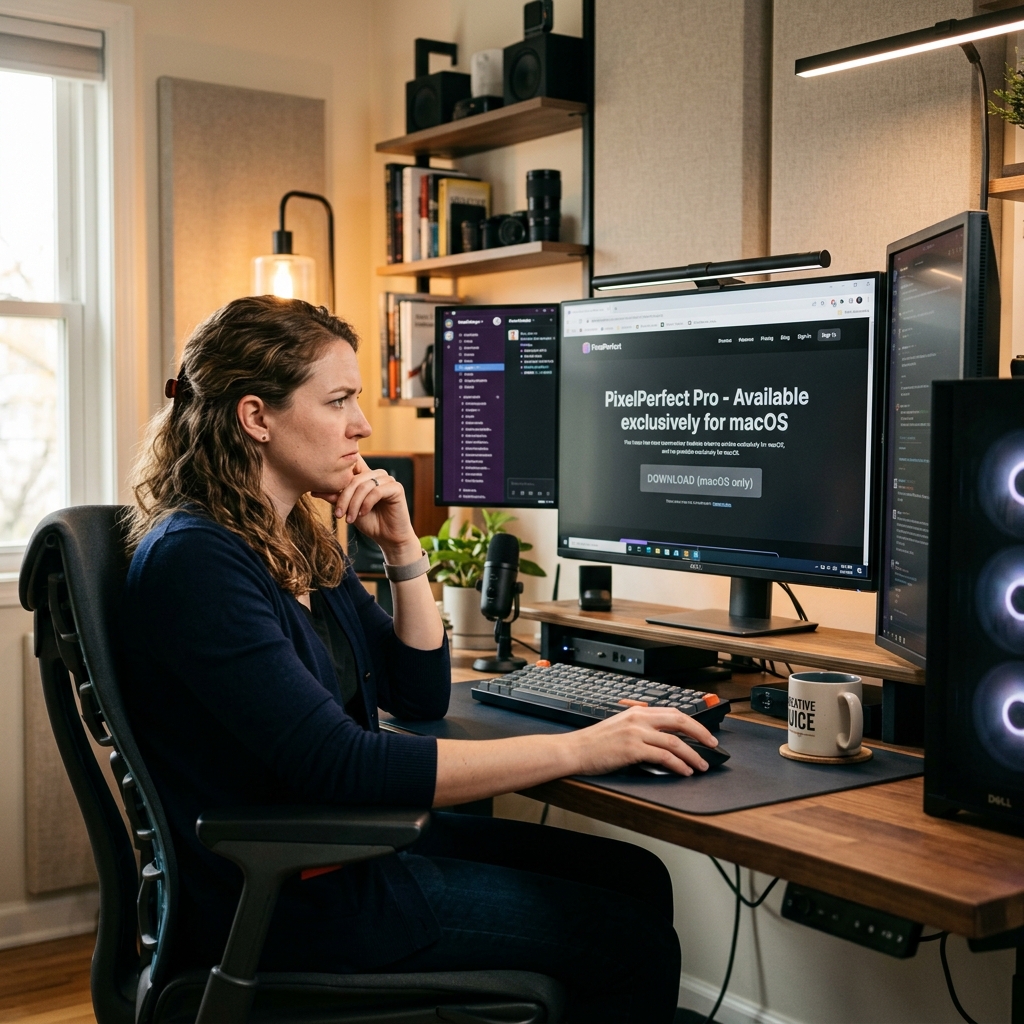
You check the comments, find out the creator used a tool called Screen Studio, and immediately go to their website to download it. Then, your heart sinks when you see the dreaded words: "Available for macOS only."
If you are a Windows user, seeing Mac users get access to these incredible, cinematic recording tools can be incredibly frustrating. You want to make high-quality, professional videos too, but you do not want to spend hours learning heavy video editing software to do it.
Here is a simple breakdown of why Screen Studio is locked to Apple computers, the secret recipe behind why their videos look so good, and exactly what you can do to get that same premium look on your Windows PC today.
Why It Is Mac-Only
When a software becomes incredibly popular, people always ask, "Why won't they just make a Windows version?" It is a fair question, but the answer comes down to how the application is built.
Screen Studio is not a generic web app. It was built from the ground up using Apple's specific, native coding languages and deep system frameworks (like Apple's ScreenCaptureKit). Because it relies so heavily on the specific way Mac hardware and software communicate, it performs beautifully on a MacBook.
However, because it is so deeply tied to the Mac ecosystem, the developers cannot simply copy and paste the code to make a Windows version. To bring it to PC, they would essentially have to start over and rebuild the entire software from scratch. For a small development team, that is a massive hurdle.
What People Actually Want from the “Screen Studio Look”
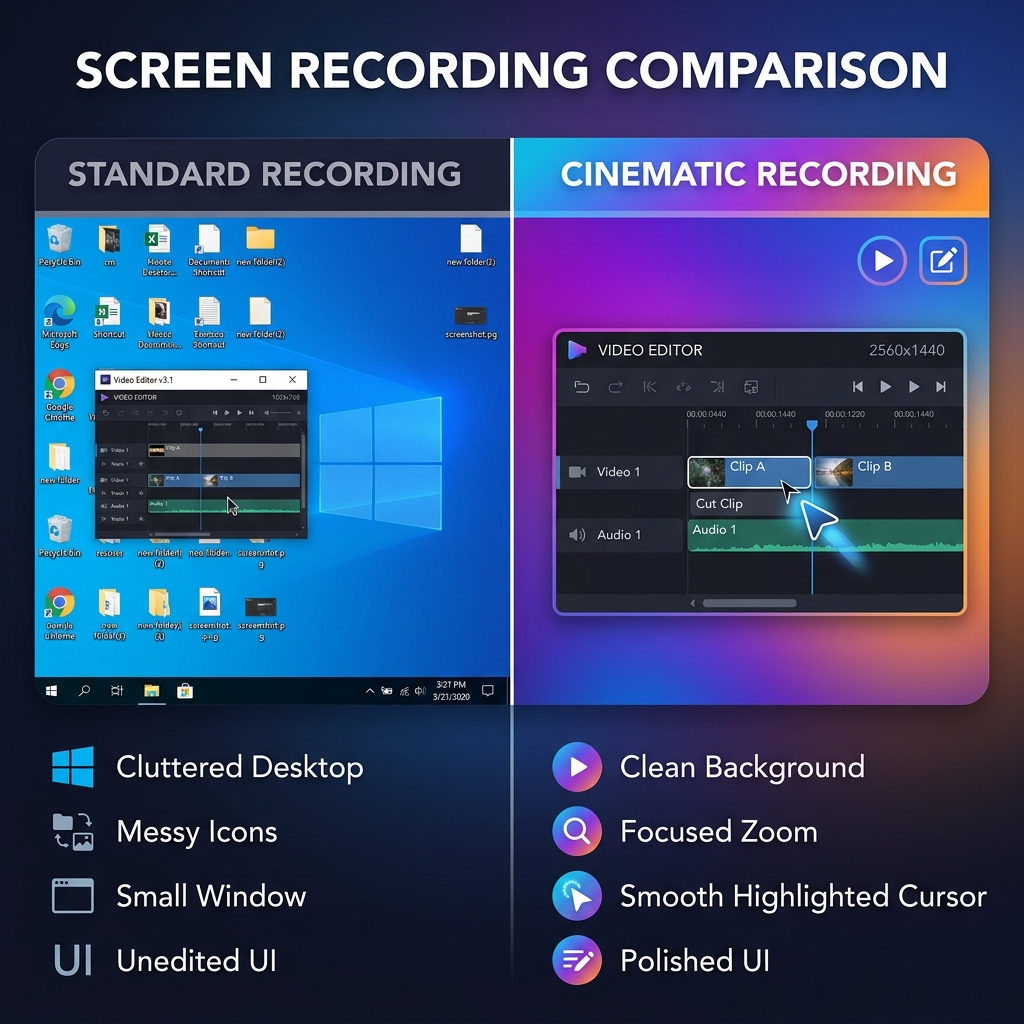
To figure out how to get the "Screen Studio look" on Windows, we first need to break down the recipe of what makes their videos so highly engaging. It boils down to three specific visual ingredients:
1. Smart Auto-Zoom Raw screen recordings are hard to read, especially on mobile phones. The secret ingredient of a cinematic video is camera movement. By automatically zooming in on the exact area where a click happens, the video guides the viewer's eye and makes the text perfectly readable without the creator having to manually edit the zoom later.
2. The Calmed Cursor Human hands are shaky. We wiggle the mouse, trace nervous circles, and overshoot our targets. This chaotic movement looks terrible on video. Premium recording software fixes this by capturing the starting and ending points of your click, and automatically redrawing the cursor path as a smooth, elegant curve.
3. The Studio Stage Nobody wants to see your messy Windows taskbar or scattered desktop folders. By isolating the software window and placing it over a rich color gradient or a dynamic live background, the video is instantly transformed from a boring screen capture into a high-end presentation.
Enjoying this read?
Get weekly insights on video editing, AI workflows, and creator growth straight to your inbox.
What Windows Users Should Do Instead
Knowing the recipe is great, but how do you actually bake the cake on a Windows computer?
If you try to achieve this auto-zoom, smooth cursor, and background effect using traditional Windows software, you will end up having to record your raw screen and spend hours inside a complex video editor like Premiere Pro or DaVinci Resolve. For busy professionals, founders, and creators, that is simply a waste of valuable time.
You need a tool that handles this entire recipe automatically while you record, directly on your PC.
This is exactly why Cubix Capture has become the go-to Screen Studio alternative for Windows users. It was built specifically to deliver that highly sought-after, cinematic aesthetic without requiring any video editing skills.
When you use Cubix Capture on your PC, you hit record and the app does the work that a Mac user would expect from Screen Studio. The visual moves Mac creators take for granted—tightening on a click, easing back out, replacing the wallpaper with a clean stage—are decided in real time on Windows here, instead of being done later in a separate editing pass.
When you hit stop, the ideal result is a video that already feels presentation-ready.
Platform Decision Guide (Mac vs Windows)
- If you are Mac-only and want Screen Studio aesthetics: Screen Studio is a valid choice.
- If you are Windows-only: choose a tool with built-in zoom/cursor/background controls to avoid heavy post-editing.
- If your team is mixed Mac + Windows: prioritize cross-platform consistency over one-platform visual effects.
Practical Recommendation
Windows creators can get very close to the same result by focusing on the same three ingredients (focus, cursor smoothness, and staged background) with a Windows-compatible workflow. Tools like Cubix Capture are built around that outcome.
Related reading:
- How to Record a Product Walkthrough on Windows in 2026
- Best Screen Recorder for SaaS Founders in 2026
- Best Screen Recorder for YouTube Tutorial Creators
Don’t miss the next one.
Join our newsletter for exclusive tips, product updates, and the latest from the Cubix team.