
If your product walkthrough is hard to follow, viewers assume your product is hard to use. That is why screen recording quality on Windows matters more than most teams think—a confusing 90 seconds of recording can sink a deal that took your sales team three weeks to set up.
On Windows, default tools are fine for raw capture. They are not optimized for conversion-focused walkthroughs where clarity, pacing, and visual focus decide whether someone keeps watching past the first menu click.
This guide breaks down a practical, no-edit workflow for recording professional product walkthroughs on Windows in 2026—what tools actually work, what to do before you hit record, and how to ship a polished file the moment you stop.
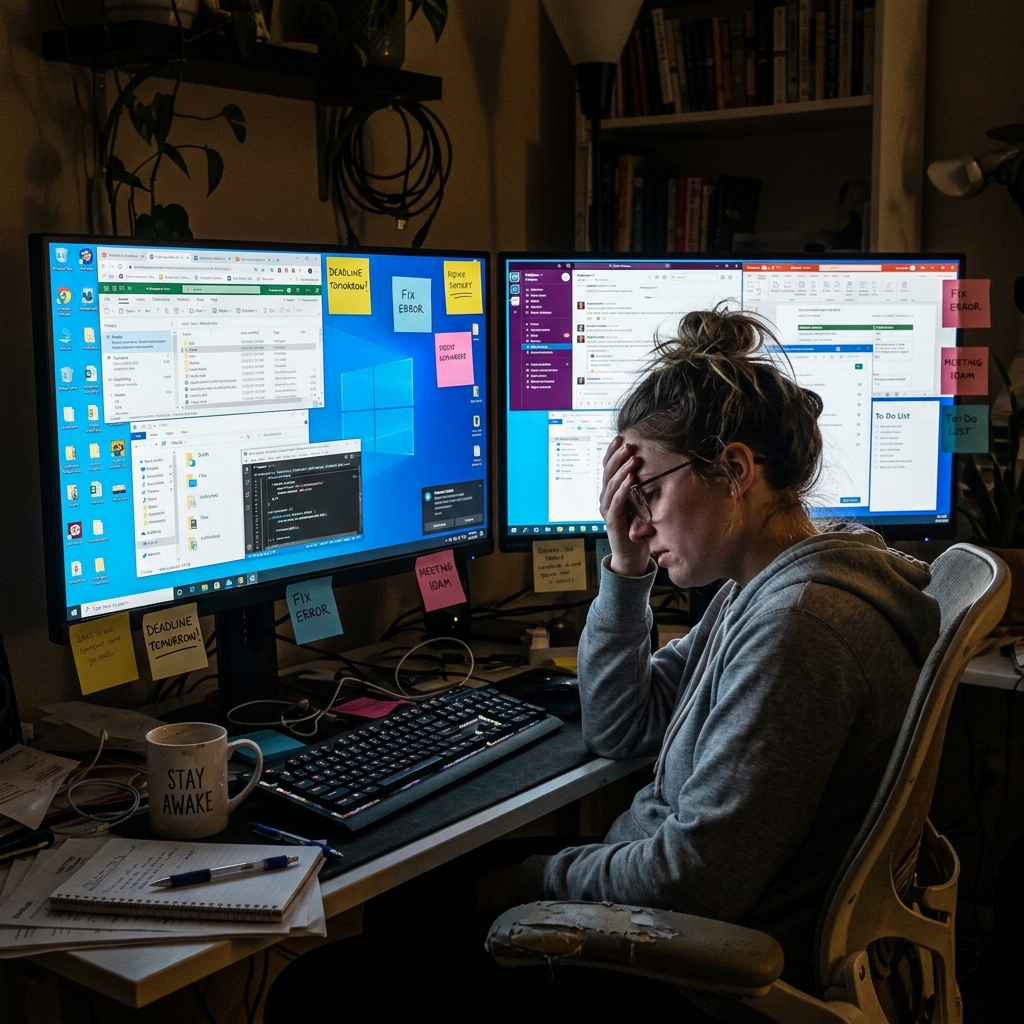
Why Default Windows Tools Fall Short
Before changing tools, it helps to understand exactly why the built-ins do not produce shareable walkthroughs:
- Xbox Game Bar (
Win + G) was designed for capturing gameplay. It frequently refuses to record File Explorer, Settings, or any window it does not classify as a "game," and it caps out at the resolution of a single window. - Snipping Tool video finally lets you record arbitrary windows, but it captures raw pixels with no zoom, no cursor smoothing, and no background staging. It is a screenshot tool with a record button bolted on.
- PowerPoint Screen Recording is a hidden gem for slides, but it cannot follow your cursor across multiple applications and it embeds the recording inside a
.pptx, which is the wrong container for a public-facing walkthrough. - OBS Studio is technically capable but assumes you want to set up a broadcaster's Scene Collection. Most product teams install it once, fight with it for an evening, and never open it again.
The result is that most Windows teams default to "record raw with whatever, fix it in post"—which is exactly the workflow you are trying to escape.
Step 1: Make the Interface Readable
Most modern Windows laptops and desktop monitors have incredibly high resolutions—1440p is common, 4K is normal on a Surface Studio or a 27-inch desktop monitor. This is great for your daily work, but it is a nightmare for recording tutorials. When you capture your entire 4K screen and your viewer watches it on a 13-inch laptop or a phone, your software shrinks. The specific menu you are trying to explain becomes a tiny, unreadable blur.
If viewers cannot read your click path, they leave. There is a useful internal metric here: if a teammate has to ask "where did you click?" while watching your draft, you have lost mobile viewers entirely.
Use guided focus. Auto-zoom on a Windows recorder keeps critical UI actions visible without a manual post-editing pass, and it sidesteps the "wide 4K canvas, microscopic UI" problem that makes most Windows walkthroughs unwatchable on a phone.
Step 2: Calm Cursor Motion
Windows allows for very fast, highly sensitive mouse tracking, and many product team members run a wired mouse at 1600+ DPI for productivity reasons. While that speed makes you productive in your day job, it makes for a terrible viewing experience. When you record a walkthrough, your viewer's eyes naturally follow your cursor. If your mouse is shaking, darting across the screen, or tracing nervous circles while you speak, it makes your software look chaotic and confusing.
A polished walkthrough needs a calm visual guide. Cursor smoothing—where the recorder interprets your input into a deliberate motion path rather than mirroring every twitch—helps transform erratic movement into readable motion. The cursor should look like it has weight, not like it is trying to escape the frame.
Step 3: Remove Desktop Clutter
Nothing ruins the illusion of a premium software product faster than seeing a messy Windows taskbar at the bottom of the screen. Viewers get distracted by the weather widget, the time, your open applications, OneDrive sync icons, antivirus tray notifications, and whatever desktop wallpaper is peeking through the edges.
There are three levels of cleanup, in increasing order of polish:
- Hide the obvious clutter. Right-click the taskbar → Taskbar settings → toggle off the news/weather widget and search. Use Focus Assist (
Win + N) to silence notifications during the recording. - Use a single clean workspace. Move all non-essential apps to a second virtual desktop (
Win + Tab) so the recording desktop only contains what you are demonstrating. - Replace the desktop entirely. Modern Windows recorders can isolate the app from the operating system noise and place it over a clean staged background, removing the taskbar from the recording even though it is still visible to you while you record.
Each step up reduces visual noise and increases perceived product quality. Most public-facing demos should hit at least level 2; if the walkthrough is going on a homepage or a Product Hunt launch, level 3 is worth the extra setup.
Enjoying this read?
Get weekly insights on video editing, AI workflows, and creator growth straight to your inbox.
Fast Windows Recording Checklist
Before recording:
- close unrelated tabs/apps
- disable notification pop-ups (Focus Assist via
Win + N) - select one task flow per walkthrough (do not mix onboarding with billing)
- test zoom readability on laptop-size viewport before sharing
- keep cursor pace steady between actions—pause briefly before each click
- set the system theme to match the demo (dark mode for dev tools, light mode for marketing)
Typical Mistakes to Avoid
- Recording full-screen with no focus control. A wide 4K capture is not "more professional"—it is harder to read.
- Moving too quickly between UI sections. Viewers need a beat to register each click.
- Letting taskbar and notifications remain visible. Slack pings during a recording are a credibility killer.
- Fixing clarity issues only in post-production. Auto-zoom and cursor smoothing applied at capture time produce a fundamentally cleaner result than the same effects applied later in Premiere or DaVinci Resolve.
- Recording at 60 fps for a static UI walkthrough. 30 fps is plenty for software demos, halves your file size, and matches what most platforms compress down to anyway.
Common Scenarios Where Windows Walkthroughs Fail
| Scenario | What goes wrong | The fix |
|---|---|---|
| Sales demo over Zoom | Mouse jitter and full-screen capture make the UI unreadable to the prospect | Pre-record a tight walkthrough with auto-zoom, share screen instead of streaming live |
| Onboarding video for new users | Cluttered taskbar and personal notifications shipped with the recording | Focus Assist + virtual desktop + staged background |
| Internal Loom-style update | Wide 4K capture on a Surface, unreadable on the recipient's phone | Record the active window only, with click-following framing |
| Product Hunt launch clip | Raw capture looks visibly worse than the Mac competitors | Use a presentation recorder that handles zoom/cursor/staging at capture time |
No-Edit Workflow Recommendation
In the past, achieving auto-zoom, a smoothed-out cursor, and a beautiful background required recording your raw screen and spending hours in heavy Windows video editing software. For busy professionals, that is simply a waste of time—and for a Windows team trying to keep visual parity with Mac competitors using Screen Studio, it is the difference between shipping a walkthrough every week and shipping one every quarter.
To create these cinematic walkthroughs instantly, the smartest workflow in 2026 is to use a tool that does the editing while you record.
This is exactly what Cubix Capture is built to do natively on Windows. It eliminates the post-production editing phase entirely. As you walk through your product, the camera tightens on the part of the UI you are pointing at, the cursor settles into a deliberate path, and the surrounding desktop is replaced with a clean stage—every one of those visual decisions is made during capture, not in a Premiere project later that night.
When you finish and hit stop, the video should already be share-ready. That is the benchmark for modern walkthrough workflows: if your recorder hands you a file that needs editing before it is presentable, you are still on a 2018 stack.
FAQ
Does this work on Windows 11 specifically? Yes. The workflow above is built for Windows 11's window management, virtual desktops, and Focus Assist behavior. It also works on Windows 10, though the taskbar cleanup steps are slightly different.
Do I need a 4K monitor to record a good walkthrough? No—often the opposite. A 1080p or 1440p capture is easier to keep readable on mobile than a 4K capture, and most viewers will see your walkthrough on a phone anyway.
Can I use this workflow for live screen sharing on Zoom or Google Meet? Live sharing is a different use case—you cannot apply auto-zoom or staging during a live call. The right pattern for high-stakes demos is to pre-record a tight walkthrough using this workflow, then play it during the live call with your voiceover, instead of sharing your screen in real time.
How long should a Windows product walkthrough actually be? Aim for 60–90 seconds for a public-facing demo, 3–5 minutes for an internal onboarding video, and one focused task per recording. Longer recordings should be split into a series.
Related reading:
- How to Record SaaS Onboarding Videos in 30 Minutes
- How to Record Screen and Webcam Simultaneously
- 10 Best Screen Recorders for Windows in 2026
- How to Record a Screen on Windows 11 Without Xbox Game Bar
Don’t miss the next one.
Join our newsletter for exclusive tips, product updates, and the latest from the Cubix team.