
It is 2026, and video is the primary way we communicate information. Whether you are a teacher breaking down a complex math problem, a remote worker explaining a new software tool to your team, or a content creator building a tutorial library, capturing your Mac screen is a daily necessity.
However, searching for the "best free screen recorder for Mac" often leads to a frustrating cycle. You download an app, spend twenty minutes figuring out how to use it, only to discover it limits your video to two minutes, covers your presentation in a massive watermark, or exports a file that looks blurry and unprofessional.
Finding a tool that is genuinely free and actually produces high-quality results is the real challenge. Here is a straightforward guide on what to look for in a modern screen recording software, and the recipe for creating videos that viewers actually want to watch.
The Recipe: What Makes a Screen Recorder the "Best"?
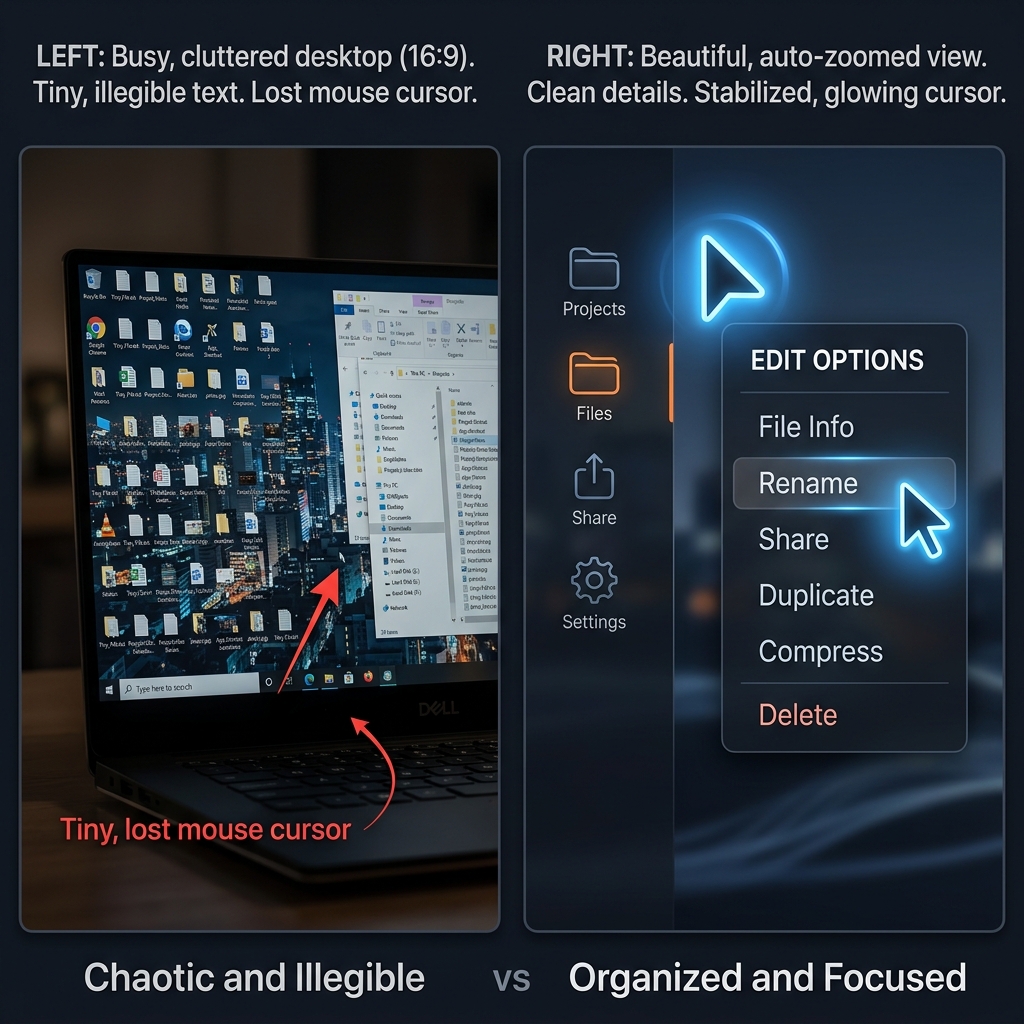
In the past, a screen recorder just had to capture the pixels on your screen. Today, the standard is much higher. A raw, unedited video of a high-resolution Mac screen is simply too hard to watch. When someone views your tutorial on a mobile phone, standard desktop text is microscopic, and normal trackpad movements look jerky and chaotic.
If you want to provide a real-life solution to your viewers, the software you choose needs to do more than just record. It needs to actively improve the visual experience. When evaluating free screen capture tools, these are the three essential features to look for:
- Visual Focus (Zooming): The software should help guide the viewer's eyes. If you are clicking a tiny menu in the corner of your screen, the audience needs to see it clearly without squinting.
- Professional Flow (Cursor Control): A jumpy mouse pointer is distracting. The best tools will stabilize your mouse movements, making your presentation look intentional and calm.
- Presenter Clarity (Webcam Management): If you are recording your face along with the screen, the software should offer ways to hide a messy room so the audience stays focused on your message, not your background.
If a free tool forces you to export a raw video and spend hours in a separate editing program to fix these three things, it is not saving you money; it is costing you valuable time.
The Genuinely Free Options for Mac in 2026
Here is the part most "best free recorder" lists skip: the strongest free options are already on your Mac, with no download, no watermark, and no time limit. Here is how the realistic free choices actually compare:
| Tool | Cost | Watermark | Time limit | Best for |
|---|---|---|---|---|
| macOS Screenshot toolbar (Command + Shift + 5) | Free, built in | None | None | Quick clips and internal demos |
| QuickTime Player | Free, built in | None | None | Simple full-screen captures |
| OBS Studio | Free, open source | None | None | Power users who do not mind a steep setup |
Enjoying this read?
Get weekly insights on video editing, AI workflows, and creator growth straight to your inbox.
The built-in toolbar and QuickTime are genuinely free, with no watermark and no time cap, which is why they beat most "free" downloads that limit you to a few minutes or stamp a logo across the corner. OBS is free and unlimited too, but its scene-and-source interface is far more than a simple tutorial needs.
The honest catch is the same for every free option: they capture the screen but do nothing to make it watchable. That gap, between footage that is merely free and footage that is actually good, is what the rest of this guide is about. (If you want a deeper look at exactly when those free tools stop being worth the editing time, see our companion piece, Best Free Mac Screen Recorder in 2026 (And When to Upgrade).)
The Ultimate Solution for 2026
You can spend hours testing different free software options, trying to bypass watermarks and time limits, or you can use a tool built from the ground up to solve the exact problems modern video creators face.
For Mac users looking to create flawless, human-centric tutorials without a heavy video editing workflow, Cubix Capture has set a new standard. Instead of just recording a flat image, it works as an intelligent assistant that edits the video for visual clarity while you are speaking.
Here is why it stands out from the crowded market of basic screen recorders:
- Auto-Zoom: You never have to manually edit your video to enlarge the screen. The software intelligently tracks where you are working and automatically zooms in, ensuring your viewers get a perfect, readable view on any device.
- Smooth Cursor: It actively eliminates the frantic, shaky movements of a standard Mac trackpad. Your cursor is transformed into a sleek, calm guide that makes your tutorial look incredibly polished.
- Live Backgrounds: It instantly masks out your physical environment. If you want to include your webcam, you can easily apply a clean, distraction-free background without needing a green screen.
When you need to share important information, the quality of your video determines whether people will actually watch it. Stop settling for basic tools that make your audience work hard to understand your message. Choose a screen recorder that automatically elevates your content, making every video you share clear, engaging, and genuinely helpful.
Related reading:
- Best Free Mac Screen Recorder in 2026 (And When to Upgrade)
- 7 Best Screen Recorders for Mac in 2026
- Screen Recorder for Mac: Built-in vs Third Party
Don’t miss the next one.
Join our newsletter for exclusive tips, product updates, and the latest from the Cubix team.