
You are in the middle of a busy workday, doing some research. You find an important quote, so you highlight it and press "Command + C" to copy it. A few seconds later, you spot the perfect link to go with the quote, so you copy that link as well.
You open your document, ready to paste your work. But when you press "Command + V," only the link appears. The important quote you copied just moments ago is completely gone. You realize your computer just erased your text to make room for the new link.
If you are frustrated because your Mac only remembers one copy at a time, you have run into one of the most annoying built-in limitations of Apple computers.

Why Your Mac Erases Your Previous Copies
To fix this problem, you need to understand how your computer's memory currently works.
By default, your Mac treats its clipboard like a tiny, single-use sticky note. When you press copy, the computer writes your information on that note. But because the sticky note is so small, the exact second you copy something new, your Mac is forced to completely erase the old information to make room.
Even if you copy a massive, highly important password, and then accidentally copy a single random letter right after, the password is permanently overwritten. It does not matter if you have a brand-new MacBook Pro or an older model; this strict "one-item limit" is baked directly into the standard macOS system. While recent software updates have experimented with hidden history features, for everyday fast workflows, the default system is still incredibly forgetful.
This forces you to work slowly, bouncing back and forth between different windows just to move one single piece of information at a time.
The Real-Life Recipe to Expand Your Memory
You do not have to accept a workflow where your computer constantly deletes your hard work. You can easily fix this by changing how your computer handles the copy-and-paste function.
Here is a simple recipe to build a workflow where you never lose a copied item again:
- Install an automatic memory bank: Stop relying on the default one-item limit. Equip your Mac with a lightweight tool that runs silently in the background and automatically saves everything you copy into a list.
- Copy in batches: Go to a webpage or a document. Go straight down the page and copy the text, the links, and the images you need, one right after the other. Trust that your computer is catching all of it.
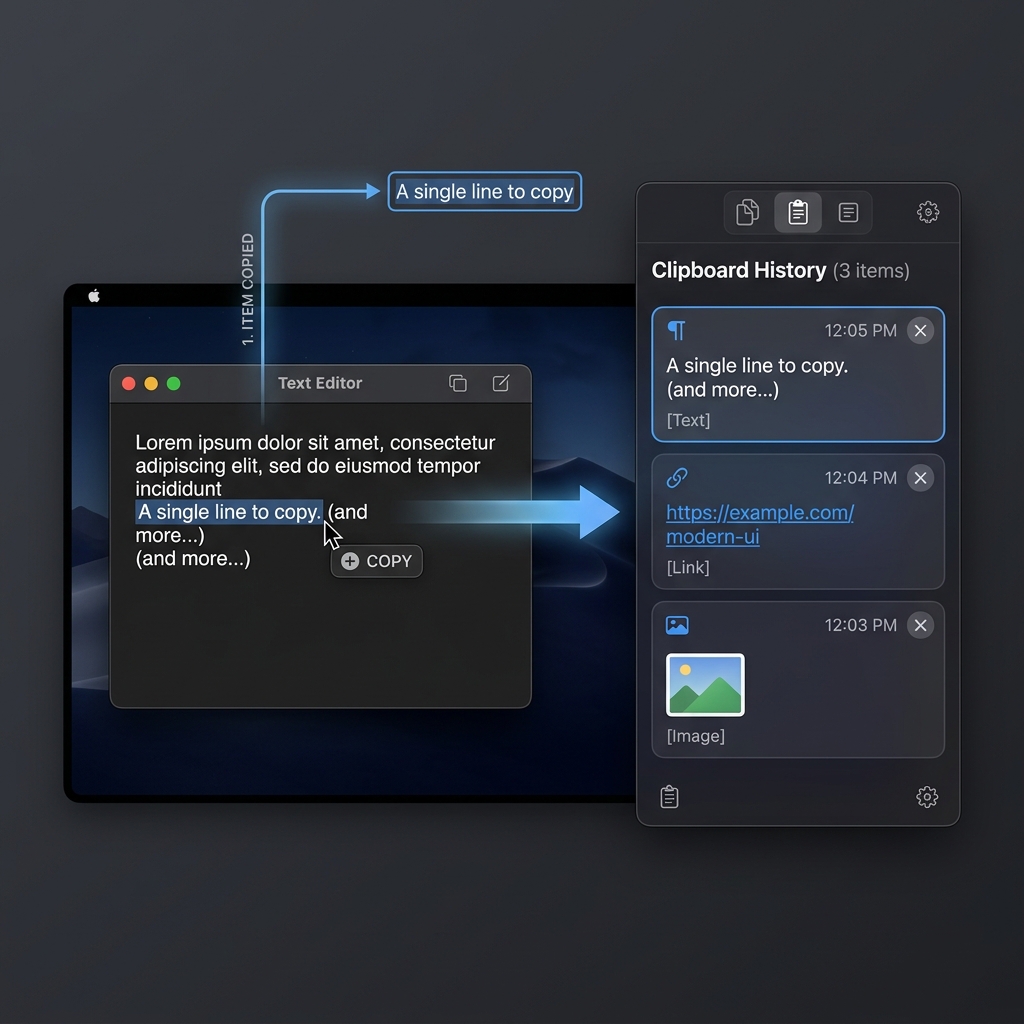
- Paste from a visual timeline: Open your blank document. Instead of pasting just one thing, use a quick shortcut to bring up a visual list of your recent copies on your screen, and drop them exactly where you want them.
Enjoying this read?
Get weekly insights on video editing, AI workflows, and creator growth straight to your inbox.
The Free Fix for Your Mac
macOS gives you no setting to raise that one-item ceiling, so the only real fix is a small tool that takes over the job of remembering for you. The good news: it costs nothing and it is not a heavy "app" you have to manage.
Cubix Clip is a free clipboard manager for Mac that turns your single-slot clipboard into a deep, scrollable stack. Every time you press Command + C, the new item is added to the list instead of replacing the old one.
This is what unlocks batch copying, the single biggest speed-up for anyone who moves a lot of information around. Instead of the slow copy-switch-paste-switch loop, you copy ten things in one pass down a page, jump to your document once, and paste them in order. If you want a deeper look at that workflow, we cover it in How to Copy Multiple Things on Mac at Once and How to Extend Your Mac Clipboard Beyond One Item.
Grab it free here: Cubix Clip - Free clipboard manager for Mac.
Final Thoughts
A clipboard that holds exactly one thing forces you to work at the speed of your slowest tab-switch. Give your Mac a real memory and the rhythm of your whole day changes, you stop babysitting individual copies and start moving in batches. If your specific frustration is losing text mid-task, here is the fix for that. Either way, the upgrade takes two minutes and you never think about the one-copy limit again.
Don’t miss the next one.
Join our newsletter for exclusive tips, product updates, and the latest from the Cubix team.