
You just copied your bank account number, a private password, or a highly sensitive email. Then, you need to share your screen on a video call, or you step away from your desk for a moment.
Suddenly, a terrifying thought hits you: that highly private information is just sitting right there on your clipboard. One accidental "Command + V" or one wrong click, and your sensitive data could be pasted into a public chat or an email meant for someone else. You need to wipe that memory clean, and you need to do it fast.

The Quick Manual Tricks to Clear Your Clipboard
Because the default Mac system does not have a visible "Clipboard" app with a big delete button, clearing it can feel like a mystery. There is no official "clear" button in your standard settings.
However, if you are in a rush and need to clear your clipboard on Mac right this second, here are the two most common manual tricks:
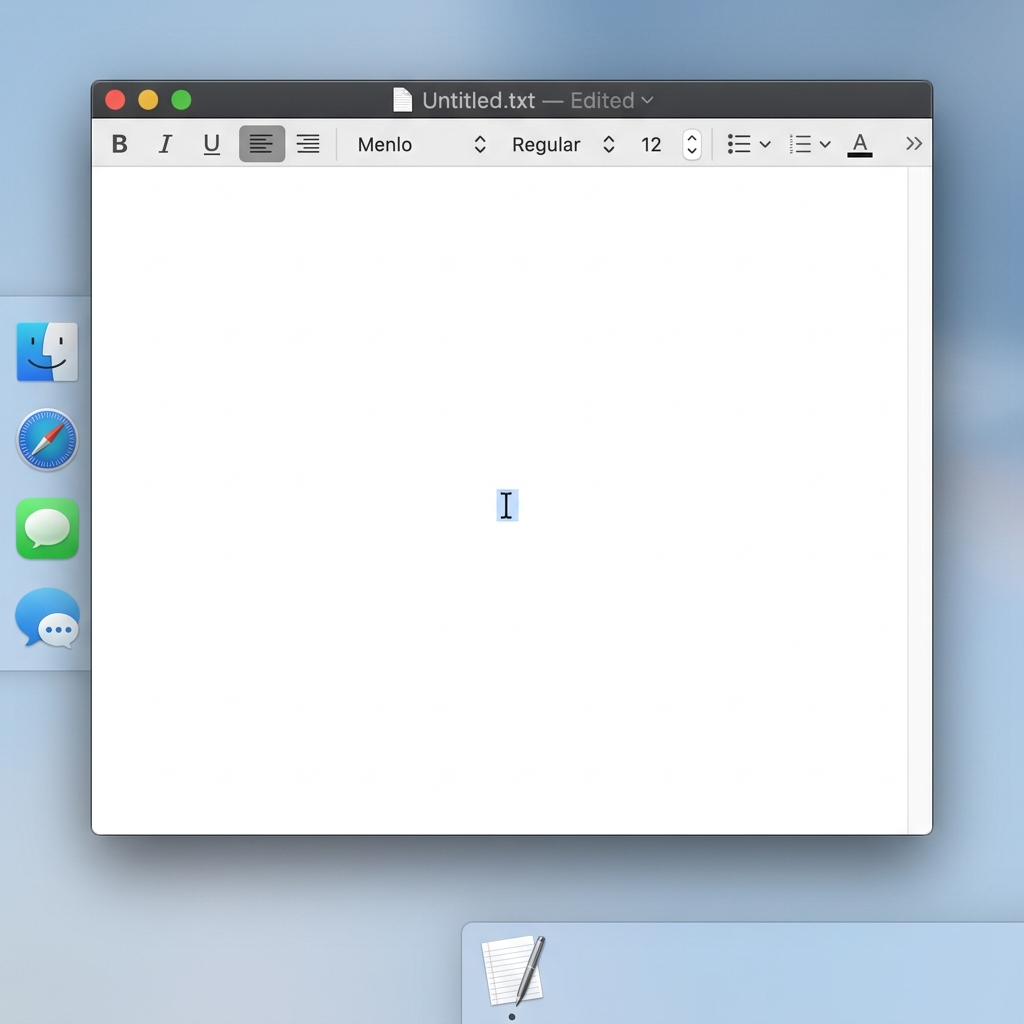
Trick 1: Copy a Blank Space This is the easiest and fastest method for most people.
- Open any text application, like your browser's search bar or a blank sticky note.
- Press the spacebar once to create a single, empty space.
- Highlight that empty space.
- Press "Command + C" to copy it. Because your Mac can only remember one thing at a time, copying that blank space instantly overwrites and deletes your private password or sensitive data.
Trick 2: Use the Terminal (For Advanced Users) If you are comfortable using your computer's command line, you can forcefully empty the clipboard.
- Open the Terminal app (you can find it by searching in Spotlight).
- Type this exact command:
pbcopy < /dev/null - Press Enter. Your clipboard is now completely empty.
The Problem With the Manual Fix
While copying a blank space works in a panic, it is not a great long-term solution.
It relies entirely on you remembering to do it every single time you handle sensitive data. If you forget just once, your private information is left exposed. Furthermore, because the default Mac clipboard only holds one item, you cannot just delete the one sensitive password while keeping the important work notes you copied five minutes earlier. It is an all-or-nothing system.
The Recipe for Total Data Control
If you handle passwords, financial data, or private client information regularly, you need a safer, more visual way to manage your computer's memory. Here is a simple recipe to take control of your data:
- Make it visible: Stop relying on a hidden background process. Use a tool that lets you actually see what is currently sitting on your clipboard.
- Delete selectively: Instead of wiping everything out by copying a blank space, have a system where you can look at your list of copied items and delete only the sensitive ones.
- Protect your workflow: Keep your safe, important text and links available for your work, while keeping your private data secure.
Enjoying this read?
Get weekly insights on video editing, AI workflows, and creator growth straight to your inbox.
When Clearing Your Clipboard Actually Matters
Clearing your clipboard is not something you need to do every day, but there are a few moments where it genuinely protects you:
- Before a screen share or recording. Many apps show a paste preview or autofill suggestion. If your last copy was a password, it can flash on screen in front of your entire team.
- On a shared or public Mac. Library computers, office machines, and family laptops all hold whatever the last person copied. Clearing it stops the next user from pasting your data by accident.
- Before handing your Mac in for repair. A technician powering on your machine could paste sensitive text without ever opening your files.
In each of these cases, the "copy a blank space" trick works in a pinch. But it is a blunt instrument—it wipes everything at once. A visual clipboard manager lets you delete only the single sensitive item and keep the rest of your day's work intact.
The Free Solution for Perfect Privacy
The best way to handle this real-life problem is to upgrade your Mac with a dedicated tool that gives you complete control over your copy-and-paste memory.
This is where Cubix Clip is the perfect fit. It is a completely free clipboard manager for Mac that transforms your hidden clipboard into a clear, visual list.
Once it is running quietly in the background, you no longer have to guess what is on your clipboard. By pressing a simple keyboard shortcut, your entire history of copied text, links, and images appears on your screen.
If you copy a private password, you do not need to panic or open a blank document to overwrite it. You simply open your Cubix Clip list, right-click the sensitive item, and delete it instantly. Your private data is gone, but the rest of your important work history stays perfectly intact, ready for you to use.
If you want to stop worrying about accidental pasting and finally get full control over what your Mac remembers, you can get this essential free tool right here: Cubix Clip - Free clipboard manager for Mac.
Final Thoughts
Protecting your private information should not require typing complex codes or relying on weird hacks like copying a blank space. By understanding how to manage your clipboard properly and upgrading to a visual, easy-to-use manager, you keep your data secure and your mind at ease. Take control of your Mac today, and never panic about an accidental paste again!
📖 Keep reading: our guides on where is the clipboard on Mac, how to access clipboard history on Mac, and how to see clipboard history on Mac.
Don’t miss the next one.
Join our newsletter for exclusive tips, product updates, and the latest from the Cubix team.