
You just highlighted a long paragraph, pressed "Command + C" to copy it, and then... where did it go?
If you are like most Mac users, you have probably searched your computer looking for an app, a folder, or a settings menu named "Clipboard." You want to open it up, look at what you copied, and make sure your important information is safe. But no matter how hard you look in your Applications folder or your System Settings, you cannot find it.
It is completely normal to feel confused. So, where exactly is the clipboard on a Mac?
The Invisible Tool Running in the Background
The reason you cannot find a "Clipboard" app on your computer is because Apple did not design it as a standard application.
Instead, the Mac clipboard is an invisible feature that runs completely in the background of your system. It does not have a physical folder on your desktop. However, you can actually peek behind the curtain and look at it.
Here is the simple way to find and view your built-in Mac clipboard right now:
- Click on your desktop background, or click the smiling Finder icon in the bottom left corner of your screen.
- Look at the very top menu bar on your screen and click on the word Edit.
- At the bottom of that drop-down menu, click on Show Clipboard.
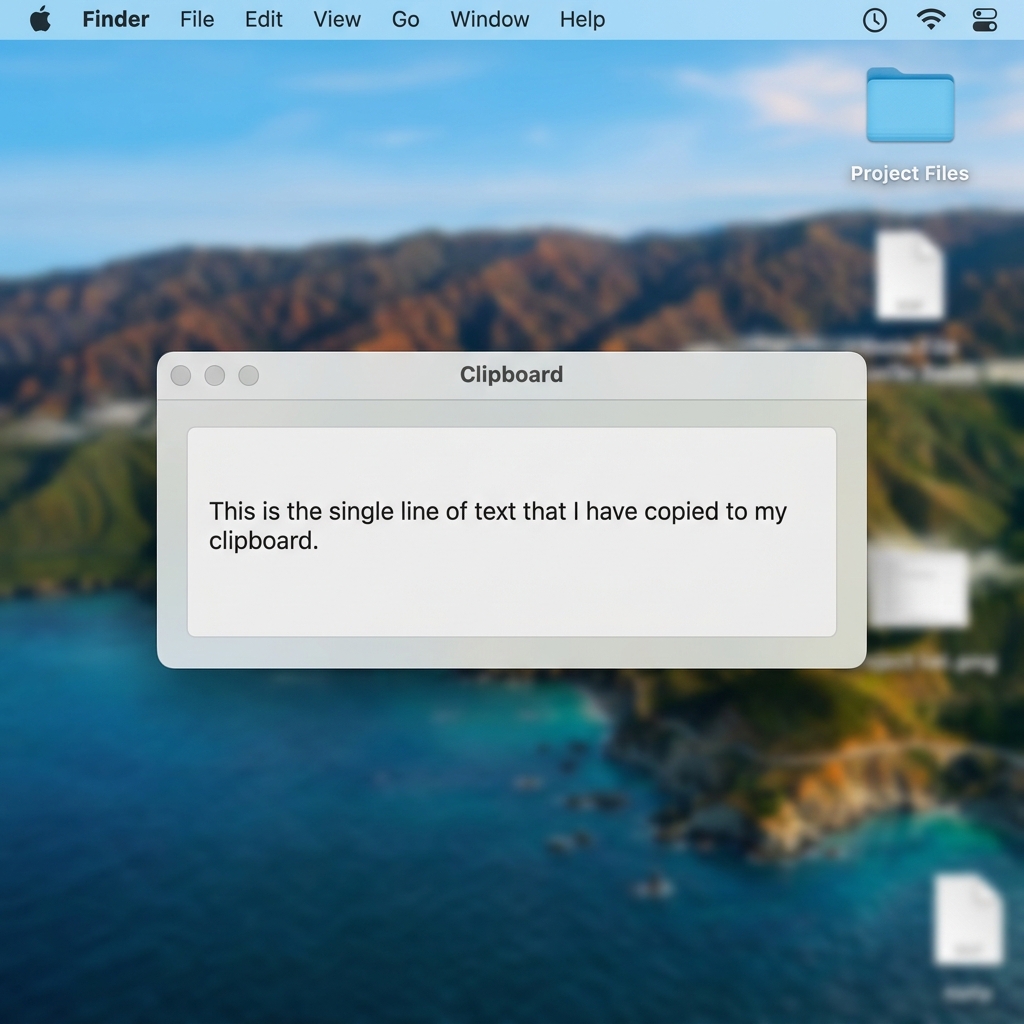
A small, floating window will appear on your screen showing you the exact text, image, or link that is currently sitting on your clipboard.
The Frustrating Reality of the Mac Clipboard
Once you finally find and open that little clipboard window, you will immediately notice its biggest flaw.
It only holds one single thing.
If you keep that "Show Clipboard" window open and press copy on a new sentence, you will watch your old text vanish instantly, replaced by the new sentence. The default Mac system has zero memory of the past. It does not matter if you just copied a critical password or an hour's worth of research; the second you copy something else, your previous item is gone forever.
Finding the clipboard does not actually solve the real problem, which is keeping your copied information safe from being overwritten.
The Recipe for a Clipboard You Can Actually See
If you are tired of your copied items vanishing into an invisible, one-item void, you need to change how your computer operates. You need a workflow where your clipboard is a helpful, visible tool, rather than a hidden background process.
Here is the recipe for a much better daily workflow:
- Add a memory bank: Equip your Mac with a tool that automatically records every single thing you copy.
- Make it visual: Stop hiding your copied items in the background. Use a system that displays all your recent copies in a neat, easy-to-read list.
- Keep it fast: Ensure you can bring up this list instantly, without having to click through the top menu bar every time you want to paste something.
Enjoying this read?
Get weekly insights on video editing, AI workflows, and creator growth straight to your inbox.
Does the Mac Clipboard Survive a Restart?
Here is something most people never realize: the macOS clipboard does not live on your hard drive like a saved file. It lives in your Mac's temporary memory (RAM). That means the moment you restart, shut down, or run out of battery, whatever you had copied is wiped clean—there is no folder to recover it from.
This is exactly why you can never find a "Clipboard" file when you go digging through Finder. It was never written to disk in the first place. The same goes for crashes: if an app freezes and you force-quit before pasting, that copied text is simply gone.
If you regularly copy things you cannot afford to lose—license keys, long passwords, half-finished paragraphs—trusting this temporary memory is a gamble. A dedicated history tool changes that by saving each copy to disk, so your clipboard survives restarts, crashes, and the occasional dead battery.
The Free Way to Upgrade Your Mac
You do not have to settle for the hidden, limited clipboard that came with your computer. The absolute easiest way to fix this issue is by upgrading to a dedicated tool like Cubix Clip.
It is a completely free clipboard manager for Mac that brings your copy-and-paste history out of hiding. Once you have it running, it remembers everything you copy—whether it is a snippet of text, an important file, a web link, or a picture.
Instead of searching through your Finder menus, you simply press a quick keyboard shortcut. Instantly, a beautiful, organized list of your complete copy history appears right where you are working. You can scroll through everything you have copied today, click the exact item you need, and paste it directly into your document. It completely removes the fear of lost information.
If you want to stop wondering where your copied text went and take full control of your workflow, you can download this completely free tool right here: Cubix Clip - Free clipboard manager for Mac.
Final Thoughts
The built-in Mac clipboard might be invisible and limited, but your workflow does not have to be. By understanding where your clipboard is and choosing to upgrade it with a visual history tool, you protect your important information and make using your computer a much more enjoyable, stress-free experience.
📖 Keep reading: our guides on how to access clipboard history on Mac, how to recover copied text on Mac, and how to copy multiple things on Mac at once.
Don’t miss the next one.
Join our newsletter for exclusive tips, product updates, and the latest from the Cubix team.