
If you use a Windows 11 PC, you have likely experienced this exact scenario: You need to record a quick software tutorial, capture a bug to send to your IT department, or demonstrate a digital product.
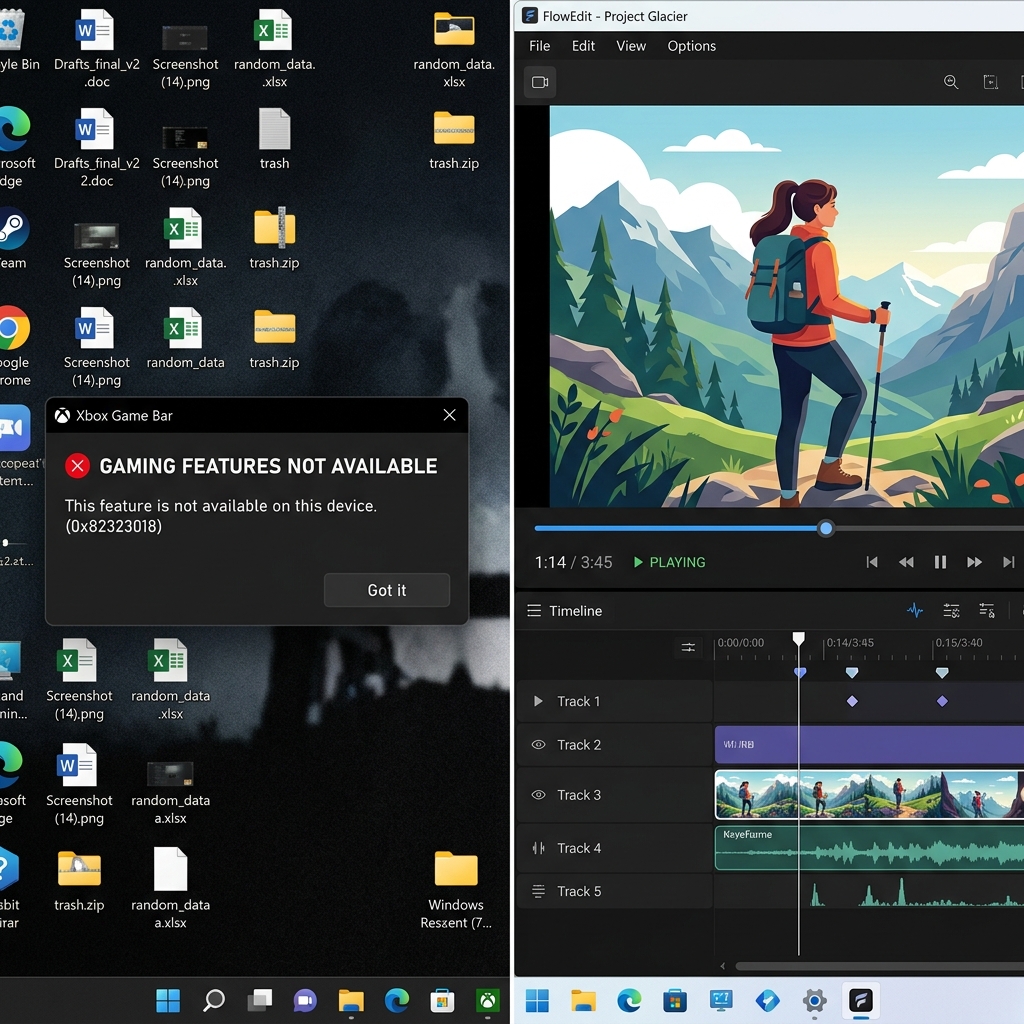
You hit the Windows + G keyboard shortcut, and the Xbox Game Bar pops up. You click record, and instantly, you are hit with an error message: "Gaming features are not available for the Windows desktop." Or worse, it allows you to record, but the second you switch to a different app or open File Explorer, the recording abruptly stops.
If you find yourself searching Google for ways to disable or avoid the Xbox Game Bar, you are not alone. Millions of Windows users actively hate this tool.
The reality is that Xbox Game Bar was built specifically to record video games. It was never designed for productivity, educational content, or software demonstrations. If you want to record your screen reliably on Windows 11 without dealing with gaming overlays or random crashes, you need a different tool.
Here is why the Game Bar fails everyday creators, and the best ways to record your Windows 11 screen without it.
Why Xbox Game Bar is Terribly Flawed for Creators
Before we look at the alternatives, it is important to understand why the Game Bar is so frustrating for non-gamers.
- The Single-Window Lock: Game Bar is designed to latch onto one specific game. If you are recording a tutorial in a web browser and you open a different app (like a calculator or your computer settings), Game Bar will often stop recording entirely, ruining your take.
- Desktop Blindness: It literally refuses to record your raw Windows desktop or your File Explorer.
- Heavy Resource Drain: Because it is built for gaming, it runs heavy background processes that can slow down your PC.
- Zero Polish: It captures raw pixels. There is no auto-zoom, no cursor smoothing, and no way to hide your messy desktop.
If you are a professional, a creator, or a developer, you need software that understands presentations, not video games. Here are the three best ways to bypass Game Bar.
Method 1: The New Windows 11 Snipping Tool (The Quick Fix)
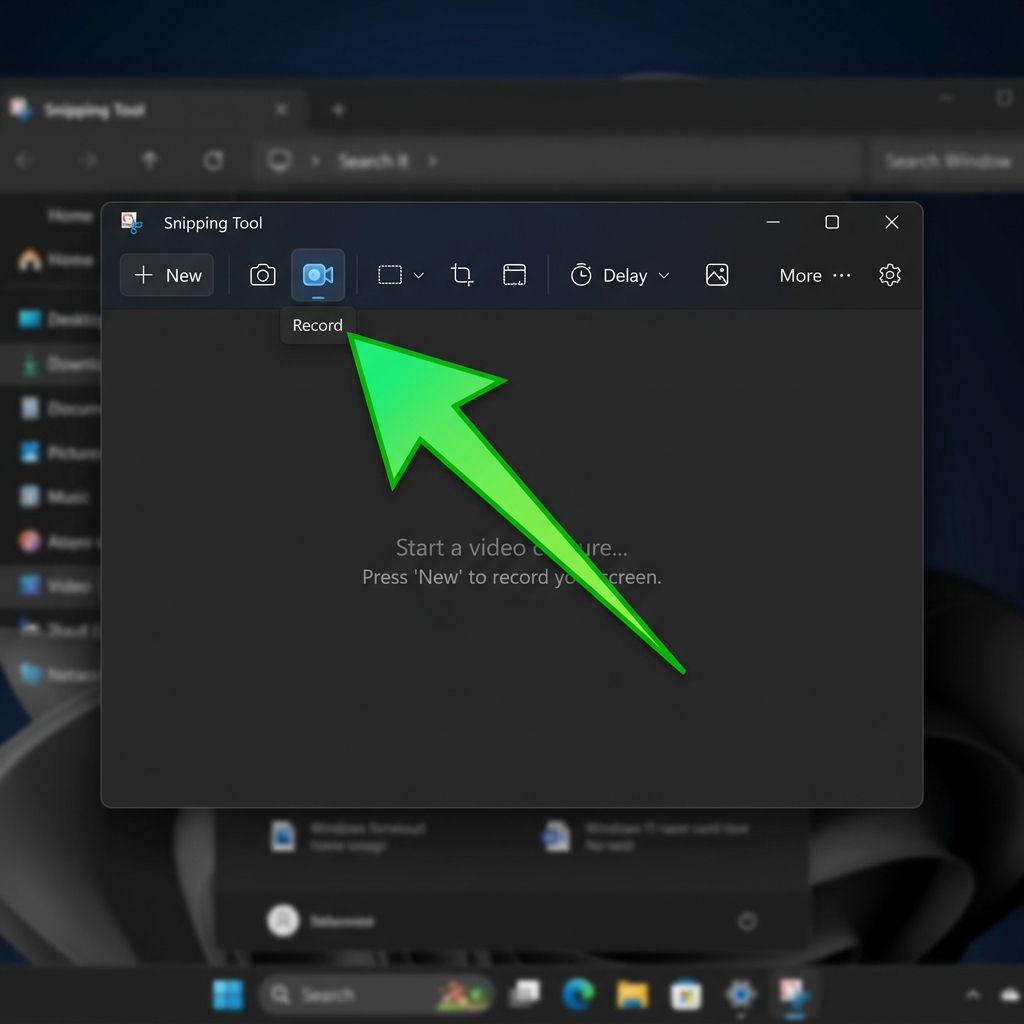
If you just need a bare-bones, five-second video to show a coworker where a button is, Microsoft actually included a hidden upgrade in Windows 11. The classic "Snipping Tool" can now record video.
How to use it:
- Open the Snipping Tool from your Windows Start menu.
- Click the Camera icon (Video) instead of the Camera icon (Photo) at the top.
- Click New, and draw a box around the area of your screen you want to record.
- Hit Start.
The Catch: While it is incredibly easy to use and doesn't crash like Game Bar, it is extremely basic. It records raw video with no audio mixing, no camera tools, and absolutely no presentation polish. It is the digital equivalent of a sticky note.
Enjoying this read?
Get weekly insights on video editing, AI workflows, and creator growth straight to your inbox.
Method 2: OBS Studio (The Heavy Broadcaster)
If you search forums for an Xbox Game Bar alternative, people will immediately yell, "Just use OBS!"
OBS Studio is free, open-source, and does not have any of the weird "single-window" restrictions that Game Bar has. It will record your entire desktop, multiple monitors, and your microphone flawlessly.
The Catch: OBS is built for professional Twitch streamers and television broadcasters. Its interface looks like a spaceship dashboard. Setting it up takes time, and just like the Snipping Tool, it captures a raw, unedited video. If you want your recording to look like a professional tutorial with zooms and a clean background, you will have to spend hours editing the footage in a separate video editing program.
Method 3: Cubix Capture (The Creator's Solution)
If you are recording your screen because you want to build an audience, teach a skill, or sell a digital product, neither the Snipping Tool nor OBS will give you the results you need.
Modern viewers expect cinematic, highly polished videos. They expect the camera to zoom in on important text and the mouse cursor to glide smoothly.
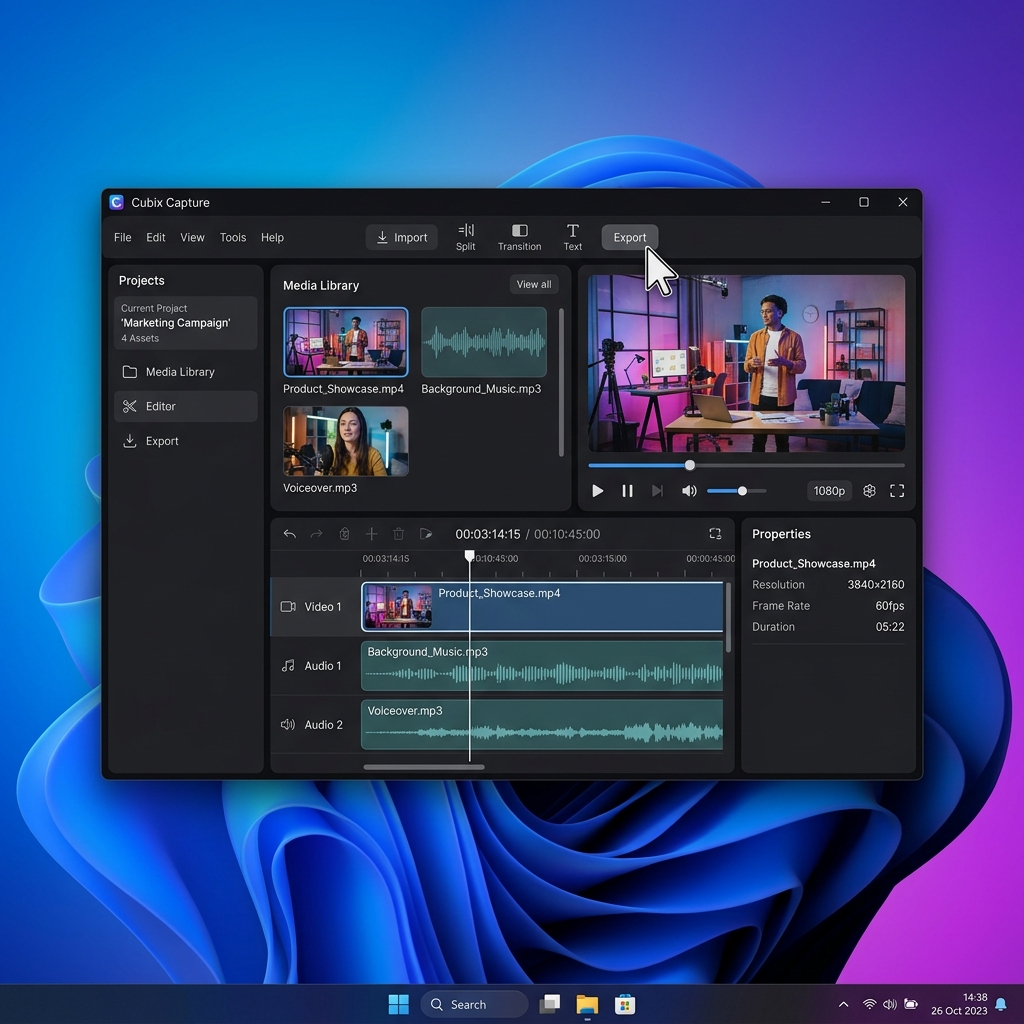
If you want the ultimate Windows 11 screen recorder that bypasses all the bugs of Xbox Game Bar and automatically edits your video to look like a premium studio production, Cubix Capture is the answer.
It was built specifically for Windows creators who are tired of raw, boring screen recordings. The way it solves the Game Bar pain points:
- No single-window lock. It captures across apps, File Explorer, system menus, and multiple monitors—exactly the workflows Game Bar refuses to record.
- Click-following frame instead of static wide capture. As you click and type, the recorder tightens the frame on the active region, so your tutorial stays readable on phones and embeds without you ever opening a timeline.
- Studio-stage output. Your active window sits on a colored gradient or live background instead of your taskbar and personal wallpaper, so the final clip is something you can drop straight into a customer email or YouTube upload.
Take Back Your Desktop
You should not have to fight with a gaming overlay just to record a simple software demonstration. You also shouldn't have to settle for raw, unreadable video files that require hours of manual editing.
Windows 11 is a powerful operating system for creators, and it is time you used a screen recorder that actually respects your workflow.
If you are ready to ditch the Xbox Game Bar forever and want to start creating breathtaking, high-retention screen recordings instantly, you can upgrade your toolkit with Cubix Capture.
Related reading:
- How to Screen Record on Windows Without Xbox Game Bar (Snipping Tool & PowerPoint methods)
- 10 Best Screen Recorders for Windows in 2026
- Best Screen Recorder for Windows 11 With No Watermark
- How to Record a Product Walkthrough on Windows in 2026
Don’t miss the next one.
Join our newsletter for exclusive tips, product updates, and the latest from the Cubix team.