
The Founder's Trap: only you know how the work runs. Every hire pulls you back into training.
Google Doc SOPs with screenshots die the next sprint. Raw Looms become a graveyard—fast, twitchy, unreadable on a laptop.
SOPs that survive handoff: Cubix Capture zooms on each click, smooths cursor speed, hides desktop clutter—trainees see exactly what to press. Get started free · Windows · Mac
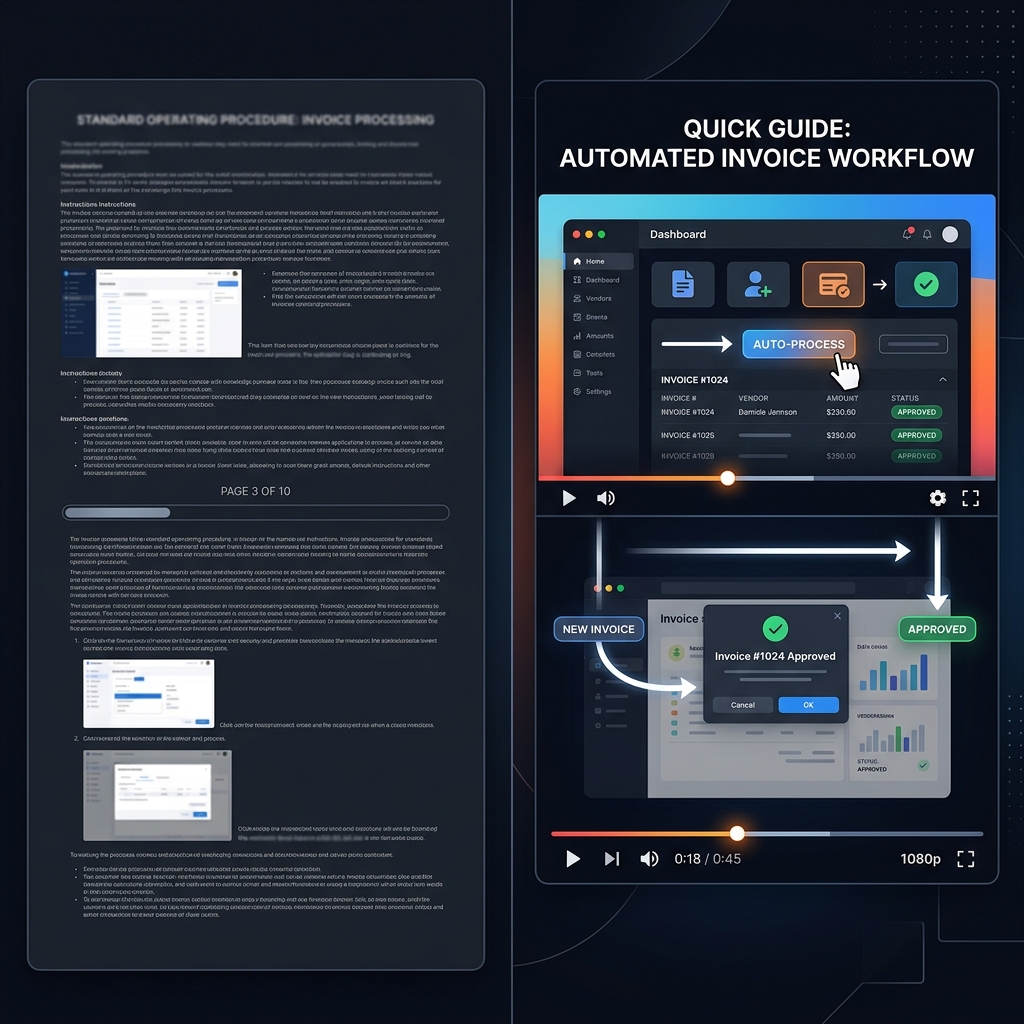
The "Loom Graveyard" Problem
When founders realize text SOPs take too long to write, they swing to the opposite extreme. They download a basic screen recorder, talk as fast as they can while furiously clicking around their massive monitor, and drop the raw video link into a Slack channel.
This creates a "Loom Graveyard"—a folder full of unedited, confusing videos that your employees dread watching.
Raw screen recordings are terrible for training for three reasons:
- The Squint Factor: If you record a massive 27-inch monitor and your new hire watches it on their 13-inch laptop, the buttons and text are microscopic. If they cannot clearly see what you are clicking, they will guess (and usually guess wrong).
- The Jittery Mouse: When you are doing a task you have done a thousand times, you move your mouse at light speed. To a beginner, your erratic, lightning-fast cursor is impossible to track and creates visual anxiety.
- Rambling Errors: Raw videos capture every mistake, every wrong click, and every time you say, "Wait, let me go back, that wasn't the right tab." This breaks the trainee's concentration.
The 3 Rules of a Flawless Video SOP
If you want an SOP that a new hire can watch once and execute perfectly, it needs to look like a premium, professional tutorial. It must follow these three visual rules:
1. Spotlight the Action (The Zoom Rule)
You cannot show the entire desktop at once. When you click on a specific dropdown menu in your CRM or enter a formula in Excel, the camera must smoothly push in and tightly frame that specific action. This guarantees the trainee knows exactly where their focus should be.
2. Tame the Cursor (The Smooth Rule)
Your mouse should not look like it has had four cups of coffee. To make a complex workflow look simple and repeatable, your cursor must glide elegantly and deliberately from one button to the next.
Enjoying this read?
Get weekly insights on video editing, AI workflows, and creator growth straight to your inbox.
3. Keep it Clean (The Environment Rule)
A training video should only show the tools required for the task. Your personal Slack messages, your messy browser bookmarks, and your desktop wallpaper must be hidden. Visual clutter leads to cognitive overload.
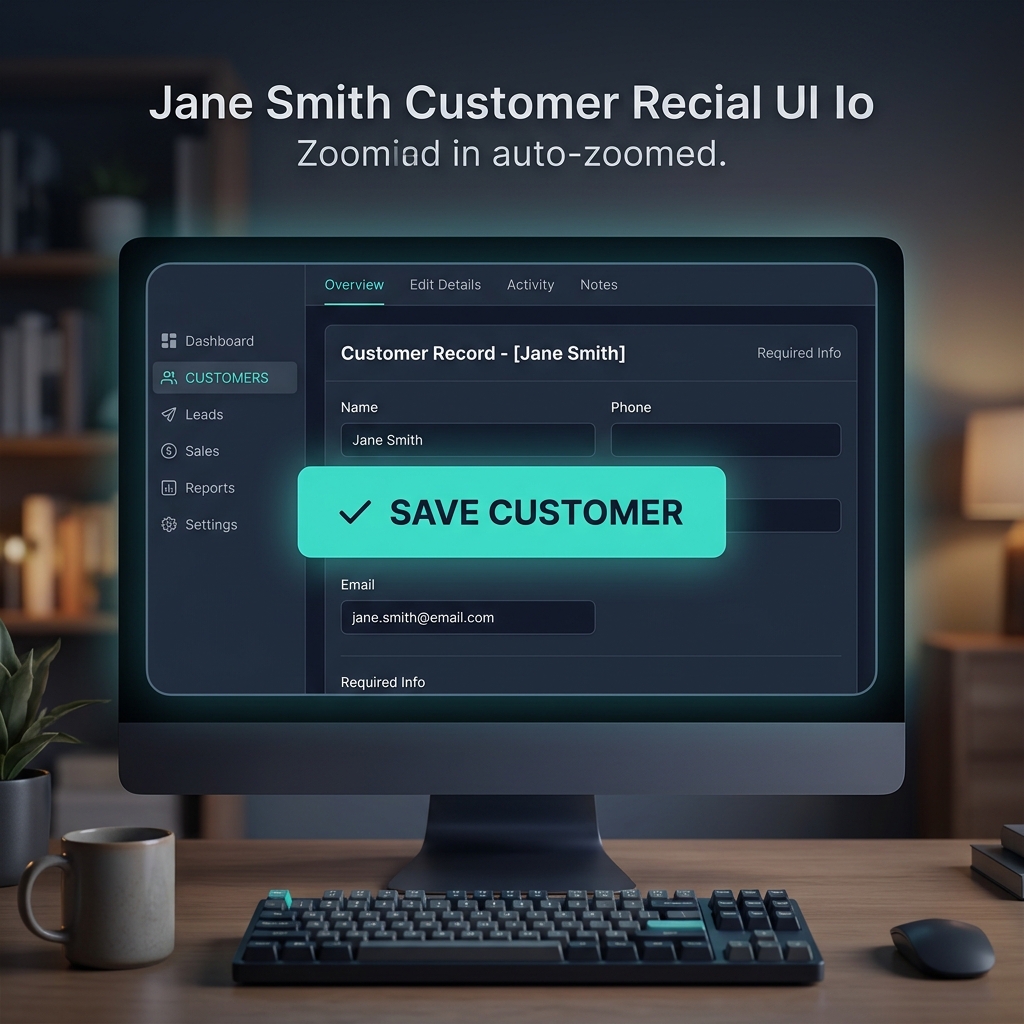
The SOP Paradox: You Don't Have Time to Edit
Knowing that your SOP needs cinematic zooms and a clean interface is great in theory. But here is the paradox: you are creating an SOP to save time.
If you have to record a raw video, drop it into Adobe Premiere Pro or CapCut, and spend two hours manually keyframing zoom effects and smoothing out your mouse path, you completely defeat the purpose of delegating. You will inevitably say, "It is faster if I just do the task myself," and your business will stop scaling.
You need the polish of an edited video without actually doing any video editing.
Build the SOP library with Cubix Capture
| Step | Action |
|---|---|
| 1 | One workflow per video (CRM import, invoice send, deploy checklist) |
| 2 | Bullet script: trigger → steps → done state |
| 3 | Record once in staging with Capture |
| 4 | Store in Notion/Confluence with title + owner + last-updated date |
| 5 | Re-record only when UI changes—not 40 screenshots |
Optional: trim ramble in Cubix; do not re-zoom an already framed Capture file.
SOP quality checklist
- Trainee can pause and repeat a step
- Buttons readable at laptop default size
- No "wait wrong tab" left in final cut
- Linked from onboarding checklist for new hires
Use-case cluster
- How to Make an Onboarding Video for New Customers
- How to Record Coding Tutorials Developers Watch
- Best Screen Recorder for Customer Support Teams
Related reading:
Don’t miss the next one.
Join our newsletter for exclusive tips, product updates, and the latest from the Cubix team.