
HP laptops are incredibly popular for a good reason. Whether you are typing up an essay on an HP Pavilion, running complex spreadsheets on an EliteBook, or designing graphics on a Spectre, these computers are built to handle everyday life.
Because we do so much on our laptops, explaining a digital task to someone else using just words can be exhausting. If you need to show a colleague a software error or teach a friend how to use a new website, a quick screen recording is the most effective way to communicate.
If you are staring at your HP keyboard wondering where the record button is, you are in the right place. Here is the straightforward guide to capturing your screen on an HP laptop using the free tools already installed, and how to make sure those videos are actually helpful to the people watching them.
The Free Tools Already on Your HP Laptop
Since your HP laptop runs on the Windows operating system, Microsoft has built a couple of free, hidden tools directly into your computer.
Method 1: The Snipping Tool (Best for Windows 11)
If you bought your HP laptop recently or updated its software, you likely have Windows 11. The Snipping Tool, traditionally used for taking pictures of your screen, is now an excellent video recorder.
- Open your Windows Start Menu, type "Snipping Tool," and hit enter.
- At the top of the application, click the Video Camera icon.
- Click the New button. Your screen will dim slightly.
- Click and drag your mouse to draw a box around the exact area of the screen you want to film.
- Check the top toolbar to ensure your microphone is unmuted if you want to speak.
- Hit Start. When you are finished, click the red stop button, and save the video file directly to your desktop.
Enjoying this read?
Get weekly insights on video editing, AI workflows, and creator growth straight to your inbox.
Method 2: The Xbox Game Bar (Best for Quick Captures)
If you just want to record a single web browser or application quickly without drawing any boxes, the Game Bar is a fast shortcut.
- Open the application you want to record.
- Press the Windows key + G on your HP keyboard.
- A dark menu will appear over your screen. Locate the "Capture" widget, make sure your microphone is turned on, and click the circular Record button. (Note: The Game Bar is designed for gaming, so it cannot record your main desktop screen or file folders, and it will stop recording if you switch to a different app).
Why Your HP Recording Looks Worse Than Your Screen
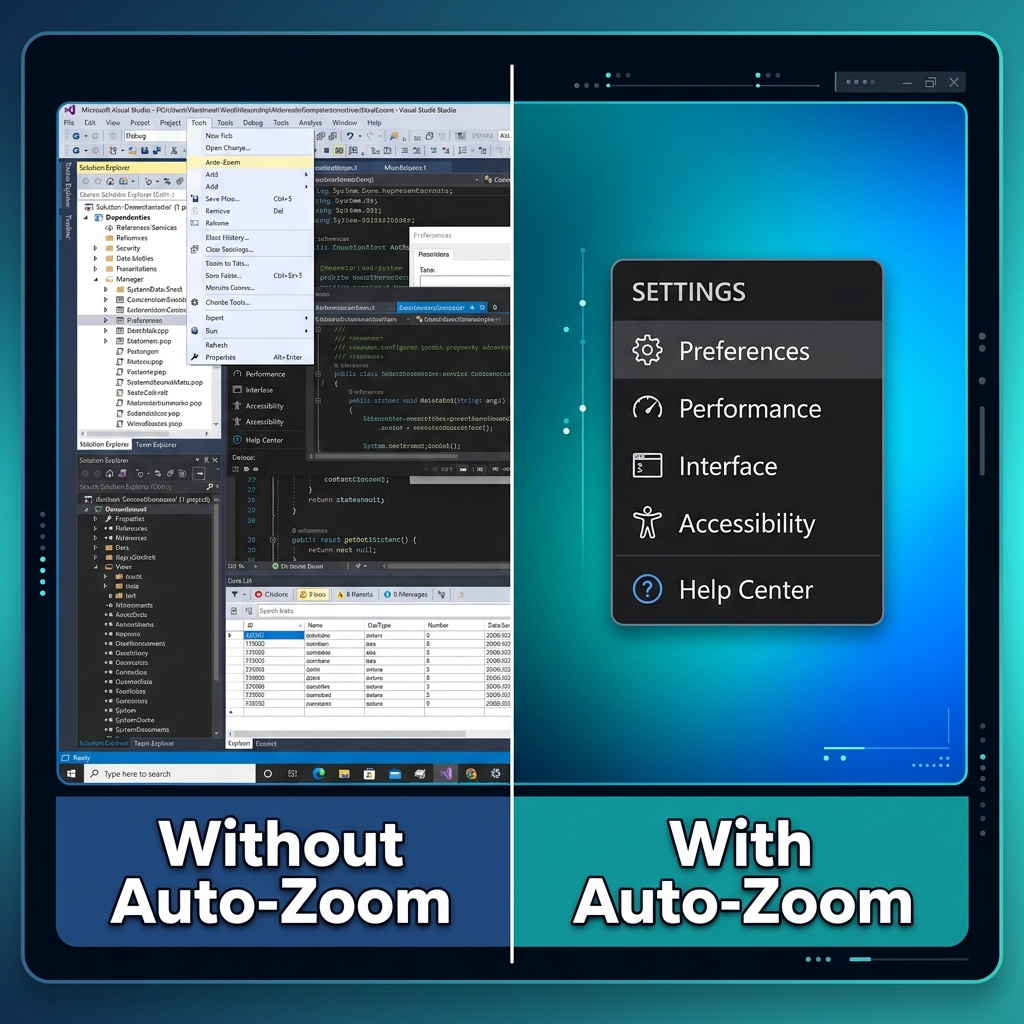
The Snipping Tool and Game Bar are fine for a casual clip. But for a tutorial or a presentation, HP's huge model range works against a consistent result. A budget Pavilion might record at 1366×768, while a Spectre x360 with a 3K2K OLED panel packs in so many pixels that everything shrinks the instant the file leaves your machine. Either way, what looked perfectly sized on your HP turns into a wall of tiny, unreadable text on the viewer's phone.
Quick HP tip: Don't record the whole desktop. In the Snipping Tool, drag your selection box around just the window you are demonstrating, or use Game Bar to capture a single app. A tighter frame means bigger, clearer text in the final video, no matter which HP model you own.
There is also the cursor problem. A quick flick across the HP trackpad registers as a series of jittery jumps, and on playback a darting pointer is exhausting to follow. Tiny text plus a nervous cursor is how a perfectly good demo loses its audience halfway through.
The Effortless Upgrade for HP Users
Cropping your capture tighter helps, but it cannot zoom dynamically as you move around the screen, and it cannot calm your cursor. For a result that stays readable from start to finish, you want a recorder that adjusts the framing live.
Cubix Capture does precisely that on an HP laptop. It behaves like a camera operator riding along with your demo:
- Action zoom: It follows what you click and eases in, so even a budget Pavilion's lower-res capture reads clearly on a phone.
- Cursor stabilization: Those nervous trackpad jumps are smoothed into one steady, intentional glide.
- Tidy webcam backdrop: Switch on your camera and it swaps your room for a clean backdrop, no green screen needed.
The built-in tools are a solid starting point. If you are comparing machines, the same workflow is covered for Dell laptops and Lenovo ThinkPads, and the complete tour lives in our Windows 11 screen recording guide. When the video actually matters, let the recorder handle the framing so your HP demo lands.
Don’t miss the next one.
Join our newsletter for exclusive tips, product updates, and the latest from the Cubix team.