
For years, QuickTime Player was the default answer for anyone who needed to capture a video on an Apple computer. But let us be honest: it feels incredibly outdated. Opening a traditional media player just to record a quick software tutorial or a team presentation is clunky. Even worse, it offers very little control over the final look of your video.
If you are trying to figure out how to screen record on Mac without QuickTime, you are making a smart choice. You are likely looking for a smoother workflow, a cleaner interface, and a better way to share information.
Whether you are recording an important lesson, a technical fix, or a product demonstration, your viewers need clarity. Here is the modern recipe to capture your screen without relying on old software, ensuring your videos actually help the people watching them.
The Built-In Modern Recipe: The Capture Toolbar
You do not actually need QuickTime to use the native screen recording features on your Mac. A few years ago, Apple introduced a streamlined, invisible tool built right into the keyboard. It is fast, lightweight, and completely bypasses the QuickTime application.
Here is the straightforward way to use it:
- Summon the Menu: Simply press Command + Shift + 5 simultaneously. This immediately brings up a sleek, modern control panel at the bottom of your screen.
- Choose Your View: You have two distinct video icons to choose from. You can click the icon to "Record Entire Screen" or click the icon next to it to "Record Selected Portion." Choosing a selected portion is almost always better, as it allows you to hide messy desktop folders and focus only on the relevant window.
- Set Your Audio: Click on the Options menu. Under the microphone section, make sure your preferred mic is selected so your voice is captured loud and clear.
- Hit Record: Click the Record button. When your lesson is complete, just click the small stop icon in the top right corner of your menu bar.
This built-in method is a massive upgrade over opening QuickTime. It is fast and gets the job done for basic, everyday tasks.
Why People Want to Skip QuickTime in the First Place
QuickTime Player can record your screen, but it was built as a media player, not a recording studio. The friction adds up quickly:
- No system audio out of the box. QuickTime only records your microphone. To capture the sound coming from your Mac (an app, a video, a call), you have to install a separate audio driver, which is exactly the hassle most people want to avoid.
- A dated, window-based workflow. You open an app, manage a floating recording window, then deal with a manual save dialog every single time.
- Zero visual help. No zoom, no cursor smoothing, no background, just a flat capture of whatever happens to be on screen.
Enjoying this read?
Get weekly insights on video editing, AI workflows, and creator growth straight to your inbox.
Your Real Alternatives, at a Glance
| Method | Setup | System audio | Visual polish |
|---|---|---|---|
| Command + Shift + 5 (built-in toolbar) | None | Needs extra driver | None |
| QuickTime Player | Open the app | Needs extra driver | None |
| Dedicated recorder (e.g. Cubix Capture) | Install once | Built in | Auto-zoom, smooth cursor, backgrounds |
For a quick, throwaway clip, the built-in toolbar is the fastest way to record without ever touching QuickTime. For anything an audience will actually sit through, a dedicated recorder earns back its one-time install.
The Hidden Problem with Basic Screen Recordings
While pressing Command + Shift + 5 solves the QuickTime problem, it does not solve the viewer's problem.
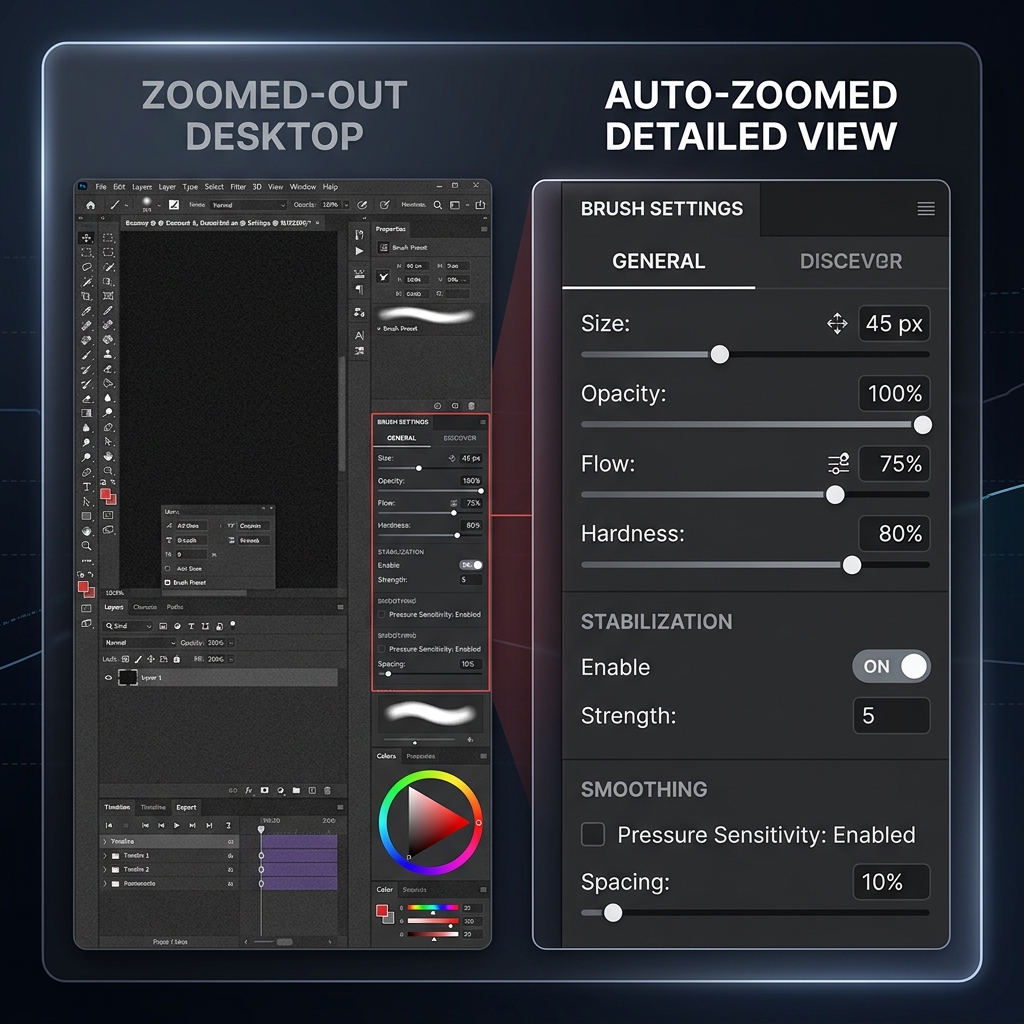
Think about the last time you watched a bad video tutorial. What made it frustrating? Usually, it is because the screen is too zoomed out, the text is tiny, and the mouse pointer is flying around the screen so fast that you cannot see what the presenter is actually clicking.
If you just record your entire Mac screen and upload it, your audience will struggle to follow along, especially if they are watching on a mobile phone. Standard recordings capture the screen, but they fail to capture the viewer's attention.
The Ultimate Alternative for Flawless Videos
If you are looking for an alternative to QuickTime, why stop at the basic built-in tools? If your true goal is to create human-friendly content that provides real-life solutions, you need a tool that handles the visual presentation for you.
Doing this manually requires downloading heavy video editing software to zoom in on clicks and fix mouse movements. Instead, you can use a solution that edits the video intelligently while you are recording it.
This is exactly what Cubix Capture is designed to do. It is the perfect, modern alternative for anyone who wants to record their screen and look like a professional without doing any extra work.
Here is how it upgrades your screen recordings instantly:
- Auto-Zoom: You never have to worry about tiny text again. The software intelligently tracks your actions and automatically zooms in on exactly what you are doing, ensuring the viewer never misses a single detail.
- Smooth Cursor: It actively removes the jittery, nervous movements of your trackpad. Your mouse pointer becomes a calm, smooth guide that directs the viewer’s eyes perfectly.
- Live Backgrounds: If you want to include your webcam to add a human touch to your video, it automatically masks out your messy room and applies a clean, distraction-free background.
Finding a way to screen record on Mac without QuickTime is the first step toward better content. By moving past outdated tools and choosing software that automatically provides visual clarity, you ensure that every tutorial, presentation, and guide you create is truly useful, highly engaging, and easy to understand.
Related reading:
- How to Screen Record on Mac with Audio
- How to Record Screen on Mac with Internal Audio
- Screen Recorder for Mac: Built-in vs Third Party
Don’t miss the next one.
Join our newsletter for exclusive tips, product updates, and the latest from the Cubix team.