
Have you ever been browsing on your iPhone, found a perfect link or a long tracking number, and thought, "I really need this on my computer to finish what I am doing"?
Most people solve this problem the slow way. They open their email, paste the link, send an email to themselves, open their Mac, check their inbox, and finally copy the link again. It is a very tedious process that breaks your concentration.
You actually do not need to do this. Apple has built a way to share your clipboard seamlessly between your Mac and your iPhone. You just need to know how to turn it on and how to protect the things you share.
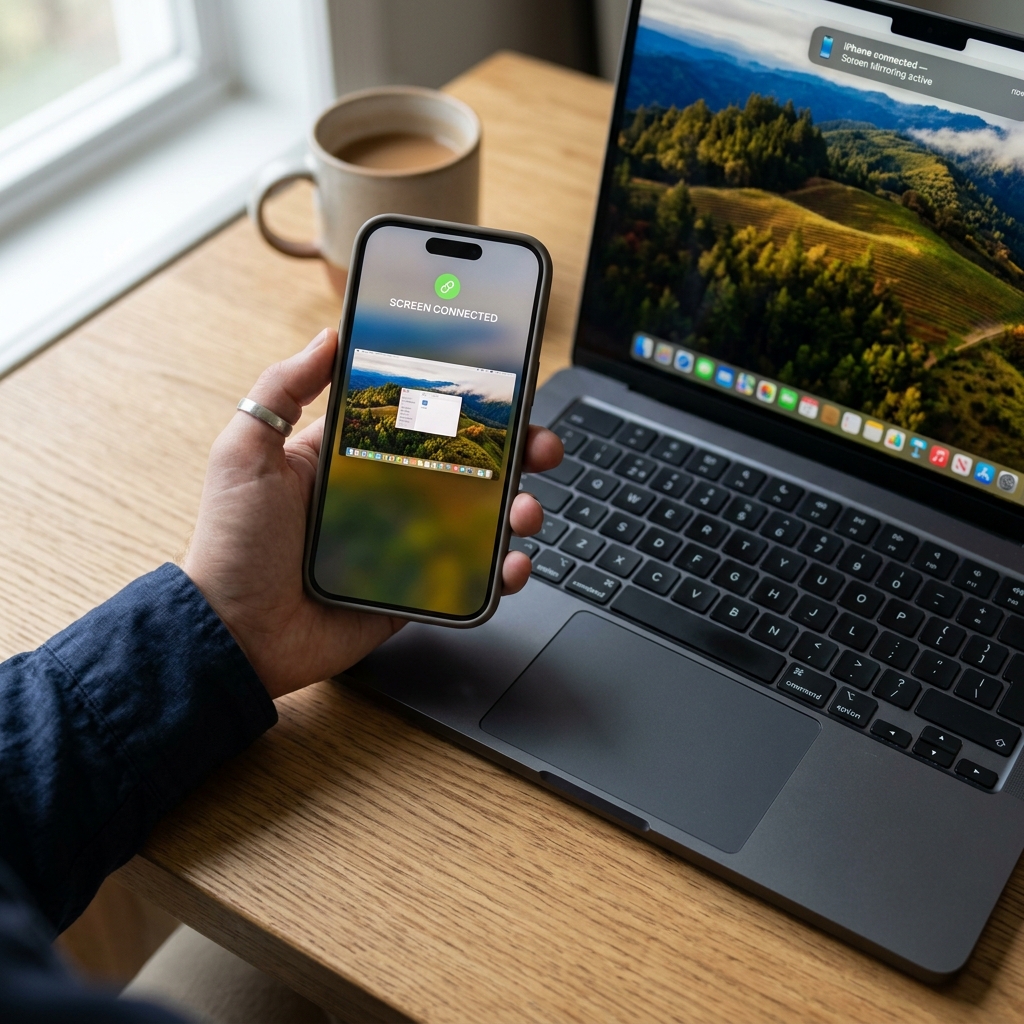
The Magic of Apple's Universal Clipboard
Apple has a built-in feature called Universal Clipboard. When it is turned on, your iPhone and your Mac share the exact same copy-and-paste memory. If you copy a sentence on your phone, you can walk over to your Mac and hit "Paste," and the sentence will appear on your computer screen.
Here is exactly how to make sure this feature is working:
- Use the Same Apple ID: Both your Mac and your iPhone must be signed into the exact same iCloud account.
- Turn on the Basics: Make sure both Wi-Fi and Bluetooth are turned on for both devices. They need to be somewhat close to each other to communicate.
- Enable Handoff on iPhone: Go to your iPhone Settings > General > AirPlay & Handoff, and make sure the "Handoff" switch is turned green.
- Enable Handoff on Mac: On your Mac, go to System Settings > General > AirDrop & Handoff, and turn on the option that says "Allow Handoff between this Mac and your iCloud devices."
Once this is set up, just copy a piece of text on your iPhone, open a document on your Mac, and press "Command + V" to paste. You might see a quick loading bar on your Mac screen, and then your text will appear!
The Big Flaw in the Apple System
While Universal Clipboard sounds like magic, it shares the exact same major flaw as the regular Mac clipboard: it only remembers one thing at a time.
Because your devices are now linked, they share the same one-item limit. If you copy a great quote on your iPhone, but then sit down at your Mac and accidentally copy a random word before you paste, your iPhone quote is instantly overwritten and deleted across both devices. You have to pick up your phone and start all over again.
The Recipe for a Foolproof Workflow
To truly make this cross-device sharing useful, you need a way to catch and save everything you send from your phone to your computer. Here is a simple recipe to create the perfect workflow:
- Link your devices: Follow the steps above to turn on Apple's Universal Clipboard.
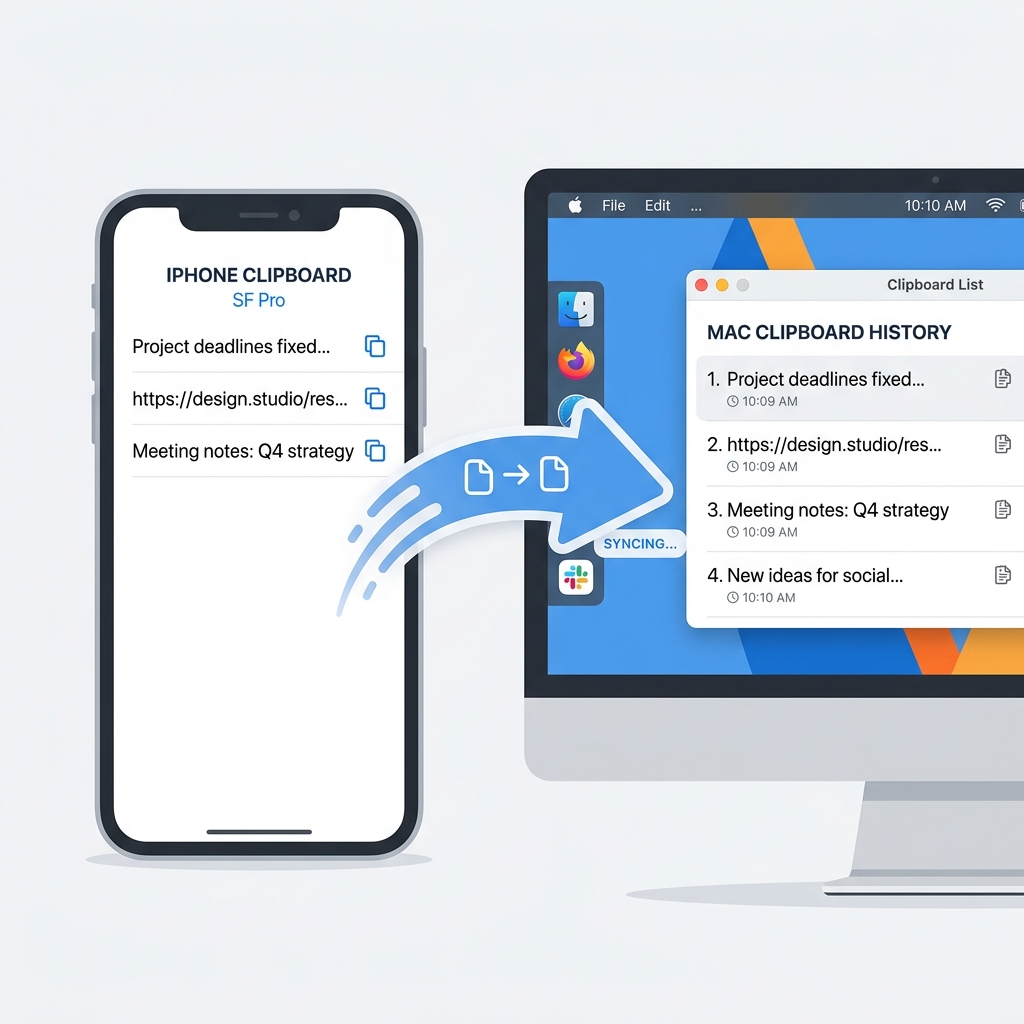
- Upgrade your Mac's memory: Add a tool to your Mac that automatically records every single thing that enters its clipboard.
- Copy freely from anywhere: Copy three links on your iPhone, or copy a paragraph on your Mac. Do not worry about the one-item limit anymore.
- Access your master list: Open your Mac and pull up a visual list of everything you have copied, no matter which device it originally came from.
Enjoying this read?
Get weekly insights on video editing, AI workflows, and creator growth straight to your inbox.
What to Do When Universal Clipboard Stops Working
Universal Clipboard is wonderfully simple when it works, but it can be temperamental. If you copy on your iPhone and nothing pastes on your Mac, run through this quick checklist:
- Confirm the same Apple ID. Both devices must be signed into the exact same iCloud account—not two separate accounts that merely share a family plan.
- Toggle Bluetooth and Wi-Fi off and on. Universal Clipboard rides on both, and a quick reset often wakes it back up.
- Keep the devices close. They communicate over short-range Bluetooth, so a phone left in another room may never connect.
- Update both operating systems. Handoff features tend to break when one device is running a much older version of iOS or macOS than the other.
Even when it works flawlessly, remember the one-item ceiling: anything you send over is fragile until you actually paste it. A clipboard history on your Mac quietly catches each item the moment it arrives, so a stray copy never erases the link you just sent from your phone.
The Free Tool to Perfect Your Setup
To make this recipe work, you need a dedicated history tool running on your computer. Cubix Clip is the absolute best way to solve the one-item limit.
It is a completely free clipboard manager for Mac. It runs silently in the background and remembers everything that enters your Mac's clipboard. Because your iPhone is sending its copied text directly to your Mac via Universal Clipboard, Cubix Clip acts as a safety net, securely saving the items you copy from your phone.
Instead of losing a link because you accidentally copied something else, you just press a simple keyboard shortcut on your Mac. Instantly, your complete copy history appears on your screen. You can clearly see the items you brought over from your iPhone, click them, and paste them securely without any panic or data loss.
If you want to seamlessly move information from your pocket to your desk without ever losing your copied text, you can download this free tool here: Cubix Clip - Free clipboard manager for Mac.
Final Thoughts
You no longer have to email links to yourself or re-type long passwords manually. By turning on Universal Clipboard and upgrading your Mac with a free memory manager, you create a perfectly smooth bridge between your Apple devices. Take a few minutes to set this up today, and you will save countless hours of frustration in the future!
📖 Keep reading: our guides on how to copy multiple things on Mac at once, where is the clipboard on Mac, and how to see clipboard history on Mac.
📖 Keep reading: your options for iCloud clipboard sync on Mac.
Don’t miss the next one.
Join our newsletter for exclusive tips, product updates, and the latest from the Cubix team.