
Starting a YouTube channel centered around tutorials and educational content is one of the most rewarding digital ventures you can launch. Unlike viral vloggers or comedy channels that rely on unpredictable algorithms, tutorial channels leverage a massive advantage: search intent.
Every single day, millions of people type queries starting with "How to..." directly into the search bar. If you can provide a clear, concise answer to their problem, YouTube will consistently serve your video to targeted viewers for years to come.
However, the educational landscape has grown highly competitive. Audiences have zero patience for muddy audio, messy desktops, or rambling introductions. To help you stand out from day one, here is the complete, master-class setup guide to launching a professional tutorial YouTube channel.
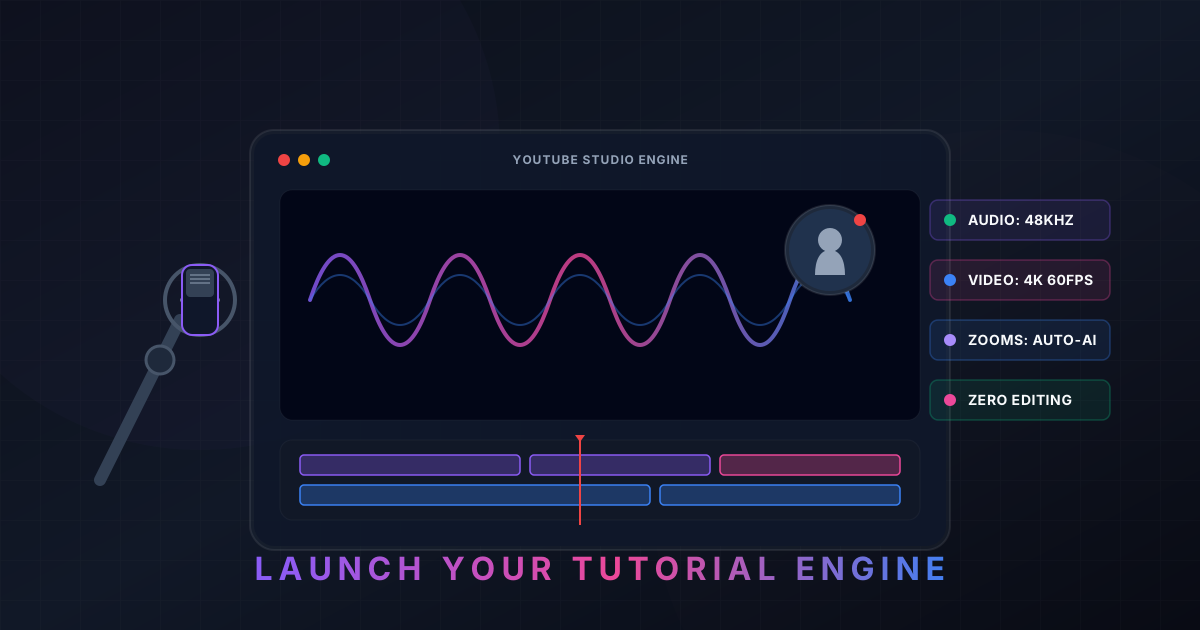
Step 1: Secure the Hardware Foundation
You don't need a Hollywood budget to compete on YouTube, but your production setup must meet a baseline standard. If your audio echoes or your facecam looks like a pixelated security feed, viewers will click away instantly.
Audio is 70% of the Video
People will watch a blurry video if the message is clear, but they will instantly abandon an elite 4K video if the audio has a loud room echo or background fan hiss.
- The Smart Choice: Avoid laptop microphones or wireless earbuds. Grab a dedicated USB microphone like the Shure MV7+ or Røde PodMic USB. These microphones clip right into your computer via USB-C and feature built-in digital signal processing (DSP) to isolate your voice and block ambient room noise automatically.
Clear Visual Staging
If you plan to show your face in the corner of your screen captures or during your intros, secure a clean feed.
- The Webcam Standard: A premium 4K webcam like the Insta360 Link 2 or Logitech MX Brio handles low-light situations beautifully.
- The Lighting Secret: Position a single diffused key light (or a large softbox) at a 45-degree angle in front of your face. Good lighting makes a cheap camera look expensive, while terrible lighting makes an expensive camera look muddy.
Step 2: Configure Your Channel Environment
Before uploading videos, you need to format your YouTube channel homepage so that casual viewers instantly understand why they should subscribe.
- The Channel Name: Keep it clean and discoverable. You can use your actual name (e.g., John Doe) or a niche-focused title (e.g., Figma Academy).
- The Channel Banner: Use a free graphic engine like Canva to build a simple banner. Include a 3-to-5 word tagline stating exactly what you teach and your upload schedule (e.g., "Weekly No-Code Software Tutorials").
- The About Section: Write a concise description loaded with searchable keywords related to your niche. If you teach Excel, include phrases like "Excel spreadsheets," "data analysis formulas," and "vlookup tutorials" naturally in your description.
Enjoying this read?
Get weekly insights on video editing, AI workflows, and creator growth straight to your inbox.
Step 3: Streamline Your Recording Workflow
The absolute biggest killer of new YouTube channels is burnout. Traditionally, recording a software tutorial meant capturing a flat, unedited monitor screen, dropping that massive file into a complex editing timeline, and spending your entire weekend manually slicing clips and adding zoom keyframes.
To maintain a consistent weekly upload schedule, you need a workflow that cuts out the friction. This is why modern educators have moved away from basic recording tools and upgraded to intelligent workflow engines like Cubix Capture.
Instead of acting like a passive camera that leaves all the work to you, Cubix Capture serves as an automated digital producer right while you talk, completely removing the traditional editing phase:
- Context-Aware Auto-Zoom: Because more than half of YouTube's traffic happens on mobile devices, recording a full, unedited desktop makes text look microscopic on smartphones. Cubix Capture tracks your active cursor paths. The moment you click an application menu, it smoothly glides and magnifies that region, ensuring your tutorial is automatically mobile-optimized.
- AI Pointer Stabilization: It intercepts naturally jittery or frantic physical mouse tracking and smooths it into an elegant, cinematic glide that anchors viewer attention.
- Instant Premium Staging: It automatically frames your isolated software windows against gorgeous canvas backdrops and drops your facecam into a clean floating geometric bubble with automatic background blurring.
Step 4: The Launch Strategy Blueprint
Once your hardware and software are locked in, follow this structured blueprint to script, film, and publish your debut video.
-
Find a High-Intent Keyword: Let search trends drive your topics. Do not guess what your first video should be. Type a broad topic into the YouTube search bar and see what auto-completes (e.g., "How to use Notion for..."). Look for highly specific problems that people are actively trying to solve.
-
Script a Hook-First Outline: Winging it leads to low viewer retention. Never start a tutorial with a 30-second animated intro or a long biography. Start immediately with the value hook: "In this video, you are going to learn exactly how to build an automated invoice tracker in Excel in less than five minutes." Follow this with a brief, tight script outlining your exact on-screen mouse steps.
-
Execute Slow Screen Choreography: Gives tracking software clean signals. When filming, move your mouse at half-speed. Hover over a drop-down menu for one full second before clicking, and hold it there for a moment after. This calm pacing keeps your viewers locked in and helps automated zoom frameworks track your inputs flawlessly.
-
Design a High-Contrast Thumbnail: The most important factor for clicks. Your thumbnail dictates whether anyone clicks your video. Keep it incredibly simple: use a high-resolution logo of the software you are teaching, a clean crop of your face showing an engaged expression, and a maximum of 3-4 words of bold text that complements but does not repeat your video title.
Summary
Building a successful tutorial YouTube channel is a marathon, not a sprint. By securing a high-quality USB microphone to protect your audio experience, optimizing your channel page for search indexing, and leveraging modern, automated recording platforms like Cubix Capture to handle the visual formatting and zooming heavy lifting, you can produce pristine, high-retention tutorials in a fraction of the time leaving you completely free to focus on what matters most: sharing your knowledge.
📖 Keep reading: The best screen recording setup for tutorial creators, how to record software tutorials that look cinematic, and the best screen recorder for YouTube tutorials.
Don’t miss the next one.
Join our newsletter for exclusive tips, product updates, and the latest from the Cubix team.