
Android's greatest strength is choice. You pick the brand, the screen size, the launcher, even how the buttons behave — and that same philosophy extends to something as simple as capturing your screen. Where an iPhone gives you exactly one button combo, Android gives you a handful, and the fastest one depends on whose phone you bought.
That flexibility is great once you know the options, and confusing the first time you switch brands. So here's the plan: learn the one combo that works on literally every Android phone, then layer on the quicker gesture your specific brand hides in its settings. (Bouncing between platforms? Our master guide to taking a screenshot on any device covers the lot.)
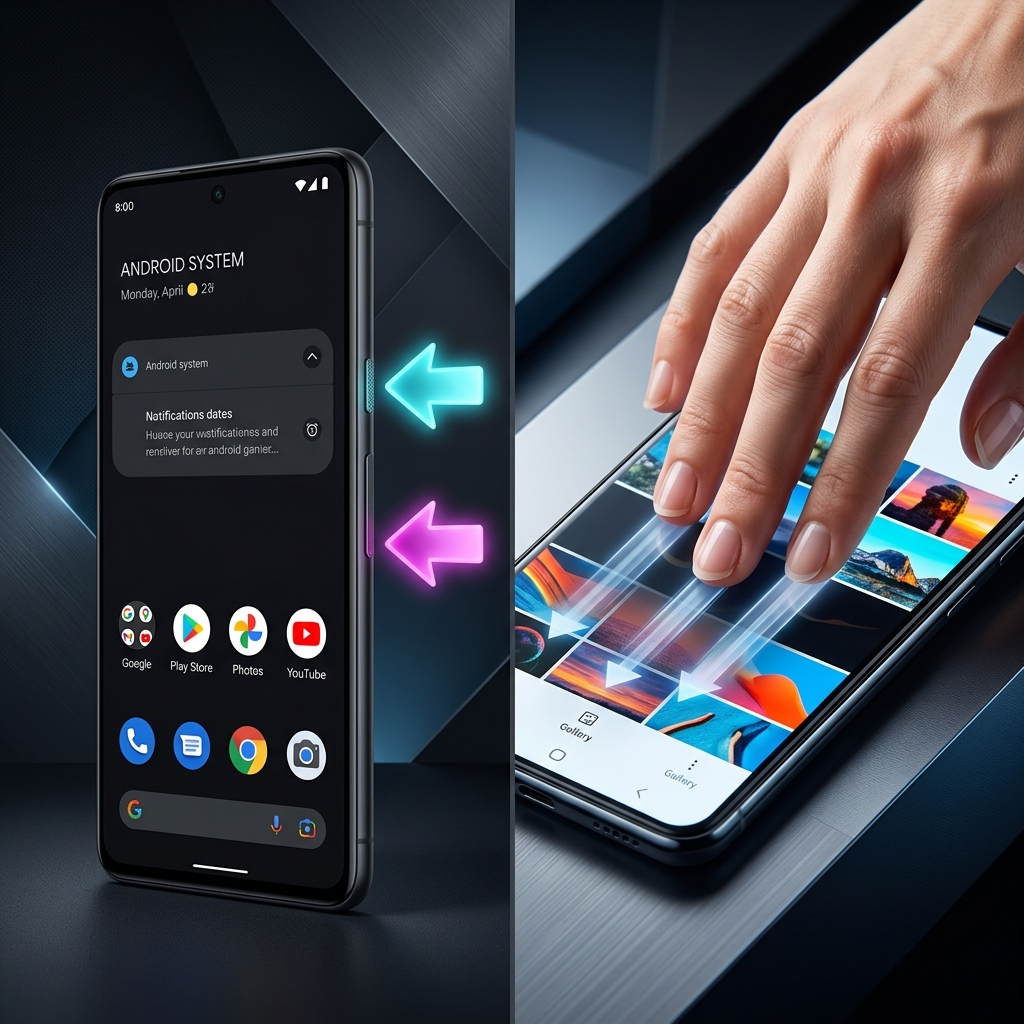
The One Combo That Always Works: Power + Volume Down
It doesn't matter if you're holding a Google Pixel, a Motorola, a Nothing Phone, or a budget device that shipped without a single fancy gesture — this hardware shortcut is baked into core Android, so it's the safe default on any phone you pick up.
- Press the Power button and the Volume Down button at the exact same time.
- Give them a quick, firm press and let go immediately — holding them down opens the power-off menu instead.
- The screen flashes and a small preview thumbnail drops into the bottom corner.
If the timing feels finicky, you're usually pressing one key a fraction before the other. Tap them as a single motion and it becomes reliable fast.
The Faster Way: Find Your Brand's Gesture
Once the combo is second nature, most people switch to a gesture because it's quicker and one-handed. Here's the shortcut each major brand uses:
- Google Pixel: no special gesture, but the button combo is rock-solid and a one-tap Capture more button enables scrolling shots.
- OnePlus, Xiaomi, Motorola, OPPO, realme: the three-finger swipe — place three fingers near the top of the screen and swipe straight down. Enable it under Settings → Gestures (search "three-finger screenshot") if it's off.
- Samsung Galaxy: the signature Palm Swipe gesture, plus Bixby voice and the S Pen's Smart Select. Samsung packs in so many extras that it gets its own walkthrough — see how to take a screenshot on a Samsung phone.
How the Three-Finger Swipe Works
- Place three fingers slightly apart near the top of the display.
- Swipe all three down together in one motion.
- The phone instantly captures the screen — no buttons, no fumbling.
Enjoying this read?
Get weekly insights on video editing, AI workflows, and creator growth straight to your inbox.
Hands-Free: Just Ask Google
Hands full, gloves on, or cooking? Skip the screen entirely:
- Say "Hey Google, take a screenshot."
- Google Assistant captures whatever's on screen and opens the share sheet so you can send it on by voice.
The Secret Weapon: Scrolling Screenshots
Saving a long recipe, a whole chat thread, or an entire article? Don't fire off six separate shots. Android can stitch a long page into one tall image:
- Take a normal screenshot with any method above.
- On the toolbar that pops up, tap Capture more (Pixel) or the scroll-down arrows icon (most brands).
- The page auto-scrolls and keeps capturing — tap again to extend, then save when you've grabbed everything.
Where Do Android Screenshots Save?
Your captures land in the Screenshots album inside the Gallery or Google Photos app (technically stored in the Pictures/Screenshots or DCIM/Screenshots folder). From the preview thumbnail you can instantly crop, mark up, or share before it ever clutters your gallery.
Upgrade Your Desktop Workflow
A screenshot on your phone is perfect for a meme or a quick visual note. But when you switch back to your desktop to build a software tutorial, record a bug report, or deliver a client presentation, static screenshots and messy red arrows aren't enough. (Coming from an iPhone, or juggling both? Here's the iPhone screenshot guide, and the difference between screen recording and screen capture.)
When you're ready to stop manually editing screen recordings and start instantly generating breathtaking, auto-zoomed, cinematic video walkthroughs — with no video timeline at all — explore Cubix Capture.
Don’t miss the next one.
Join our newsletter for exclusive tips, product updates, and the latest from the Cubix team.